En mis días de WP Adminify, llegó un ticket de soporte que decía simplemente: " Importación de configuraciones rota. Nada funciona." El usuario había editado manualmente un archivo de configuración exportado (una coma final en la línea 217 de un bloque JSON de 9.000 líneas) y mi importador respondió con el error menos útil del mundo ': La importación falló.
Escribí ese mensaje de error. Eso está en mí.
Nos tomó 40 minutos de ida y vuelta a los dos encontrar una coma que un formateador decente habría marcado en medio segundo. Ese boleto cambió la forma en que pienso sobre las herramientas JSON, y años después moldeó la forma en que construí el Formateador JSON en Toolz.dev: la ubicación del error no es agradable de tener. Es todo el producto.
Esta guía cubre cómo formatear JSON en línea, por qué falla el formato y las trampas de sintaxis que finalmente se comen a todos y la tarde número 39, incluida la mía.
TL;Dr: Para formatear JSON en línea, péguelo en una herramienta del lado del cliente como la Formateador JSON de Toolz.dev- se imprime bastante instantáneamente, señala errores de sintaxis con números de línea y nunca carga sus datos. Si falla el formato, es casi seguro que tenga una coma final, comillas simples o una clave sin comillas. Utilice sangría de 2 espacios a menos que su equipo diga lo contrario.
¿Qué hace realmente "formatear JSON"?
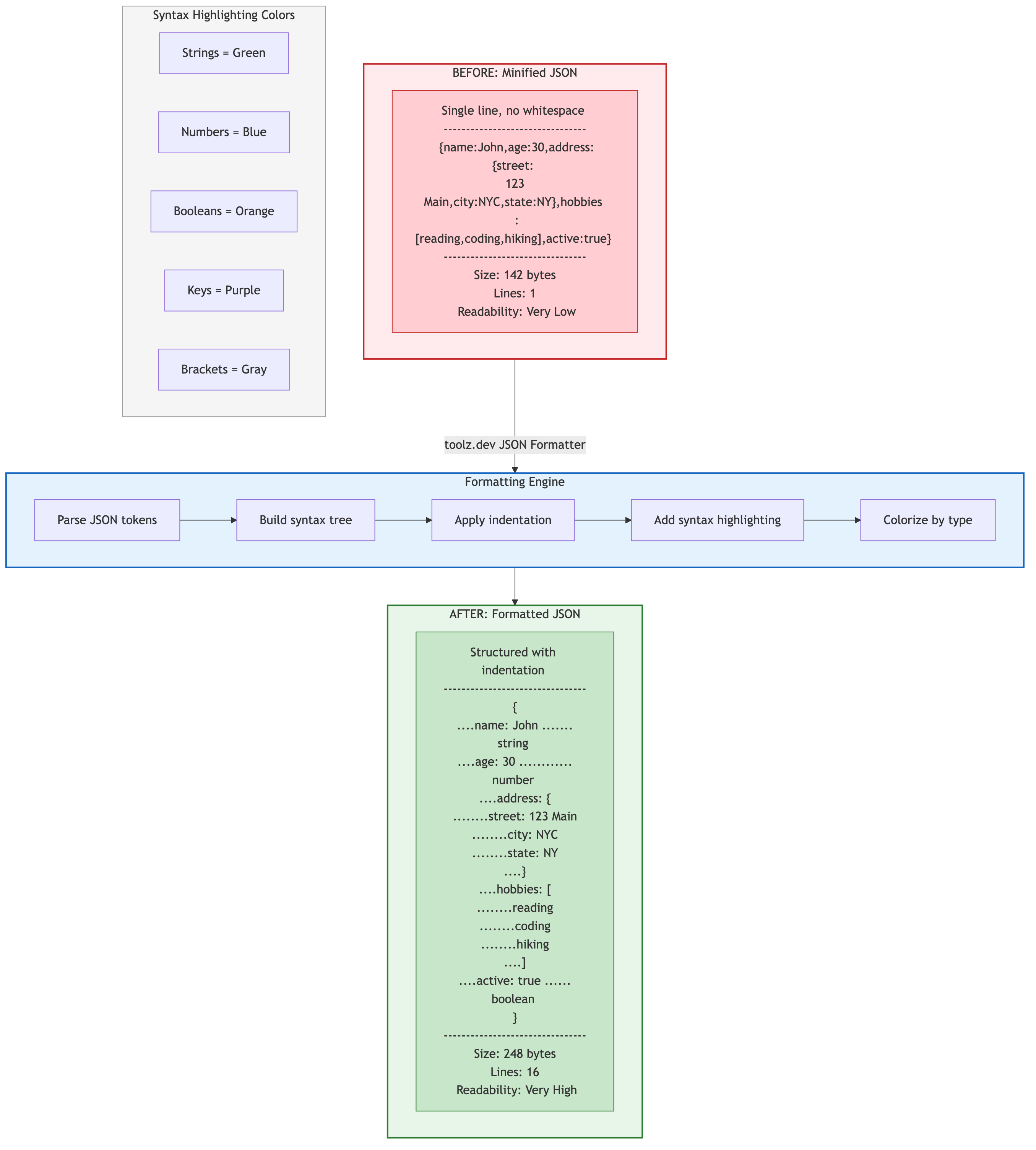
Formateo - impresión bonita, si usted & #39;se siente elegante - agrega sangría y saltos de línea para que la estructura se vuelva visible. Los datos no cambian ni un solo bit. It' es una transformación de presentación, nada más.
esto:
{"employees":[{"firstName":"John","lastName":"Doe","department":"Engineering","skills":["JavaScript","Python","Docker"]},{"firstName":"Jane","lastName":"Smith","department":"Design","skills":["Figma","CSS","Illustration"]}],"company":"Acme Corp","founded":2015}
se convierte en esto:
{
  "employees": [
    {
      "firstName": "John",
      "lastName": "Doe",
      "department": "Engineering",
      "skills": ["JavaScript", "Python", "Docker"]
    },
    {
      "firstName": "Jane",
      "lastName": "Smith",
      "department": "Design",
      "skills": ["Figma", "CSS", "Illustration"]
    }
  ],
  "company": "Acme Corp",
  "founded": 2015
}
datos idénticos. Pero solo uno de ellos te permite ver de un vistazo que Jane tiene un diseño.
Hay una ventaja que la mayoría de la gente no piensa: el formato también es una validación disfrazada. Un formateador tiene que analizar su documento para formatearlo, por lo que si el JSON está roto, un buen formateador le dice donde- que es la verdadera razón para usar uno en lugar de entrecerrar los ojos.
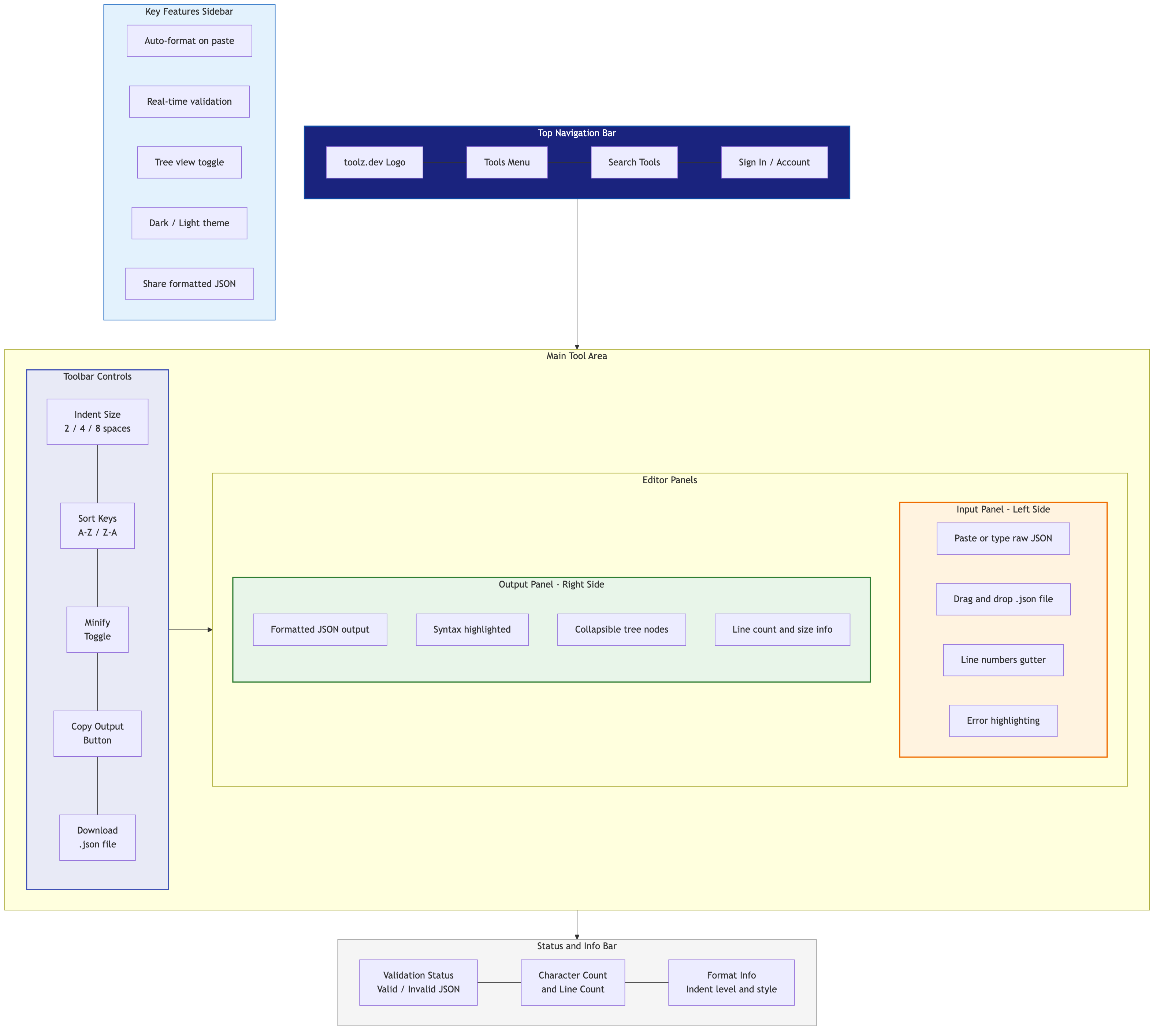
¿Cómo se formatea JSON en línea en la práctica?
Todo el flujo de trabajo es de unos quince segundos:
- Copiar el JSON desde donde viva - pestaña Red DevTools (haga clic derecho en una solicitud → Copiar respuesta),
curlsalida, un archivo de registro, un mensaje de holgura de un colega. - Abre el Formateador JSON. Sin registro, sin inicio de sesión. se carga y pegas.
- Lea la salida. JSON válido regresa sangrado y resaltado en sintaxis, con secciones plegables para documentos grandes. JSON no válido obtiene un error con un número de línea y una descripción en inglés simple.
- copiar o descargar. Un clic de cualquier manera.
Eso's it. La parte interesante es't el camino feliz - it's paso 3 cuando las cosas van mal. Así que deja que 's salga mal.
¿Por qué mi json no formatea?
Si un formateador rechaza su JSON, el documento viola la gramática en RFC 8259. En mi experiencia, tanto desde mi propia depuración como desde la creación de la herramienta, la gente pega su JSON roto en él ' casi siempre es una de cinco cosas.
1. comas de arrastre
{
  "name": "Alice",
  "age": 30,
}
SyntaxError: Unexpected token } in JSON at position 34
JavaScript permite esto. JSON nunca lo ha hecho. Elimine la coma después del último elemento en cada objeto y matriz:
{
  "name": "Alice",
  "age": 30
}
Esta es mi coma de ticket de apoyo. Respétalo.
2. Cotizaciones individuales
{ 'name': 'Alice' }
El clásico de Python Tell. str(my_dict) Produce pseudo-json de comillas simples; json.dumps(my_dict) produce lo real. Si usted 'Estás viendo citas individuales en algo que dice ser JSON, alguien imprimió un dict en lugar de serializarlo - I' lo has hecho, tú ' lo has hecho, nosotros ' Todo lo haré de nuevo.
{ "name": "Alice" }
3. barras invertidas sin escapar
{ "path": "C:\new\test" }
parece inofensivo. excepto \n es una nueva línea y \t es una pestaña, por lo que se analiza en una ruta con saltos de línea reales, o falla por completo en secuencias como \x. Las rutas de Windows son la víctima número uno:
{ "path": "C:\\new\\test" }
4. Corchetes no coincidentes
{
  "users": [
    {"name": "Alice"},
    {"name": "Bob"}
}
extraviado ]. Trivial aquí, brutal en una configuración anidada a seis niveles de profundidad. Esta es una categoría de error que los humanos son realmente malos para encontrar y los analizadores encuentran al instante: subcontratarlo.
5. Valores de JavaScript que no son JSON
{ "value": undefined, "count": NaN }
undefined, NaNy Infinity son javascript, no json. JSON.stringify Convierte en silencio NaN para null y gotas undefined propiedades en su totalidad, lo que significa que el error a menudo es 't en el JSON you'Estoy mirando, it's aguas arriba en lo que sea que lo haya producido. Usar null explícitamente y verifique su serializador.
los formateador Captura los cinco con el número de línea adjunto. Esa última frase es la razón por la que existe esta categoría de herramienta.
¿Deberías usar 2 espacios, 4 espacios o pestañas?
El eterno debate, edición JSON. Aquí está la comparación honesta:
| 2 espacios | 4 espacios | cortina a la italiana | |
|---|---|---|---|
| ecosistema | JavaScript/TipoScript, NPM, React | Python, Java, .NET | Vaya, algún código heredado |
| anidación profunda | se queda en pantalla | corre por el borde derecho | Depende del ancho de la pestaña |
| Legibilidad de la diferencia | amable | amable | Bueno hasta mezclado con espacios |
JSON.stringify Arg por defecto |
2 (por convención) |
4 |
"\t" |
| mi veredicto | Predeterminado para JSON | bien si su equipo es Python-First | no, para JSON específicamente |
Mi posición, y moriré en esta pequeña colina: 2 espacios para JSON, independientemente de lo que use su otro código. JSON anida más profundamente que el código fuente típico (las respuestas API de cuatro y cinco niveles de profundidad son normales) y la sangría de 4 espacios los convierte en ejercicios de desplazamiento horizontal. Incluso en equipos con muchos Python configuré JSON en 2 espacios y nadie se ha quejado dos veces.
Lo que elijas, codifica para que termine el debate:
# .editorconfig
[*.json]
indent_style = space
indent_size = 2
insert_final_newline = true
los formateador Admite ambos anchos, por lo que hacer coincidir la convención de su proyecto es un menú desplegable, no una discusión.
¿Qué pasa con el formato desde la línea de comandos?
A veces, la terminal está más cerca que una pestaña del navegador. Mi uso real:
# jq — the standard. Install it, learn 10% of it, profit.
curl -s https://api.example.com/users | jq .

# Python — already on basically every machine
curl -s https://api.example.com/users | python -m json.tool

# Node, if you enjoy typing
node -e "console.log(JSON.stringify(JSON.parse(require('fs').readFileSync(0,'utf8')),null,2))" < data.json
Donde cada uno gana, honestamente:
- JC para cualquier cosa escrita, repetida o canalizada, y para extraer campos (
jq '.data.users[].email') en lugar de leer documentos completos. - La herramienta del navegador Para únicos, para cualquier cosa que quieras sondar con secciones plegables y para mostrar a un compañero de equipo, puedes 't compartir pantalla una expresión jq con un gerente de proyecto.
- VS Código (
Shift+Alt+F) para archivos JSON que viven en el repositorio y están abiertos de todos modos.
Yo uso los tres diarios. Cualquiera que te diga uno reemplaza a los demás está vendiendo algo.
Un hábito que vale la pena robar: curl -s ... > response.json primero, luego formatee el archivo. Cuando la respuesta resulta ser una página de error HTML con un Content-Type: application/json disfraz: sucede más de lo que a cualquiera de nosotros nos gustaría: usted & 39; querrá los bytes originales, no su navegador & # 39;s interpretación de ellos.
Tres técnicas de formato que la mayoría de las personas se saltan
Ordenar las teclas alfabéticamente. Los diferentes serializadores emiten claves en diferentes órdenes, lo que hace que los diferenciales de los datos sean como reescrituras. Clasificar las teclas antes de diferenciar convierte una diferencia de 300 líneas en las 2 líneas que realmente cambiaron. Esto combina maravillosamente con el Herramienta de diferencia de texto al comparar las cargas útiles de puesta en escena con las de producción, un truco que me salvó personalmente durante al menos dos incidentes.
Mantenga las matrices cortas en línea. "colors": ["red", "green", "blue"] En una línea se lee mejor que cinco líneas de ceremonia. Los buenos formateadores hacen esto automáticamente para las matrices de primitivas; es la diferencia entre JSON formateado, puede hojear y formateado JSON que es técnicamente bonito pero de 4000 líneas de largo.
Formatee el fragmento, no el archivo. Para un documento de 15 MB cuando solo te importa un objeto: copia ese objeto anidado, formatea solo, listo. Formatear todo el archivo para que pueda leer 40 líneas es un esfuerzo desperdiciado, aunque si necesita todo, una herramienta del lado del cliente lo maneja sin una barra de progreso de carga, porque allí 's sin carga.
y saber cuando no Para formatear: JSON minificado en paquetes de producción y las respuestas de API deberían permanecer minimizadas. El formato es para ojos, no para cables. Si necesitas la dirección opuesta, la misma herramienta Minifis con un solo clic.
Preguntas frecuentes
¿Cómo formateo json en línea gratis?
Pegue su JSON en el Formateador JSON de Toolz.dev- formatea instantáneamente con resaltado de sintaxis y verificación de errores, gratis, sin registro. El procesamiento ocurre en su navegador, por lo que nada de lo que pegue se carga en ninguna parte. Esa última parte importa más que "free" parte si la carga útil contiene tokens o datos de usuario.
¿Por qué mi JSON no formatea correctamente?
El documento tiene un error de sintaxis y los principales sospechosos son comas finales, comillas simples, claves sin comillas, barras invertidas sin escape y corchetes que no coinciden. Un formateador que valide apuntará a la línea exacta. Si el error no tiene sentido, verifique si realmente tiene JSON: a las API les encanta devolver páginas de error HTML con un tipo de contenido JSON.
¿Cuál es la diferencia entre formatear y validar JSON?
El formato reescribe los espacios en blanco para garantizar su legibilidad; la validación verifica el documento con la gramática RFC 8259. En la práctica, ellos ' son la misma operación: un formateador debe analizar (validar) antes de poder reformatear. Eso 's por qué " ganó 't formato" y "it's inválido" son el mismo diagnóstico.
¿Debo usar 2 o 4 espacios para la sangría JSON?
Use 2 espacios a menos que su proyecto ya esté estandarizado en 4. JSON anida más profundamente que la mayoría del código fuente, y la sangría de 2 espacios mantiene las respuestas de API del mundo real que se pueden leer sin desplazamiento horizontal. Luego bloquee la elección en .editorconfig Por lo tanto, nunca vuelve a aparecer en la revisión del código.
¿Puedo formatear json en vs code sin una extensión?
Da - Shift+Alt+F (o Shift+Option+F en Mac) formatea cualquier archivo JSON con el formateador incorporado y el "formato en guardar" lo hace automático. Tenga en cuenta que VS Code's Own settings.json es JSONC, que permite comentarios - don' No dejes que eso te convenza de que JSON normal lo haga.
¿Es seguro pegar respuestas de API en formateadores JSON en línea?
Sólo en los del lado del cliente. Muchos sitios de formateado PUBLICAN su entrada en un servidor, lo que significa que su respuesta API (tokens, correos electrónicos, todo) ahora existe en alguien más & #39;s registros. El Formateador de Toolz.dev Se ejecuta completamente en su navegador; verifíquelo usted mismo viendo la pestaña de la red mientras pega.
¿Cómo formatear un archivo JSON enorme (10 MB+)?
Las herramientas del navegador del lado del cliente manejan archivos en este rango bien desde allí 's sin paso de carga - la pegada es la parte lenta. Más allá de 50 MB aproximadamente, cambie a herramientas de transmisión: jq En la línea de comandos, o extraiga solo la sección que necesita y formatee eso. Nunca pegue archivos enormes en herramientas basadas en servidor; está esperando una carga para ningún beneficio.
¿Cómo minimizo JSON en lugar de formatearlo?
Misma herramienta, botón opuesto: el Formateador JSON Tiene un modo de minify de un clic que elimina todos los espacios en blanco. Minify para cargas de producción, localStorage y log pipelines; formato para humanos. Los datos son idénticos en cualquier sentido.
¿El formato de JSON cambia los datos?
No, el formato solo reescribe los espacios en blanco, por lo que las claves, los valores y la estructura siguen siendo idénticos en significado. Un documento formateado y su versión minificada analizan exactamente el mismo objeto. Si sus datos realmente cambian, editó algo a mano en lugar de simplemente formatear.
¿Qué es un embellecedor JSON?
It' es otro nombre para un formateador JSON: una herramienta que toma JSON minificado o desordenado y agrega sangría y saltos de línea para que un humano pueda leerlo. "Beautificar, " "bonita impresión, " y "formato" todos describen la misma operación. El Formateador JSON Lo hace en una pasta.
El hábito de los quince segundos
Formatear JSON es una habilidad pequeña con rendimientos de gran tamaño: la mayoría " la API está rota" los momentos son realmente " la carga útil es ilegible" momentos, y esos se disuelven en el momento en que la estructura se vuelve visible. Haga que el bucle pegar-formato-lectura se reduzca a quince segundos y toda una categoría de fricción de depuración desaparezca.
los Formateador JSON en Toolz.dev Es la versión de esta herramienta que quería durante ese ticket de soporte: instantáneo, preciso sobre errores, e incapaz de filtrar sus datos porque nunca los recibe.
Una vez que su JSON esté limpio, el siguiente paso suele ser moverlo a algún lugar: a una hoja de cálculo con Convertidor JSON a CSV, de una con la de uno con el Convertidor de CSV a JSON, o en una canalización de configuración a través de la Validador YAM. Comience con el Guía de JSON a CSV o vuelva a subir a la Guía completa de herramientas JSON para el mapa completo.
Artículos relacionados: