comienzo
Es posible dividir en el navegador porque el PDF es un estándar abierto ISO 32000-2, y cada página es un objeto independiente que una biblioteca conforme puede copiar.
Trabajar con grandes documentos PDF es una realidad diaria para los profesionales de todas las industrias. Ya sea que sea un abogado que extrae páginas relevantes de un contrato prolongado, un estudiante que extrae capítulos de un libro de texto o el propietario de un negocio dividiendo facturas para contabilidad, la capacidad de dividir archivos PDF es esencial.
el problema? La mayoría de las herramientas de división de PDF cuestan dinero, requieren que cargue documentos confidenciales a servidores remotos o le obligan a instalar un software de escritorio voluminoso. Eso crea fricción innecesaria, riesgos de privacidad y tiempo perdido. Lo que necesita es una forma rápida, gratuita y segura de dividir archivos PDF directamente en su navegador.
Toolz.dev ofrece una Herramienta de división de PDF que procesa todo el lado del cliente. Sus documentos nunca abandonan su navegador, lo que significa que sus datos confidenciales permanecen confidenciales. En esta guía, lo guiaremos a través de todo lo que necesita saber sobre la división de PDF en línea, desde la extracción básica de páginas hasta las estrategias de división avanzada para documentos grandes.
Por qué es posible que necesite dividir un PDF
Límites de tamaño del archivo adjunto de
La mayoría de los proveedores de correo electrónico imponen límites de tamaño de los archivos adjuntos. Los archivos adjuntos de Gmail limitan a 25 MB, Outlook a 20 MB y muchos servidores de correo electrónico corporativos imponen límites aún más estrictos. Cuando tiene un informe PDF de 50 MB que debe salir, dividirlo en fragmentos más pequeños es la solución más rápida.
Extraer secciones relevantes
No todo el mundo necesita el documento completo. Si comparte un capítulo específico de un manual, una sección particular de una propuesta, o seleccione páginas de una cartera, dividir el PDF le permite compartir solo lo que importa.
Organización de documentos escaneados
Los escáneres a menudo crean un solo PDF a partir de un lote de documentos mixtos. Puede escanear una pila de recibos, formularios y cartas de una vez y terminar con un archivo masivo. La división le permite separar cada documento en su propio archivo.
Reducir el tamaño del archivo para la carga web
Los portales web, los formularios de aplicación y los sistemas de gestión de contenidos suelen tener restricciones de tamaño de archivo. Dividir un PDF grande en partes más pequeñas garantiza que puedas cargar lo que necesitas sin llegar a los límites.
Archivado y mantenimiento de registros
Para fines de cumplimiento y organización, es común dividir documentos grandes en secciones lógicas para el archivo. La división por capítulo, el intervalo de fechas o la categoría hace que la recuperación futura sea mucho más fácil.
Cómo dividir archivos PDF en Toolz.dev: paso a paso
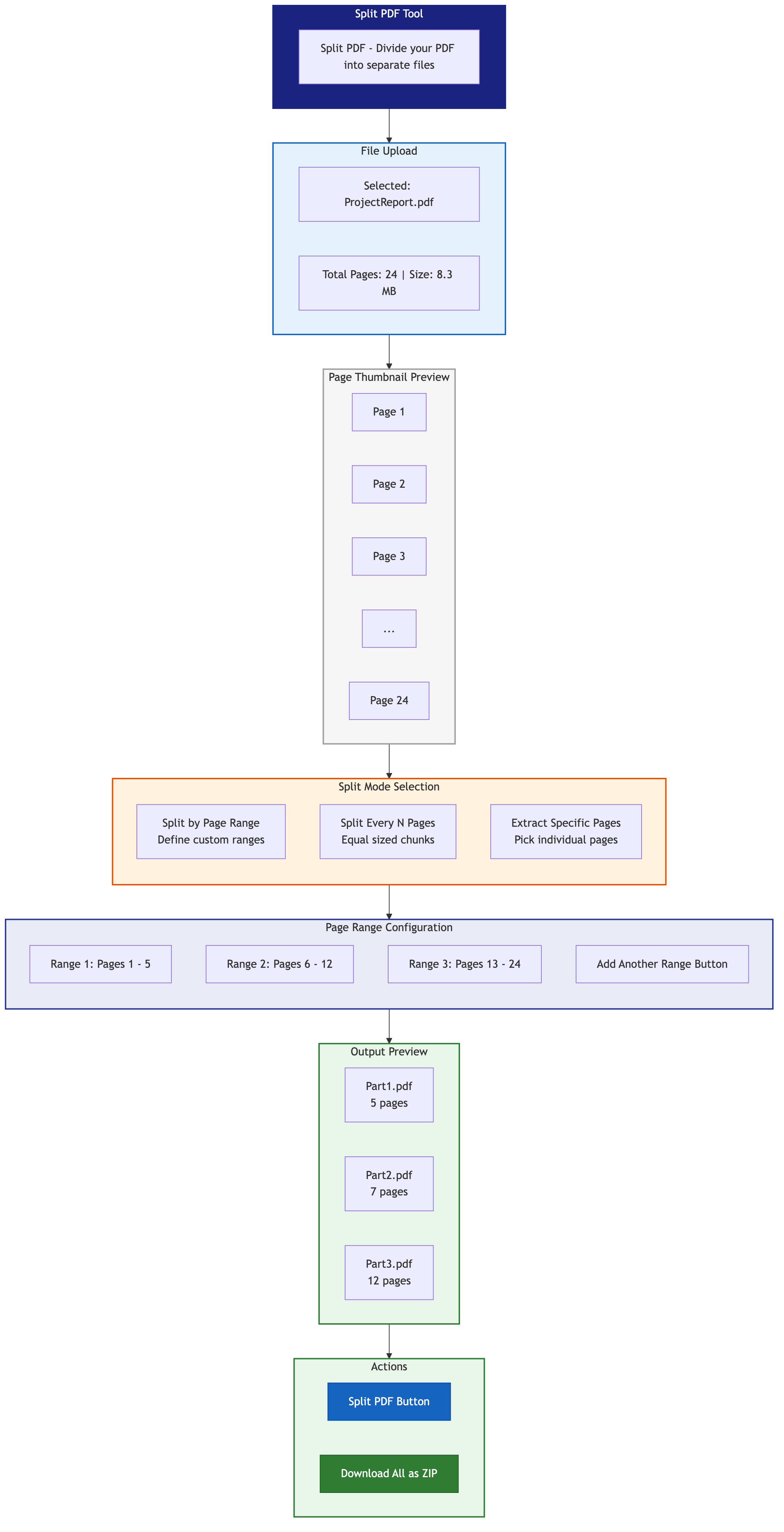
Paso 1: Abra la herramienta de división de PDF
Navegue a la Herramienta de PDF dividido en Toolz.dev. No se requiere creación de cuenta ni inicio de sesión.
Paso 2: Cargue su PDF
Haga clic en el área de carga o arrastre y suelte su archivo PDF en la herramienta. El archivo se carga directamente en su navegador. Debido a que Toolz.dev procesa todo el lado del cliente, su documento nunca se transmite a ningún servidor.
Paso 3: Elija su método de división
Tienes varias opciones según tus necesidades:
- Dividido por rango de página: Especifique las páginas de inicio y fin (por ejemplo, páginas 5-12) para extraer una sección específica.
- Extraer páginas individuales: Seleccione páginas no consecutivas específicas (por ejemplo, páginas 1, 4, 7, 15) para crear un nuevo documento a partir de páginas dispersas.
- Dividir en partes iguales: Divida un documento en secciones de un número determinado de páginas (por ejemplo, cada 10 páginas se convierte en un archivo separado).
- Dividir cada página: Cree archivos PDF individuales para cada página del documento.
Paso 4: Vista previa y confirmar
Revise sus selecciones para asegurarse de que está extrayendo exactamente lo que necesita. La herramienta proporciona una vista previa visual para que pueda verificar los números de página y el contenido antes de dividir.
Paso 5: Descarga tus archivos
Haga clic en el botón Dividir y descargue sus nuevos archivos PDF. Si se divide en varios archivos, se empaquetarán para facilitar su descarga.
Métodos divididos explicados
Dividido por rango de página
Este es el método más común. Especifica una página de inicio y una página final, y la herramienta crea un nuevo PDF que contiene solo esas páginas. Esto es ideal para extraer un solo capítulo, sección o informe de un documento más grande.
Ejemplo de caso de uso: Tiene un informe anual de 200 páginas y necesita compartir solo el resumen financiero en las páginas 45 a 62. Establezca el rango en 45-62 y descargue un PDF limpio de 18 páginas.
Extraer páginas específicas
A veces las páginas que necesitas no son consecutivas. Quizás necesite la portada, el resumen ejecutivo de la página 3 y el apéndice en la página 47. La extracción de páginas específicas le permite elegir páginas individuales en cualquier orden.
Ejemplo de caso de uso: Un reclutador necesita las páginas 1, 5 y 12 de la cartera de un candidato para compartir con el gerente de contratación.
Dividido en partes iguales
Cuando necesita dividir un documento grande en secciones uniformes, dividir en partes iguales automatiza el proceso. Especifique el número de páginas por fragmento y la herramienta maneja el resto.
Ejemplo de caso de uso: Tienes un manual de entrenamiento de 100 páginas y quieres distribuirlo como 10 módulos separados de 10 páginas cada uno.
Extraer cada página como un archivo separado
Para obtener la máxima granularidad, puede dividir cada página en su propio PDF. Esto es particularmente útil para procesar documentos escaneados donde cada página es un formulario o recibo diferente.
Ejemplo de caso de uso: Un contable escaneó 30 recibos en un solo PDF y necesita cada recibo como un archivo separado para el seguimiento de gastos.
Dividir PDFs grandes para el correo electrónico: una guía práctica
Enviar archivos PDF grandes por correo electrónico es una de las razones más comunes por las que las personas necesitan dividir archivos. Aquí hay un enfoque estratégico:
Calcula tu tamaño objetivo
Primero, determine el límite de archivos adjuntos de su proveedor de correo electrónico:
- Gmail: 25 Mb
- Outlook/Oficina 365: 20 MB
- Correo de Yahoo: 25 Mb
- Correo electrónico corporativo: A menudo 10-15 MB
Deja algo de espacio para la cabeza. Si su límite es de 25 MB, busque fragmentos de 20 MB o menos para tener en cuenta la sobrecarga de codificación de correo electrónico, lo que puede aumentar el tamaño del archivo en aproximadamente un 33%.
Estimar páginas por fragmento
Una página típica de PDF basada en texto es de 50-100 KB. Una página con imágenes puede ser de 500 KB a 2 MB o más. Verifique el tamaño total de su archivo y el número de páginas para estimar cuántas páginas caben dentro de su tamaño de fragmento de destino.
Fórmula: Tamaño de fragmento de destino / (Tamaño total del archivo / Páginas totales) = páginas por fragmento
Ejemplo: Un archivo de 60 MB con 120 páginas tiene un promedio de 500 KB por página. Para un objetivo de 20 MB: 20 MB / 0.5 MB = 40 páginas por fragmento. Divida el documento en tres archivos de 40 páginas cada uno.
Nombra lógicamente tus archivos
Al dividir el correo electrónico, utilice convenciones de nomenclatura claras para que los destinatarios puedan volver a ensamblar el documento:
ProjectProposal_Part1of3_Pages1-40.pdfProjectProposal_Part2of3_Pages41-80.pdfProjectProposal_Part3of3_Pages81-120.pdf
Consejos de expertos para la división de PDF
Consejo 1: Siempre verifique los números de página antes de dividir
Los espectadores de PDF a veces numeran las páginas de manera diferente a la numeración interna del documento. Un documento puede comenzar a numerar desde la tercera página física (después de una portada y una tabla de contenido). Siempre desplácese por el PDF para confirmar que está seleccionando las páginas físicas correctas.
Consejo 2: use Split y Fusionar
A veces necesita crear un nuevo documento a partir de secciones no consecutivas. Divida el original en las secciones que necesita, luego use un Herramienta de combinación de PDF para combinarlos en un solo archivo en el orden deseado.
Consejo 3: Considere la tabla de contenido
Al dividir un documento que tiene una tabla de contenido en la que se puede hacer clic, tenga en cuenta que los enlaces internos pueden romperse después de dividirse. Si la sección extraída se compartirá de forma independiente, considere agregar una nueva portada o encabezado para el contexto.
Consejo 4: Busque campos de formulario y anotaciones
Si su PDF contiene campos o anotaciones de formulario rellenable, verifique que se conserven después de dividir. Las herramientas del lado del cliente como Toolz.dev mantienen la integridad de los campos de formulario dentro de las páginas extraídas.
Consejo 5: Proceso por lotes cuando sea posible
Si divide regularmente el mismo tipo de documento (como los informes mensuales), establezca un patrón de división consistente. Conocer su página de rango anticipado ahorra tiempo en tareas recurrentes.
Consejo 6: Priorice la privacidad de los documentos confidenciales
Los contratos legales, registros médicos, estados financieros y documentos de recursos humanos nunca deben cargarse en servidores de terceros. los Herramienta de división de PDF de Toolz.dev Procesa todo en tu navegador, lo que lo convierte en la opción más segura para archivos confidenciales.
Escenarios comunes de división de PDF
Escenario 1: Preparación de documentos legales
Los abogados con frecuencia necesitan extraer cláusulas, exhibiciones o secciones específicas de contratos extensos. La división les permite compartir solo porciones relevantes con los clientes o los abogados contrarios sin exponer el documento completo.
Escenario 2: Investigación académica
Los investigadores a menudo trabajan con compilaciones masivas de PDF de artículos de revistas. La división les permite extraer artículos individuales de un volumen de actas de conferencias o extraer capítulos específicos de un libro electrónico.
Escenario 3: Transacciones de Bienes Raíces
Los cierres de bienes raíces implican paquetes de documentos que pueden superar las 100 páginas. Los agentes dividen estos paquetes para enviar documentos individuales (escritura, informe de inspección, formularios de divulgación) a diferentes partes.
Escenario 4: Colateral de Marketing y Ventas
Los equipos de marketing dividieron catálogos de productos completos para crear mini-catálogos específicos para segmentos de clientes específicos o ferias comerciales.
Preguntas frecuentes
¿Cómo divido un PDF en páginas separadas?
Abre el Herramienta de PDF dividido, cargue su archivo y elija la "cada página como un método de archivo separado". Un documento de 40 páginas se convierte en 40 PDF de una sola página, entregados como una sola descarga de zip. Si solo desea que algunas de las páginas se dividan, use un rango de página o una lista separada por comas en lugar de dividir todo el archivo.
¿Cómo divido un pdf gratis sin Adobe Acrobat?
No necesita Acrobat, y no necesita instalar nada. Un divisor basado en navegador hace la misma extracción de página usando JavaScript en su propia máquina, sin marca de agua ni límite de página. La ventaja de Acrobat es la automatización masiva y el trabajo previo al vuelo, no el split en sí, que es una operación estructural en el árbol de páginas de PDF.
¿Son seguros mis datos PDF cuando divido archivos en línea?
Absolutamente. Toolz.dev procesa todos los archivos completamente dentro de su navegador web utilizando JavaScript del lado del cliente. Su PDF nunca sale de su computadora y nunca se carga en ningún servidor. Esto lo convierte en una de las opciones de división de PDF más privadas disponibles.
¿Puedo dividir un PDF protegido con contraseña?
Si el PDF se cifra con una contraseña que impide la edición, primero deberá desbloquearlo antes de dividirlo. Si conoce la contraseña, puede usarla para abrir el archivo y luego proceder con la división.
¿Cuál es el tamaño máximo de archivo que puedo dividir?
Dado que el procesamiento ocurre en su navegador, el límite práctico depende de la memoria disponible de su computadora. La mayoría de las computadoras modernas pueden manejar archivos PDF de hasta varios cientos de megabytes sin problemas. Para archivos extremadamente grandes (500 MB+), considere dividir la tarea en lotes más pequeños.
¿Puedo dividir un PDF escaneado (pdf basado en imágenes)?
Sí. La herramienta de división funciona con todos los tipos de PDF, incluidos los documentos escaneados. Se divide según la estructura de la página, por lo que no importa si el contenido está basado en texto o en imágenes.
¿Dividir un PDF reducirá el tamaño del archivo?
Sí, proporcionalmente. Si extrae 10 páginas de un documento de 100 páginas, el archivo resultante será aproximadamente una décima parte del tamaño del original, suponiendo que las páginas tengan una densidad de contenido similar.
¿Puedo extraer páginas y reorganizar su pedido?
La herramienta de división extrae páginas en su orden original. Si necesita reorganizar las páginas, primero extraiga las páginas que necesita y luego use el Extraer la herramienta de páginas PDF para reordenar según sea necesario.
¿Puedo dividir un PDF en mi teléfono?
Sí. La herramienta se ejecuta en un navegador móvil exactamente como lo hace en el escritorio, por lo que iPhone y Android funcionan sin instalar la aplicación. La única diferencia práctica es la memoria: un teléfono tiene mucho menos que una computadora portátil, por lo que un escaneo de varios cientos de megabytes puede detenerse donde un informe de 20 páginas se divide al instante.
idea de narración
Dividir archivos PDF no tiene por qué ser complicado, costoso o arriesgado. Ya sea que esté extrayendo algunas páginas de un informe, dividiendo un documento grande para el correo electrónico u organizando archivos escaneados, la herramienta adecuada hace que el proceso sea fácil.
Toolz.dev le brinda una forma rápida, gratuita y completamente privada de dividir archivos PDF directamente en su navegador. Sin cargas, sin suscripciones, sin limitaciones.
¿Listo para dividir tu próximo PDF? Prueba el Herramienta de PDF dividido o explorar el Extraer la herramienta de páginas PDF en Toolz.dev hoy. Sus documentos siguen siendo suyos, siempre.