L'email che mi ha finalmente fatto costruire un compressore diceva, per intero: & quot; Attachment too large - message not delivered.& quot; I' d ha passato una serata assemblando una proposta di 38 pagine con foto di prodotti incorporati, l'ha esportata a 51 MB e ha provato a inviarla a un client il cui server di posta ha limitato gli allegati a 20 MB. è rimbalzato due volte prima ancora di accorgermene.
Ho fatto quello che fanno tutti: cercare su Google & quot; comprimi PDF gratuitamente e quot; ho scelto un risultato e ho caricato un documento pieno di prezzi inediti su un server in un paese che potevo e n. 39; t nome. È tornato a 6 MB e sembrava a posto. E mi sono seduto lì realizzando I' avevo appena consegnato una proposta riservata a uno sconosciuto ''s cartella temporanea per risparmiare quattro minuti.
questo è il prurito dietro il Comprimi PDF strumento su Toolz.dev e dietro questa guida La compressione è & #39; t magia ed è & #39; t lossless-by-default - ma se capisci cosa & #39; sta effettivamente rendendo il tuo file grande, puoi tagliarlo della metà o più senza che nessuno possa dirlo. Qui's come funziona, quale impostazione raggiungere e gli errori specifici che trasformano un documento pulito in uno sfocato.
tl; dr: inaugurare Toolz.dev/tools/compress-pdfrilascia PDF, scegli un livello di compressione e scarica Funziona al 100% nel tuo browser: il file non viene mai caricato Per la condivisione quotidiana, la compressione del mezzo riduce il 40% senza perdita visibile perché il testo si comprime senza perdite; solo le immagini subiscono il colpo Prima di comprimere, taglia il peso morto con Elimina le pagine PDF; Se stai combinando file, fondere prima e comprimi il risultato una volta.
Perché i file PDF diventano così grandi in primo luogo?
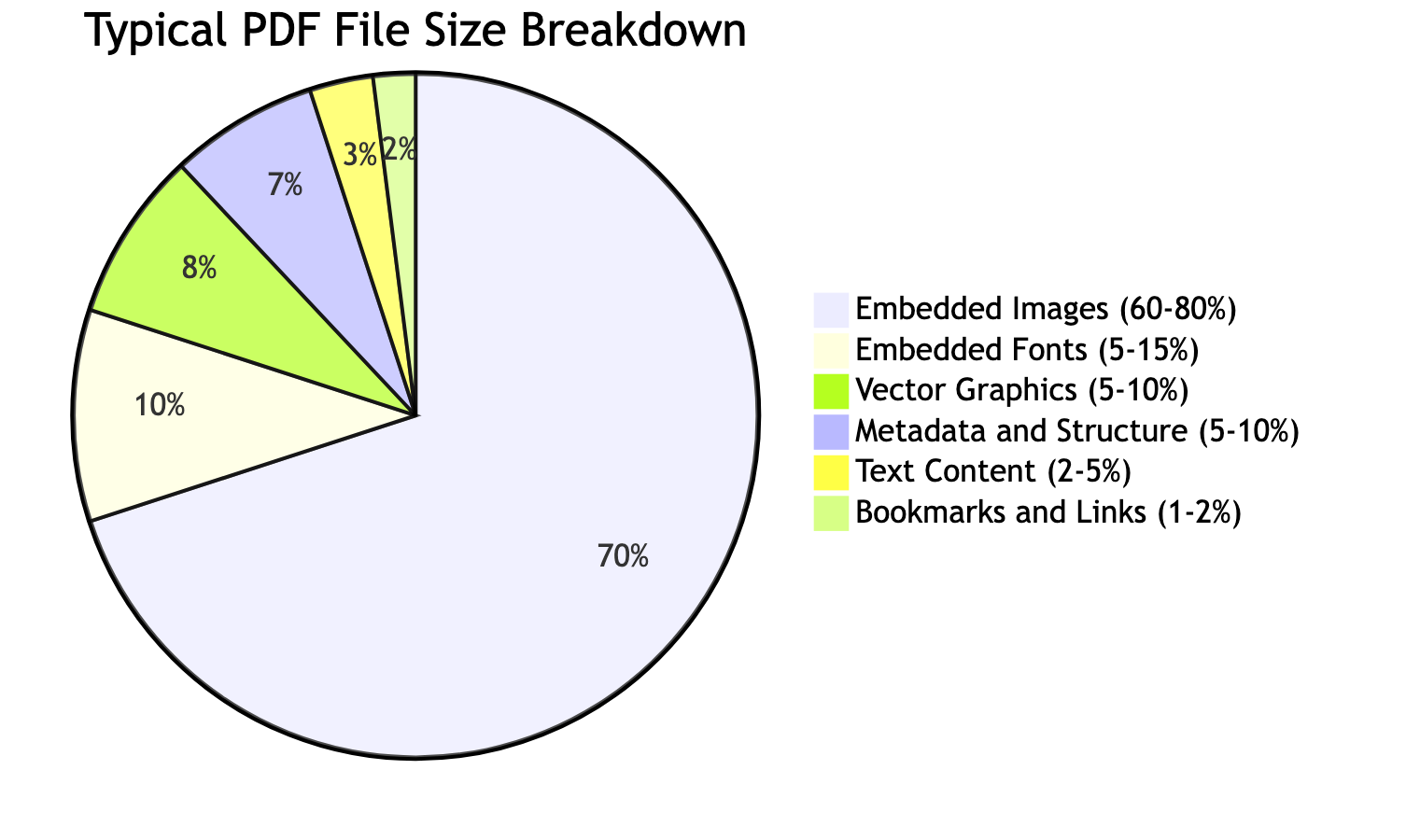
Puoi't comprimere in modo intelligente finché non sai cosa's occupa lo spazio Il contenitore è specificato in ISO 32000-2, che definisce i filtri del flusso - FlateDecode per la maggior parte degli oggetti, DCTDecode per le immagini JPEG - che decidono cosa può e non può fare qualsiasi compressore Nella mia esperienza, quattro cose rappresentano quasi ogni PDF di grandi dimensioni, e rispondono alla compressione in modo molto diverso.
Le immagini sono il reo numero uno, con un ampio margine Una singola foto ad alta risoluzione può aggiungere 5-15 MB, e un documento costruito da molti di essi - un catalogo, un portafoglio, un elenco immobiliare - può gonfiarsi fino a raggiungere le centinaia di megabyte I due quadranti che contano qui sono risoluzione e formato Una scansione a 600 DPI contiene quattro volte i dati dei pixel di una scansione a 300 DPI della stessa pagina e la maggior parte di questi pixel sono invisibili su uno schermo Un'immagine memorizzata non compressa all'interno del PDF è notevolmente più grande della stessa immagine memorizzata come JPEG.
I font incorporati sono quelli subdoli Un PDF può trasportare intere famiglie di font in modo da eseguire il rendering in modo identico su qualsiasi dispositivo e ogni faccia può essere eseguita da 100 KB a diversi megabyte Un documento che incorpora otto font pieni può trasportare 1020 MB di nient'altro che dati gliph - prima di una singola parola di contenuto effettivo.
Gli oggetti ridondanti si accumulano in file che sono stati uniti o modificati molte volte: copie duplicate dello stesso logo, strutture di dati orfane, caratteri inutilizzati, bloat di metadati. Nessuno di essi mostra sulla pagina, tutto conta per la dimensione.
E livelli e annotazioni - commenti, evidenziazioni, campi modulo, livelli di progettazione - aggiungono dati di cui la maggior parte dei destinatari non ha mai bisogno.
La compressione di un PDF rovina effettivamente la qualità?
Questa è la paura che fa sì che le persone vengano caricate su siti imprecisi alla massima qualità "solo per essere sicuri", quindi vale la pena rispondere chiaramente: dipende interamente da che cosa si comprime e le due metà del tuo documento si comportano in modo opposto.
Comprimere testo e grafica vettoriale senza perdite. Il testo in un PDF viene memorizzato come glifi dei caratteri e posizioni dei caratteri - istruzioni, non pixel - e gli algoritmi che li restringono (Flate/Deflate, la stessa matematica all'interno di un file ZIP; sottoimpostazione dei caratteri; deduplicazione degli oggetti) non buttano via nulla I tuoi paragrafi rimangono affilati come un rasoio a qualsiasi zoom, a qualsiasi livello di compressione Questa è la parte che le persone fanno' t credono fino a quando non lo vedono.
Le immagini sono la parte che può degradarsi, perché è lì che la compressione con perdita di dati guadagna il suo risparmio sulle dimensioni dei file. La ricompressione JPEG scarta il dettaglio del colore ad alta frequenza L'occhio si registra a malapena; il downsampling fa cadere un'immagine a 600 dpi a 150 dpi quando viene visualizzata solo su uno schermo che non può mostrare la differenza. A impostazioni sensate, niente di tutto questo è visibile. Spingilo troppo oltre e otterrai blocchi in aree lisce e poltiglia con trame fini.
Quindi il riassunto onesto: il tuo testo non è mai a rischio, e le tue immagini sono a rischio solo se le sovra-comprimi Un buon compressore fa diverse cose contemporaneamente - ricomprime le immagini, sottocampiona quelle che superano la risoluzione di cui hai effettivamente bisogno, sottoimposta i caratteri solo ai caratteri utilizzati, rimuove gli oggetti duplicati e applica una compressione senza perdita di dati a tutto ciò che è strutturale.
Come si comprime un PDF online, passo dopo passo?
I meccanici sono la parte facile. Ecco il flusso sul Comprimi PDF strumento, con i controlli che contano.
Passo 1 - Aprire lo strumento. ricorrere Toolz.dev/tools/compress-pdf. Nessuna registrazione, nessuna installazione, funziona in nessun browser moderno.
Passo 2 - Aggiungi il tuo PDF. Trascinalo nella zona di rilascio o fai clic per navigare. Lo strumento legge le dimensioni originali in modo da avere una linea di base con cui confrontare.
Passaggio 3: scegli un livello di compressione. Questa è l'unica vera decisione. I tre preset mappano in modo pulito su Intent:
| a livello | Riduzione tipica | Sembra migliore per | stare attento |
|---|---|---|---|
| Basso (alta qualità) | 20–40% | Documenti intesi per la stampa professionale | Riduce a malapena i file di luce dell'immagine |
| Medio (bilanciato) | 40–60% | Email, visualizzazione web, condivisione quotidiana | l'impostazione predefinita giusta per quasi tutti |
| Alto (massimo) | 60–80%+ | Archiviazione e rigorosa upload | Artefatti visibili se si ingrandisce forte |
Passaggio 4: comprimere. Fare clic sul pulsante L'elaborazione avviene localmente nella scheda: nessun caricamento, nessuna coda, nessuna attesa su un trasferimento di rete I file più grandi richiedono alcuni secondi perché la tua macchina sta facendo il lavoro.
Passo 5 - Controlla il risultato, onestamente. Lo strumento mostra la dimensione originale rispetto a quella compressa e la percentuale di riduzione. Apri l'output e guardalo Alla taglia lo userai effettivamente - 100% su schermo, o stampato a dimensioni reali Confermare che il testo è nitido (sarà), le immagini sono accettabili e grafici e colori sono sopravvissuti.
Passo 6 - Scaricare, o fare un passo indietro. Felice? Scarica. Troppo morbido? con riferimento a -corri a un livello inferiore. Perché niente caricato, l'iterazione ti costa secondi, non un'altra scommessa sulla privacy.

Quanto puoi effettivamente comprimere un PDF?
"Quanto diventerà piccolo non ha una risposta unica, perché dipende da cosa c'è dentro. Ecco cosa mi aspetto per tipo di documento, che ti aiuta a prevedere se la compressione risolverà anche il tuo problema.
Documenti pesanti di testo - rapporti, documenti, manuali - comprimere il il minimo, di solito 10–30%. C'è poco da spremere perché il testo è già compatto; i risparmi provengono dalla sottoinsieme dei caratteri e dalla pulizia strutturale. Se un documento di solo testo è ostinatamente grande, il peso è quasi certamente font incorporati, non contenuto e sottoinsieme è la tua leva.
Documenti ricchi di immagini - cataloghi, portafogli, brochure - comprimono il maggiormente, spesso del 50-80%, perché le immagini dominano le dimensioni e rispondono drammaticamente alla ricompressione e al downsampling. Se il documento viene visualizzato solo sullo schermo, l'eliminazione delle immagini a 150 dpi può dimezzare il file senza differenze percettibili.
Documenti scansionati - moduli scansionati, lettere firmate - atterrano al centro a 300%, e questa è la categoria in cui I	 sono stati masterizzati Una pagina scansionata è essenzialmente una grande immagine, quindi le sue dimensioni dipendono dalla risoluzione della scansione. Il che mi porta all'errore che vale la pena segnalare ad alta voce.
L'errore di scansione che ho fatto: una volta ho preso un contratto firmato da 600 DPI che era troppo grande per un portale, l'ho eseguito attraverso un'alta compressione aggressiva e l'ho spedito La firma è uscita con artefatti a blocchi visibili - leggibili, ma ovviamente degradati, su un documento legale La mossa migliore, se hai ancora la carta, è quella di Riscansiona a 300 dpi piuttosto che sovraccaricare una scansione a 600 dpi. Una scansione a risoluzione inferiore produce un minore e File più pulito che schiacciarne uno ad alta risoluzione, perché non stai impilando gli artefatti JPEG sopra il rumore di scansione.
Qual è l'ordine intelligente quando stai facendo di più che comprimere?
La compressione avviene raramente in isolamento: it' di solito è l'ultimo passo per preparare un documento da inviare. Alcune regole di sequenziamento salvano la vera rielaborazione.
comprimere dopo Fusione, non prima. Se stai combinando diversi PDF, fondere prima comprimono il singolo risultato. Un passaggio sull'intero documento è più efficiente che comprimere ciascun file sorgente e quindi unire insieme i pezzi già compressi ed evita di comprimere due volte qualsiasi cosa.
Taglia prima di comprimere. Le pagine dello scanner vuote, le copertine solo interne e le appendici che nessuno ha chiesto sono di peso puro. tirarli con Elimina le pagine PDF Innanzitutto, non stai spendendo sforzi di compressione su pagine che non dovrebbero essere affatto lì.
Conosci il tuo numero di destinazione prima di iniziare Controlla il limite effettivo che devi colpire - un limite di posta di 20 MB, un portale di 10 MB, un campo modulo di 5 MB - e scegli il livello che lo cancella al primo tentativo invece di indovinare e rieseguire.
E per il caso scomodo in cui diverse sezioni necessitano di qualità diversa - ad esempio, un corpo ricco di testo più un'appendice ricca di foto - puoi farlo fesso il file, comprimere ogni parte al proprio livello appropriato e fondere loro indietro. È uno sforzo maggiore, quindi lo raggiungo solo quando un singolo livello globale non può davvero soddisfare entrambe le metà.
Domande frequenti
Come comprimere un PDF senza perdere la qualità?
Usa il Comprimi PDF strumento a livello basso o medio Entrambi applicano una compressione senza perdita di dati alla struttura del testo e del documento e utilizzano una gestione conservativa delle immagini che rimane invisibile alle dimensioni normali di visualizzazione Il tuo testo non è mai a rischio indipendentemente dall'impostazione - solo le immagini incorporate sono toccate da una compressione con perdita di dati, e a livello medio la differenza è impercettibile sullo schermo.
quanto più piccolo posso fare un pdf?
Dipende da cosa c'è dentro. I documenti pesanti in genere si riducono solo del 10–30% perché il testo è già compatto. I documenti pesanti possono scendere del 50-80%. I documenti scansionati di solito atterrano al 30-60% a seconda della risoluzione di scansione. Lo strumento mostra l'esatta riduzione dopo l'elaborazione, quindi non devi mai indovinare.
È sicuro comprimere i PDF riservati online?
Con la maggior parte dei compressori online, no: il tuo file viene caricato su un server remoto puoi verificare & #39; t, che è un vero problema per contratti, dati finanziari o qualsiasi cosa nell'ambito della NDA. IL Comprimi PDF Strumento su Toolz.dev elabora tutto nel tuo browser. Il documento non lascia mai la tua macchina, motivo per cui l'ho costruito in quel modo dopo aver caricato una proposta riservata su un sito casuale una volta.
La compressione di un PDF rende il testo sfocato?
no Il testo viene memorizzato come glifi dei caratteri e posizioni dei caratteri e viene compresso senza perdita di dati, quindi rimane nitido a qualsiasi livello di zoom, indipendentemente dall'impostazione di compressione che scegli. Solo le immagini incorporate sono influenzate dalla compressione con perdita. Se un PDF compresso sembra morbido, sono le immagini che si sono degradate, mai il testo.
Quale livello di compressione è il migliore per la posta elettronica?
Medium è giusto per quasi ogni email In genere taglia il 40% (50%) mantenendo la qualità che sembra perfetta sullo schermo, che in cui gli allegati e-mail vengono visualizzati Se il file è ancora sopra il limite dopo il mezzo, prova ad alto - gli artefatti extra sono solitamente invisibili alle normali dimensioni di visualizzazione e accettabili per la lettura sullo schermo.
Posso comprimere un PDF protetto da password?
Non direttamente - il file deve essere sbloccato prima Se conosci la password, apri il PDF, quindi usa il tuo system's & quot;Stampa in PDF" opzione per produrre una copia sbloccata, e comprimere quella copia con il Comprimi PDF strumento. Senza la password, non c'è nulla di legittimo che nessun compressore possa fare.
Posso annullare la compressione se sono andato troppo oltre?
No. La compressione con perdita scarta permanentemente i dati dell'immagine e puoi & #39; t recuperare la qualità originale dal file compresso Questo è l'unico motivo per mantenere sempre il tuo PDF originale e non compresso come backup: se un passaggio di compressione risulta troppo aggressivo, esegui nuovamente dall'originale, non dall'output degradato.
Perché il mio PDF principalmente di testo è ancora enorme?
Se un documento di testo è grande nonostante abbia poche immagini, il peso è quasi sempre costituito da caratteri incorporati Un PDF può trasportare intere famiglie di caratteri per intero, aggiungendo molti megabyte prima di qualsiasi contenuto Il sottoinsieme di caratteri - inclusi solo i caratteri effettivamente utilizzati - è il buon compressore, e un buon compressore si applica automaticamente, motivo per cui anche i file pesanti di testo di solito perdono almeno l'10%.
Come faccio a comprimere un PDF a meno di 1 MB?
Inizia da medio e controlla la dimensione risultante, quindi sali su Alto solo se sei ancora finito. Se un soffitto di 1 MB è ancora fuori portata, il file è legato all'immagine: dividilo con Dividere il PDF e inviare le sezioni separatamente o ridimensionare le immagini di origine prima di esportare il PDF. L'inseguimento di 1 MB con la massima compressione su un documento foto-pesante produce artefatti visibili ea quel punto un collegamento batte un allegato.
La compressione di un PDF rompe il testo, i link o i segnalibri ricercabili?
No. La compressione funziona sui dati memorizzati - caratteri, flussi di immagini, oggetti ridondanti - non sulla struttura logica di document' s. Il testo selezionabile rimane selezionabile e ricercabile, i collegamenti ipertestuali continuano a funzionare e i segnalibri sopravvivono Se il testo nel tuo PDF era & #39; t ricercabile prima della compressione, era un'immagine scansionata all'inizio e la compressione non crea né distrugge ciò.