invoering
Paginavolgorde is slechts een array. ISO 32000-2 slaat de pagina's op in een boom waarvan de bladeren achtereenvolgens worden verwezen, dus herschrijfverwijzingen in plaats van inhoud.
Een PDF met pagina's die niet in orde is, is als een boek met geschudde hoofdstukken. De inhoud is misschien correct, maar de leeservaring is verbroken. Of u nu te maken heeft met een gescand document waarbij pagina's in de verkeerde volgorde worden ingevoerd, een presentatie die moet worden geherstructureerd, of een rapport dat een last-minute appendix-beweging vereist, de mogelijkheid om PDF-pagina's snel te herschikken is essentieel.
Traditioneel vereiste het reorganiseren van PDF-pagina's Adobe Acrobat Pro of vergelijkbare betaalde software. Het proces was traag en onintuïtief, zelfs met professionele tools. Tegenwoordig kunt u elke PDF in enkele seconden reorganiseren met behulp van een slepen-en-neerzetten-interface rechtstreeks in uw webbrowser.
de pdf organiseren Tool op Toolz.dev geeft je een visuele, op miniaturen gebaseerde interface waar je elke pagina kunt zien, ze in elke volgorde kunt slepen en het resultaat direct kunt opslaan. gecombineerd met gereedschap om PDF's samenvoegen en Pagina's verwijderen, u heeft een compleet paginabeheersysteem zonder software te installeren.
Waarom u PDF-pagina's moet ordenen
Scanvolgorde corrigeren
Automatische documentinvoeren verwerken pagina's van boven naar beneden. Als uw stapel niet perfect geordend was, of als u in batches hebt gescand en ze zijn door elkaar gescand, heeft de resulterende PDF pagina's in de verkeerde volgorde. In plaats van opnieuw te scannen, herschikt u de pagina's gewoon digitaal.
Herstructureringsrapporten en voorstellen
Zakelijke documenten evolueren door middel van meerdere revisies. Een samenvatting moet mogelijk naar voren bewegen. Een bijlage kan beter gepositioneerd werken na een specifiek hoofdstuk. Voor feedback van klanten is het mogelijk dat secties opnieuw worden geordend voor een betere stroom. Deze structurele veranderingen zijn snel wanneer u pagina's visueel kunt slepen en neerzetten.
Presentaties samenstellen
Bij het bouwen van een presentatie-pdf uit meerdere bronnen, levert de eerste samenvoeging mogelijk niet de ideale volgorde op. Dia's van verschillende decks moeten tussenwegingen, overgangspagina's moeten worden gepositioneerd en de verhalende boog vereist een zorgvuldige volgorde van pagina's.
Voldoen aan nalevingsvereisten
Wettelijke, regelgevende en indieningsvereisten specificeren vaak exacte documentbestelling. Overheidsformulieren, gerechtelijke dossiers, vergunningaanvragen en academische inzendingen vereisen vaak pagina's in een voorgeschreven volgorde. Door de paginavolgorde visueel te kunnen verifiëren en aan te passen, wordt afwijzing en vertragingen voorkomen.
Afdrukvoorbereiding
Het voorbereiden van documenten voor het afdrukken, met name het afdrukken van boekjes of zadelsteek, vereist soms niet-voor de hand liggende paginabestelling. Door pagina's te kunnen herschikken, wordt het afgedrukte resultaat correct afgelezen wanneer gevouwen en ingebonden.
Hoe PDF-pagina's te ordenen: stapsgewijze handleiding
Stap 1: Upload je PDF
navigeer naar de pdf organiseren Tool op Toolz.dev. Klik op het uploadgebied of sleep uw PDF-bestand rechtstreeks naar de pagina. De tool accepteert PDF-bestanden van elk formaat en het aantal pagina's.
Stap 2: Bekijk paginaminiaturen
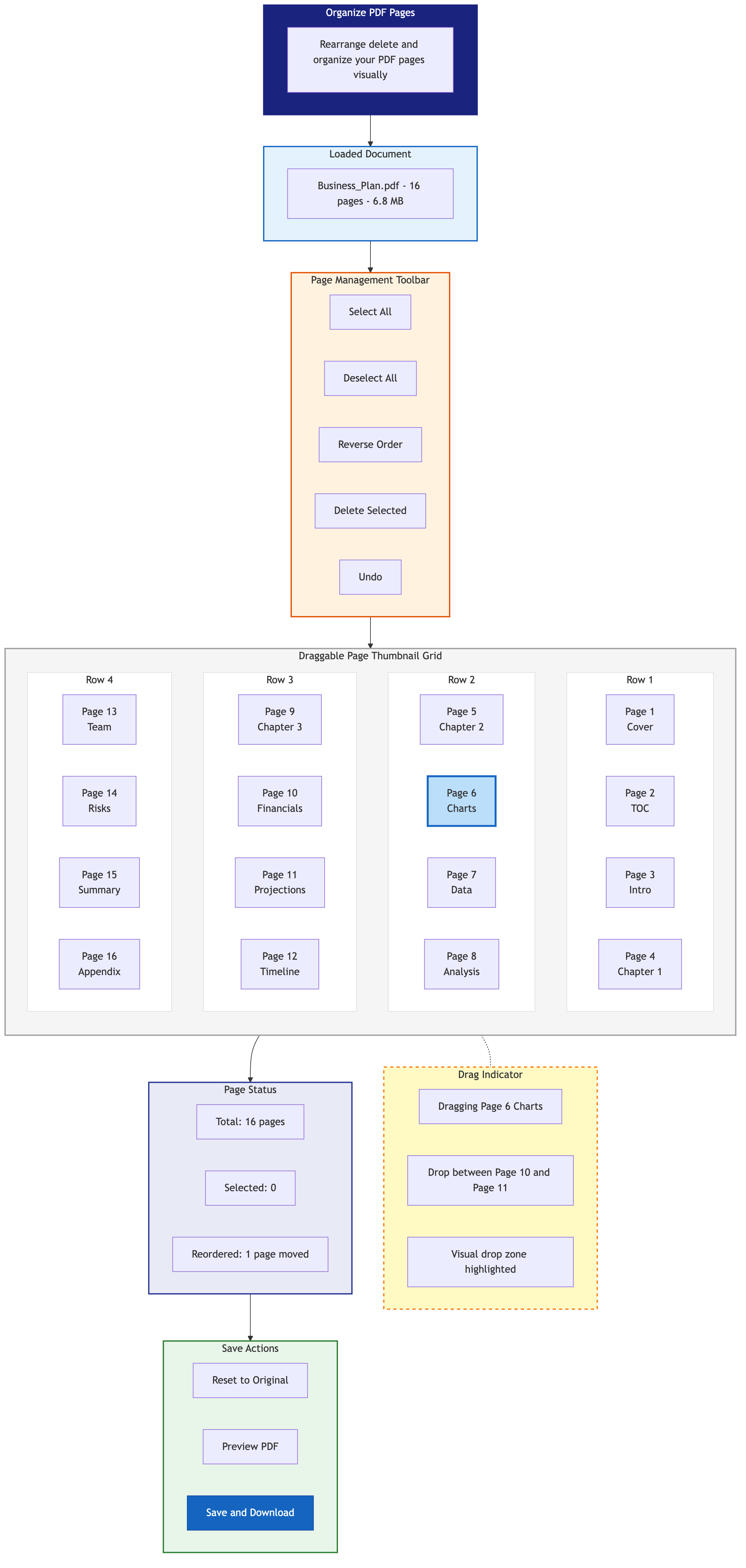
Eenmaal geüpload, geeft de tool een visueel raster weer van paginaminiaturen. Elke miniatuur toont een miniatuurvoorbeeld van de pagina-inhoud samen met het huidige paginanummer. Dit visuele overzicht maakt het gemakkelijk om elke pagina in één oogopslag te identificeren.
Stap 3: Sleep en zet om opnieuw te ordenen
Klik en houd een paginaminiatuur ingedrukt en sleep deze vervolgens naar zijn nieuwe positie. De andere pagina's verschuiven automatisch om de verhuizing te accommoderen. je kunt:
- Een enkele pagina verplaatsen naar elke positie in het document
- Meerdere pagina's verplaatsen Door verschillende miniaturen te selecteren en ze als een groep te slepen
- Pagina's naar het begin of einde verplaatsen door naar de eerste of laatste positie te slepen
De interface geeft visuele feedback tijdens het slepen en laat precies zien waar de pagina wordt ingevoegd wanneer u wordt losgelaten.
Stap 4: Bekijk de nieuwe bestelling
Bekijk na het herschikken de miniaturen van begin tot eind. Controleer of de paginareeks logisch is en dat er geen pagina's ontbreken of niet zijn geplaatst. De paginanummers worden in realtime bijgewerkt om de nieuwe bestelling weer te geven.
Stap 5: Opslaan en downloaden
Als u tevreden bent met de paginavolgorde, klikt u op de knop Opslaan of downloaden. De tool genereert een nieuwe PDF met pagina's in de door u opgegeven bestelling en downloadt deze naar uw apparaat.
Geavanceerde technieken voor pagina-
Pagina's uit meerdere PDF's combineren
Soms heb je pagina's van verschillende bron-pdf's in een specifieke interleaved-volgorde nodig. Hier is de workflow:
- Gebruik eerst de PDF samenvoegen Tool om alle bron-pdf's te combineren in één document
- Open het samengevoegde document in de pdf organiseren kwast
- Sleep pagina's van verschillende bronnen in de gewenste volgorde
- Sla het definitieve georganiseerde document op
Voorbeeld: Je hebt een contract (PDF A, 5 pagina's) en ondersteunende documenten (PDF B, 8 pagina's). U wilt het definitieve document dat wordt besteld als: voorblad (A1), inleiding (A2), ondersteunende DOC 1 (B1-B3), contractvoorwaarden (A3-A4), ondersteunende DOC 2 (B4-B8), handtekeningpagina (A5).
Een document scheiden in secties
Als u een document moet reorganiseren in duidelijk gedefinieerde secties:
- Uploaden naar de tool voor het organiseren van PDF
- Herschik pagina's zodat gerelateerde inhoud is gegroepeerd
- Gebruik eventueel de Blanco pagina toevoegen Gereedschap om doorsnedeverdelers in te voegen
- Download het gereorganiseerde document
Gelijktijdig verwijderen en opnieuw ordenen
Voor documenten die zowel paginaverwijdering als herschikking nodig hebben:
- beginnen met de pdf-pagina's verwijderen Tool om ongewenste pagina's te verwijderen
- Open de opgeschoonde PDF in de tool Pdf organiseren
- Herschik de resterende pagina's in de juiste volgorde
- Download het eindresultaat
Als alternatief zijn sommige workflows sneller in omgekeerde volgorde: eerst opnieuw bestellen en vervolgens verwijderen, zodat u visueel kunt bevestigen welke pagina's u in context moet verwijderen.
pdf's organiseren voor specifieke doeleinden
voor academische inzendingen
Academische instellingen vereisen vaak specifieke paginabestelling:
- titelpagina
- korte inhoud
- inhoudsopgave
- Hoofdlichaam (hoofdstukken in volgorde)
- referentiën
- bijlagen
Gebruik de tool Pdf organiseren om ervoor te zorgen dat uw inzending precies de vereiste structuur volgt.
Voor juridische documentpakketten
Wettelijke dossiers vereisen meestal:
- Voorblad of archiefformulier
- Inhoudsopgave of index
- pleidooien of bewegingen in chronologische volgorde
- Exposities die opeenvolgend gelabeld zijn
- Certificaat van dienst
Sleep pagina's om aan de indieningsvereisten van de rechtbank te voldoen.
Voor sluitingspakketten voor onroerend goed
Vastgoedtransacties omvatten tal van documenten die in een specifieke volgorde moeten worden gepresenteerd:
- Vereffening verklaring
- handeling
- Hypotheekdocumenten
- titel verzekering
- onthullingen
- Inspectierapporten
Voeg alle documenten samen en gebruik vervolgens de tool Organiseren om de juiste volgorde te bereiken.
Voor portfoliopresentaties
Creatieve portfolio's profiteren van strategische paginabestelling:
- Leid met je sterkste werk
- Groepsprojecten per categorie of klant
- Eindig met een over-pagina en contactgegevens
- Plaats overgangspagina's tussen secties
De visuele miniatuurweergave maakt het gemakkelijk om de stroom van een portfolio te evalueren.
Tips voor efficiënte pagina-organisatie
Werk met miniaturen op de juiste maat
Als de miniaturen te klein zijn om pagina's te identificeren, zoomt u in of vergroot u de miniatuurgrootte (als de tool dit ondersteunt). Door de inhoud van de pagina's in de thumbnails te kunnen lezen, wordt een verkeerde identificatie voorkomen.
Gebruik een systematische benadering voor grote documenten
Voor documenten met 50 of meer pagina's is een systematische benadering efficiënter dan willekeurig herschikken:
- Identificeer de belangrijkste secties van het document
- Verplaats de startpagina's van secties eerst naar ongeveer de juiste posities
- Verfijn de volgorde binnen elke sectie
- Doe een laatste beoordeling van begin tot eind
Nummer uw pagina's voordat u organiseert
Als u een document reorganiseert op basis van een schriftelijk plan (bijv. "Pagina 7 moet na pagina 3" komen), helpt het om eerst de huidige paginanummers te noteren. De miniaturen tonen paginanummers, waardoor het gemakkelijk is om specifieke pagina's te vinden.
Opslaan tussentijdse versies
Voor complexe reorganisatietaken, sla tussentijdse versies op zodat u indien nodig terug kunt draaien. Download de PDF na elke grote herschikkingsstap voordat u verder gaat met verdere wijzigingen.
Experttips
Plan uw paginavolgorde voordat u begint. Schrijf eerst de gewenste volgorde op papier of in een teksteditor. Dit voorkomt de verwarring die ontstaat door pagina's te verplaatsen zonder een duidelijk plan.
Gebruik samenvoegen voordat u het organiseert voor documenten met meerdere bronnen. het is veel gemakkelijker om Alle pdf's samenvoegen Eerst en vervolgens de pagina's in het gecombineerde document opnieuw rangschikken dan om te proberen bestanden te verweven tijdens de samenvoegstap.
Verwijder eerst ongewenste pagina's. Verwijder pagina's die u niet nodig hebt met de pdf-pagina's verwijderen hulpmiddel alvorens te organiseren. Minder pagina's betekenen minder miniaturen om te beheren en minder kans dat u per ongeluk een ongewenste pagina plaatst.
Controleer de oriëntatie van de pagina tijdens het organiseren. Tijdens het herschikken ziet u mogelijk pagina's die verkeerd zijn gedraaid. Gebruik de pdf roteren Tool om oriëntatie voor of na het organiseren te fixeren.
Comprimeren na het organiseren. Als uw definitieve document groot is, voert u het door de pdf comprimeren Tool als laatste stap om bestandsgrootte te verkleinen voor delen.
Controleer het aantal pagina's. Controleer na het organiseren dat het totale aantal pagina's overeenkomt met uw verwachting. De tool Organiseren voegt geen pagina's toe of verwijdert, dus de telling moet hetzelfde blijven.
Veelgestelde vragen
Kan ik pagina's in een PDF herschikken zonder Adobe Acrobat?
Ja. de pdf organiseren Tool op Toolz.dev biedt een visuele interface voor slepen en neerzetten voor het herschikken van PDF-pagina's. Het is volledig gratis, vereist geen aanmelding en werkt volledig in uw browser.
Heeft het opnieuw bestellen van pagina's invloed op de kwaliteit van de PDF?
heel weinig .Pagina's opnieuw ordenen Wijzigt alleen de volgorde waarin ze worden weergegeven. De inhoud van elke pagina, inclusief tekst, afbeeldingen, lettertypen en opmaak, blijft volledig ongewijzigd en ongecomprimeerd.
Kan ik een PDF organiseren met meer dan 100 pagina's?
Ja. De tool verwerkt PDF's van elke paginatelling. Voor zeer grote documenten kan het genereren van een miniatuur van de miniatuur enkele seconden duren, maar de functie voor slepen en neerzetten werkt soepel, ongeacht het aantal pagina's.
Kan ik wijzigingen ongedaan maken tijdens het organiseren?
Met de meeste browsergebaseerde tools kunt u de oorspronkelijke volgorde resetten of recente zetten ongedaan maken. Als u een fout maakt, kunt u ook het originele bestand opnieuw uploaden en opnieuw beginnen.
Kan ik pagina's uit meerdere PDF's combineren in een specifieke bestelling?
Ja. Gebruik eerst de PDF samenvoegen Tool om uw PDF's in één document te combineren en gebruik vervolgens de tool Pdf organiseren om pagina's van verschillende bronnen naar de gewenste volgorde te slepen.
Is er een manier om pagina's automatisch te sorteren?
Het gereedschap Organiseren biedt handmatige sortering en sortering. Voor automatisch sorteren kunt u de Omgekeerde PDF-pagina's tool als u gewoon de volledige paginavolgorde moet omdraaien.
Is mijn document veilig bij gebruik van deze tool?
Ja. Alle verwerking gebeurt lokaal in uw browser. Uw PDF wordt nooit geüpload naar een server. Dit maakt de pdf organiseren Toolsafe voor vertrouwelijke, juridische, financiële en persoonlijke documenten.
conclusie
Het organiseren van PDF-pagina's zou geen dure software of technische expertise vereisen. de pdf organiseren Tool op Toolz.dev geeft je een intuïtieve, visuele interface voor het herschikken van elke PDF in seconden. Bekijk uw pagina's als thumbnails, sleep ze waar ze horen en download het gereorganiseerde resultaat.
Voor complexere workflows, combineer de tool Organiseren met PDF samenvoegen Om pagina's uit meerdere bronnen samen te brengen, pdf-pagina's verwijderen om te verwijderen wat u niet nodig heeft, en pdf roteren om eventuele oriëntatieproblemen onderweg op te lossen.
Uw documenten verdienen de juiste paginavolgorde. Open de Pdf-tool organiseren En zorg dat je pagina's nu in orde zijn.
Verwante hulpmiddelen:
- pdf organiseren
- PDF samenvoegen
- pdf-pagina's verwijderen
- pdf splits
- pdf roteren
- Omgekeerde PDF-pagina's
- PDF-pagina's uitpakken