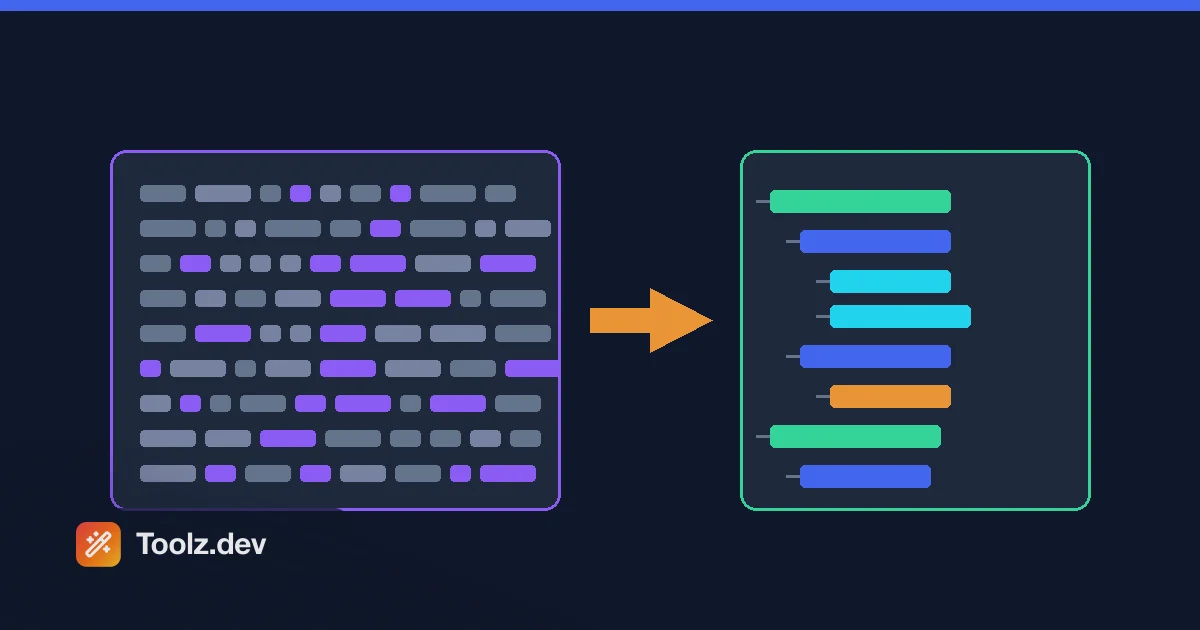
Das schlechteste CSS, das ich jemals debuggen musste, kam als einzelne 40.000-Zeichen-Linie an. Ein Build-Schritt hatte jeden Teil des Projekts verkettet und minifiziert, eine Regel gegen Ende setzte eine Farbe außer Kraft, die sie nicht haben sollte, und es gab keine Möglichkeit, die Kaskade zu sehen, weil es keine Zeilenumbrüche gab, um sie zu sehen. Ich habe genügend Frontends über WordPress-Themes und React-Apps versendet, um zu wissen, dass ein Stylesheet, das Sie nicht lesen können, ein Stylesheet ist, das Sie nicht reparieren können, also habe ich ein erstellt css-formatierer auf Toolz.dev Das diese Textwand wieder in ein eingerücktes, scannbares CSS in einer Paste verwandelt, und es wieder minimiert, wenn Sie bereit sind zu versenden Dies ist die Anleitung dazu und zu dem, was & quot; formatieren CSS" eigentlich bedeutet.
tl; dr: Ein CSS-Formatierer setzt ein Stylesheet mit gleichbleibendem Abstand neu ein, so dass es lesbar ist, und ein CSS-Minifier streift, dass der Abstand wieder nach außen geht, so dass die Datei klein ist The Toolz css-formatierer Tut beides aus einer Eingabe Es analysiert das CSS in Regeln, Selektoren, Deklarationen, At-Regeln und Kommentare, druckt dann diese Struktur mit Ihrer Wahl aus zwei Leerzeichen, vier Leerzeichen oder Tabulatoren zurück oder bricht sie auf das kleinste gültige Äquivalent zusammen Verschachtelt
@mediaund@keyframesBlöcke,url()Werte und angegebene Zeichenfolgen bleiben alle erhalten und alles läuft clientseitig, sodass Ihr CSS den Browser nie verlässt.
Was ist ein CSS-Formatierer?
Ein CSS-Formatierer liest ein Stylesheet und schreibt es mit vorhersehbarem, konsistentem Leerraum um, Die Regeln selbst ändern sich nicht Die Selektoren, Eigenschaften und Werte sind vorher und nachher identisch, und ein Browser wendet die formatierte Datei genau so an, wie er das Original angewendet hätte, was sich ändert, ist das Layout: eine Deklaration pro Zeile, ein einzelnes Leerzeichen nach jedem Doppelpunkt, jeder Block ist eine Ebene tiefer als sein übergeordnetes eingerückt und eine Schließspange auf seiner eigenen Zeile Das Ergebnis ist eine Datei, die ein Mensch scannen kann.
Unter der Haube macht das Tool kein Find-and-Replace auf Whitespace, da gehen naive Formatierer schief Es analysiert zuerst das CSS in seine reale Struktur Ein Stylesheet ist eine Folge von Knoten: Stilregeln, die einen Selektor mit einem Deklarationsblock koppeln, At-Rules wie @media oder @importKommentare, und die Deklarationen selbst Sobald das CSS ein Baum dieser Knoten ist, ist das Ausdrucken mit jeder beliebigen Einrückung unkompliziert und vor allem sicher. Der Parser ist es, der den Formatierer wissen lässt, dass ein Komma drin ist :not(a, b) Teil eines Selektors ist, während ein Komma zwischen h1 und h2 Trennen zwei Selektoren, und dass ein Semikolon innerhalb eines url() Daten-URI ist nicht das Ende einer Deklaration.
Die gleiche Analyse treibt die umgekehrte Operation an Da das Tool die Struktur bereits versteht, kann es den Baum ohne Einrückung drucken, was genau das ist, was Minifizieren ist. Deshalb deckt ein Tool beide Aufgaben ab: Formatieren und Minifizieren sind auf die gleiche Weise gedruckt.
Was ist der Unterschied zwischen Formatierung und Minifizierung von CSS?
Das sind gegenüberliegende Enden derselben Achse, und zu wissen, was man will, erspart Verwirrung Durch Formatieren, auch Verschönern oder hübsches Drucken genannt, wird zum Wohle der Menschen Leerraum hinzugefügt Durch Minifizieren wird Leerraum zugunsten von Maschinen und Netzwerken entfernt Man formatiert die gelesene und bearbeitete Kopie; man minimiert die Kopie, die man an einen Browser sendet.
Die Unterscheidung ist wichtig, weil sie an verschiedenen Punkten in Ihrem Workflow gehören Während Sie CSS schreiben oder wenn Sie eine Datei geerbt haben, die Sie verstehen müssen, möchten Sie, dass sie formatiert wird. Wenn Sie sie bereitstellen, möchten Sie, dass sie minifiziert wird, sodass der Browser weniger Bytes herunterlädt und früher malt Die meisten Build-Pipelines minifizieren automatisch, aber viele Situationen fallen außerhalb eines Builds: Ein aus einem CodePen eingefügter Ausschnitt, ein Stylesheet, das aus einer Seite extrahiert wird, die Sie prüfen, eine direkt in einem CMS bearbeitete Theme-Datei. Für diese ist ein eigenständiger Formatierer und Minifier der schnellste Pfad.
Hier die Aufteilung im Überblick.
| Aspekt | Format (verschönern) | minimieren |
|---|---|---|
| Publikum | Menschen lesen und bearbeiten | Browser herunterladen |
| Leerraum | Zur Lesbarkeit hinzugefügt | Ganz entfernt |
| Kommentar | Standardmäßig beibehalten | Standardmäßig entfernt |
| Dateigröße | Größer | So klein wie möglich |
| Wann zu verwenden | Schreiben, Debuggen, Rezensieren | Versand zur Produktion |
Wie formatiere ich CSS mit diesem Tool?
Der Fluss ist bewusst kurz Fügen Sie Ihr CSS in die Eingabe ein, wählen Sie Verschönerung oder Minifizierung aus und lesen Sie das Ergebnis. Wählen Sie beim Verschönern zwei Leerzeichen, vier Leerzeichen oder Registerkarten, die zu den Editoreinstellungen Ihres Projekts passen.'s, und entscheiden Sie, ob Sie Kommentare beibehalten möchten. Die css-formatierer Zeigt die Ausgabe mit einem Größenabzeichen an, damit Sie die Byteänderung sehen können, und listet alle Parsing-Hinweise wie eine unausgeglichene Klammer als Warnungen auf, anstatt stillschweigend zu versagen.
Die vier Schritte sehen in der Praxis so aus, fügen Sie zunächst das Stylesheet ein, egal ob es minifiziert, handgeschrieben oder aus einem Tool exportiert wird. Klicken Sie zweitens auf Verschönern, um es erneut einzurücken, oder auf Minify, um es zu entfernen. Drittens überprüfen Sie die Ausgabe und das Größenabzeichen und werfen Sie einen Blick auf etwaige Warnungen. Viertens kopieren Sie das Ergebnis in Ihre Zwischenablage oder laden Sie es als herunter .css Datei bereit zum Eingeben in Ihr Projekt Es gibt keinen Upload-Schritt und kein Konto, denn das Ganze passiert in Ihrem Browser.
Wenn Sie mit anderen strukturierten Formaten arbeiten, zeigt sich das gleiche Muster bei Toolz. Die Json-formatierer Verschönert und minifiziert JSON, die HTML-formatierer Tut dasselbe für Markup, und die sql Formatierer Abfragen behandelt Formatierung ist eine allgemeine Idee, und die gleiche Werkzeugform für jede Sprache hält das Muskelgedächtnis konsistent, ein Thema das Webentwickler-Toolkit Leitfaden weiterentwickelt.
Ändert die Formatierung die Funktionsweise meiner Stile?
Nein, und das ist die Garantie, die das Tool sicher auf Produktion CSS laufen lässt Verschönern und Minifizieren nur touch whitespace und optional Kommentare Sie ordnen Deklarationen nie neu, benennen nie etwas um, führen niemals zusammen oder legen Regeln ab, und schreiben nie Werte um Die Spezifität Ihrer Selektoren ist unverändert, die Quellreihenfolge, die die Kaskade antreibt, ist unverändert, und das berechnete Ergebnis im Browser ist Byte-für-Byte-Äquivalent.
Dies ist klar zum Ausdruck zu bringen, da einige CSS-Optimierer weit mehr tun als nur zu minifizieren: Sie verschmelzen doppelte Selektoren, Drop-Regeln, die sie als ungenutzt beurteilen, und ordnen Eigenschaften neu. Diese Transformationen können das Verhalten auf subtile Weise ändern, insbesondere wenn die Kaskade oder a !important Beteiligt ist Dieser Formatierer macht bewusst nichts davon Es handelt sich um ein Whitespace-Tool, wenn man eine Datei verschönert, nichts bearbeitet, und wieder minimiert, sind die beiden Dateien funktional identisch, wodurch man ohne Angst frei umrunden kann.
Die CSS-Grammatik, die definiert, was als Leerraum gilt und wo er unbedeutend ist, ist in der angegeben CSS-Syntaxmodul Level 3 Aus dem W3 C. Der Formatierer folgt diesem grammatik's-Tokenizer-Modell, weshalb es Leerzeichen innerhalb eines String-Tokens oder eines behandelt url() Anders als der Leerraum zwischen den Erklärungen.
Wie geht es mit @media, @keyframes und anderen At-Rules um?
Bei At-Rules zerfallen Gelegenheitsformatierer, da eine At-Rule entweder in einem Semikolon enden oder einen ganzen Block anderer Regeln umschließen kann. @import "base.css"; Aussage ist, die am Semikolon endet. @media (max-width: 600px) { ... } ist ein Block, der seine eigenen verschachtelten Regeln enthält, und diese verschachtelten Regeln müssen eine Ebene tiefer als die eingekerbt werden @media Linie selbst Ein Find-and-Replace-Ansatz kann die beiden nicht auseinanderhalten; ein Parser kann.
Denn dieses Tool baut einen echten Baum, einen verschachtelten @media Block hält seine inneren Regeln beim Verschönern richtig eingerückt und beim Minieren korrekt zusammengebrochen Das gleiche gilt für @supports Feature-Abfragen und für @keyframes Animationen, bei denen jeder Prozentschritt wie folgt abläuft 0% und 100% Eigenen Block innerhalb der Animation ist Schriftdeklarationen in @font-face und geschichtet @layer Regeln werden genauso gehandhabt Welche Verschachtelungstiefe das Stylesheet auch erreicht, die Einrückung verfolgt es.
Dieses strukturelle Bewusstsein schützt auch die Teile eines Wertes, die wie Syntax aussehen, aber nicht sind A url() Daten-URI enthalten kann, der mit Base64 gepackt ist, das Semikolons und Colons enthält, und eine content Eigenschaft kann eine zitierte Zeichenfolge mit Klammern oder Kommas darin halten Der Formatierer verlässt die Innenseite zitierter Zeichenfolgen und url() Werte genau so, wie geschrieben, so dass ein Schriftartenpfad, ein SVG-Daten-URI oder ein Stück Text mit generiertem Inhalt niemals zusammengebrochen, neu angeordnet oder defekt ist Wenn Sie Bilder häufig als Daten-URIs einbetten, wird die Bild zur Basis64 Werkzeug passt auf natürliche Weise zu diesem.
Wie viel kleiner macht die CSS-Minifizierung meine Datei?
Es hängt ganz davon ab, wie viel Leerzeichen und wie viele Kommentare die Quelle enthält, aber die Einsparungen sind real Ein mit großzügigen Einrückungs - und Dokumentationskommentaren geschriebenes Stylesheet schrumpft üblicherweise um zwanzig bis vierzig Prozent, sobald der Leerraum weg ist Eine Datei, die bereits ziemlich kompakt war, wird weniger schrumpfen Das Größenabzeichen im Tool zeigt die genaue Vorher-Nachher-Byteanzahl für Ihre Datei an, sodass Sie nie raten müssen.
Diese Bytes sind wichtig, weil CSS renderblockiert. Ein Browser malt keine Seite, bis er das CSS im Dokumentenkopf heruntergeladen und analysiert hat. Daher ist jedes Kilobyte Stylesheet ein Kilobyte zwischen dem Benutzer und seinem ersten Blick auf die Seite. Minifizieren ist einer der günstigsten verfügbaren Performance-Gewinne: Keine Codeänderungen, kein Verhaltensrisiko, nur weniger Bytes auf dem Draht. Zusätzlich zur Minifizierung verkleinert die Gzip- oder Brotli-Komprimierung auf der Serverebene die Datei weiter und das minifizierte CSS wird gut komprimiert, da das Entfernen der Einrückung den aussagekräftigen Tokens-Verdichter hinterlässt.
Minifying ist ein enger Cousin des Werks, das ihm gewidmet wurde css-miniergerät Tut, und die css-Minifier-Führer Auf der Komprimierungsseite geht es tiefer, der Grund, warum beides existiert, ist Bequemlichkeit: Manchmal landet man auf dem Formatierer, um eine Datei zu bereinigen und möchte sie an derselben Stelle minifizieren, und manchmal geht man direkt zum MinifierIn jedem Fall ist die zugrunde liegende Analyse dieselbe.
Kann ich meine Kommentare behalten und die Einrückung kontrollieren?
Ja zu beiden, und diese beiden Optionen decken die Fälle ab, die ein Einheitsformatierer verpasst Kommentare werden standardmäßig beim Verschönern beibehalten, denn während Sie CSS lesen und bearbeiten, sind die Kommentare oft der nützlichste Teil Beim Minifizieren werden Kommentare standardmäßig entfernt, um jedes Byte zu speichern, aber es gibt einen Kippschalter, um sie zu bewahren, den Sie möchten, wenn eine Datei einen Lizenzheader oder einen Copyright-Hinweis trägt, der im versendeten Bundle erhalten bleiben muss.
Einrückung ist eine Wahl, weil Teams anderer Meinung sind, und der Sinn eines Formatierers ist es, die Meinungsverschiedenheit zu beenden, indem man eine Regel konsequent anwendet Zwei Leerzeichen sind die häufigste Voreinstellung in modernen Front-End-Projekten, vier Leerzeichen passen zu Codebasen, die es anderswo verwenden, und Tabulatoren passen Teams an, die sie für Barrierefreiheit oder persönliche Konfiguration bevorzugen Wählen Sie einen aus und jeder Block in der Ausgabe folgt ihm aus Konsistenz ist der ganze Wert: Ein Formatierer lohnt sich gerade deshalb, weil er die kleinen manuellen Entscheidungen entfernt, die ansonsten Datei für Datei über ein Projekt driften Der umfassendere Fall für die Standardisierung Ihres Tools auf diese Weise läuft durch Entwicklerproduktivitätstools Führung.
Welche alltäglichen Probleme löst die Formatierung eigentlich?
Die 40.000 Zeichen lange Zeile, mit der ich geöffnet habe, ist der dramatische Fall, aber die profanen kommen viel häufiger auf Sie kopieren eine Regel aus einem Browser' s dev-Tools und sie kommt mit berechneter Kurzschrift und inkonsistentem Abstand, der nicht mit Ihrer Datei übereinstimmt Sie erben ein Stylesheet von einem Auftragnehmer, der nie einen Formatierer ausgeführt hat, also verschieben sich Styles und Einrückungen alle paar hundert Zeilen Sie fügen ein Snippet aus einem Blogbeitrag oder einem Designtool ein, das Tabs verwendet, in denen Ihr Projekt Leerzeichen verwendet. In jedem dieser Punkte funktioniert das CSS, stimmt aber nicht überein, und eine Datei, die nicht übereinstimmt, ist eine Datei, die jede zukünftige Bearbeitung verlangsamt und jedes Diffuddys.
Das Durchlaufen einer solchen Datei durch den Formatierer normalisiert alles auf einmal Jeder Block bekommt die gleiche Einrückung, jede Deklaration landet auf einer eigenen Linie, und das Diff, das Sie danach festlegen, zeigt nur die Änderungen, die Sie tatsächlich vorgenommen haben, und nicht einen Sturm von Leerraumrauschen. Dieser letzte Punkt ist der stille Produktivitätsgewinn: Eine konsequent formatierte Codebasis erzeugt saubere Diffs, und saubere Diffs machen die Codeüberprüfung schneller und Regressionen leichter zu erkennen. Formatierung ist nicht kosmetisch. Es ist das, was ein Stylesheet beim Wachsen lesbar hält, und deshalb standardisiert jedes ernsthafte Front-End-Projekt schließlich ein Layout und erzwingt es. Die Entwicklerproduktivitätstools Die Führung sorgt für ein breiteres Gehäuse zum Entfernen dieser Art manueller Reibung aus Ihrem Arbeitsablauf.
Ist es sicher, sensibles oder proprietäres CSS zu formatieren?
Ja, und das ist eine bewusste Design-Entscheidung und keine Fußnote Alle Parsing und Formatierungen geschehen in JavaScript innerhalb Ihres Browsers Kein Stylesheet wird auf einen Server hochgeladen, nichts wird protokolliert, und das Tool arbeitet weiter mit Ihrer Verbindung ausgeschaltet, sobald die Seite geladen wurde Sie können CSS formatieren, das interne Klassennamen, unveröffentlichte Design-System-Token oder die Struktur einer nicht versendeten Funktion enthält, ohne dass etwas davon Ihren Computer verlässt.
Das ist wichtiger, als es scheinen mag, denn ein Stylesheet kann Absicht durchsickern Klassennamen und benutzerdefinierte Eigenschaftsnamen telegrafieren oft Funktionen, die noch nicht öffentlich sind, und die Struktur einer Komponente' s CSS kann offenlegen, wie ein Produkt aufgebaut ist Ein serverseitiger Formatierer, wie serverfähig er auch sein mag, ist ein Dritter, dem Sie diese Informationen übergeben Ein clientseitiges Tool entfernt die Frage vollständigDie Begründung für die Verarbeitung von Entwicklerdaten im Browser und nicht auf einem Server ist Gegenstand des Datenschutz Online-Tools Leitfaden, und es gilt für jedes Werkzeug in der Codierungswerkzeuge Sammlung, nicht nur diese Wenn Privatsphäre frei ist, gibt es keinen Grund, sie aufzugeben.
Häufig gestellte Fragen
Wie formatiere ich CSS online?
Fügen Sie Ihr CSS in den Eingabebereich ein und klicken Sie auf Verschönern Das Tool analysiert das Stylesheet und schreibt es mit einer Deklaration pro Zeile und konsistenter Einrückung umAlles läuft in Ihrem Browser, es wird also nichts hochgeladen.
Was ist der Unterschied zwischen Formatierung und Minifizierung von CSS?
Beim Formatieren, auch Verschönern genannt, werden Einrückungen und Zeilenumbrüche hinzugefügt, sodass CSS für Personen lesbar ist, während beim Minieren alle unnötigen Leerzeichen und Kommentare entfernt werden, sodass die Datei für Browser so klein wie möglich ist. Dieses Tool erledigt beides aus derselben Eingabe.
Ändert die Formatierung von CSS die Funktionsweise meiner Stile?
Nein. Verschönern und Minifizieren ändern nur Leerzeichen und Kommentare, niemals die Regeln, Auswahlmöglichkeiten oder Werte. Der Browser wendet ein formatiertes Stylesheet genau so an, wie er das Original anwendet.
Geht es richtig mit @media und @keyframes um?
Ja. Verschachtelte At-Rules wie @media, @supports und @keyframes werden als Blöcke analysiert, sodass ihre inneren Regeln beim Verschönern eine Ebene tiefer eingedrückt und beim Minieren intakt gehalten werden.
Wird es URL () Werte oder Inhaltszeichenfolgen brechen?
Nein. Der Formatierer lässt die Innenseite der zitierten Zeichenfolgen und URL()-Werte genau so, wie sie geschrieben wurden, sodass Daten-URIs, Schriftartenpfade und Inhaltstext niemals zusammengebrochen oder neu angeordnet werden.
Wie viel kleiner macht Minifizieren mein CSS?
Es hängt davon ab, wie viel Leerzeichen und wie viele Kommentare die Datei enthält, aber ein lesbares Stylesheet schrumpft normalerweise um zwanzig bis vierzig Prozent, sobald Einrückung und Kommentare entfernt werden. Das Größenabzeichen zeigt die genaue Byteänderung für Ihre Datei an.
Kann ich meine Kommentare beim Minieren behalten?
Ja. Es gibt einen Umschalter, um Kommentare zu bewahren Lassen Sie es für die kleinste Ausgabe aus, oder schalten Sie es ein, wenn Sie einen Lizenz-Header oder Autorenhinweise in der minifizierten Datei behalten müssen.
Ist es sicher, sensibles CSS hier zu formatieren?
Ja. Alle Pars und Formatierungen finden in JavaScript in Ihrem Browser statt. Es wird kein Stylesheet an einen Server gesendet, nichts wird protokolliert und das Tool funktioniert mit deaktivierter Verbindung.
der css-formatierer Frei ist, vollständig in Ihrem Browser ausgeführt wird, und keine Anmeldung benötigt Verschönern Sie ein Stylesheet, um es zu lesen, minifizieren Sie es, um es zu versenden, und debuggen Sie nie wieder eine 40.000-Zeichen-Zeile Erkunden Sie es und den Rest der Codierungswerkzeuge Auf Toolz.dev.