De meest stressvolle samensmelting van mijn leven was een voorstel van de klant dat om 9.00 uur moest worden ingediend: zeven pdf's - omslag, samenvatting, technische specificaties, prijzen, voorwaarden, twee bijlagen - die één bestand moesten worden. Ik heb ze de avond ervoor om 11.40 uur samengevoegd, de eerste drie pagina's nauwkeurig gecontroleerd, verzonden en naar bed gegaan.
De verwachte paginatelling was 44. Het bestand dat ik heb verzonden had 41.
Een van de bijlagen was beveiligd met een wachtwoord - geëxporteerd vanuit een client' zijn eigen systeem - en de fusie I'd die die avond gebruikte, sloeg het over zwijgend. Niemand vertelde het me. De cliënt deed dat om 9.15 uur en vroeg waar bijlage B was.
Dat is de avond dat ik de enige regel leerde waar deze gids steeds weer op terugkomt: Ken uw verwachte paginatelling voordat u samenvoegt en controleer deze daarna. Al het andere - bestandsnaamgeving, bestellen, het daadwerkelijke klikken - is eenvoudig. Hier' is de volledige workflow met behulp van de gratis PDF samenvoegen Tool op Toolz.dev, dat volledig in uw browser draait, plus de faalwijzen die ik heb verzameld, zodat u dat niet hoeft te doen.
tl;dr: openleggen Toolz.dev/tools/merge-PDF, sleep uw PDF's naar binnen, bestel ze opnieuw in de lijst, klik op Samenvoegen, downloaden. It' s gratis, heeft geen aanmelding nodig en verwerkt 100% client-side - bestanden verlaten uw machine nooit Voordat u samensmelt: repareer rotatie met pdf roteren en strooi rommel met pdf-pagina's verwijderen. Na het samenvoegen: verifieer het aantal pagina's en verklein dan met pdf comprimeren Indien nodig.
Wanneer moet je eigenlijk pdf's samenvoegen?
PDF is een open standaard - ISO 32000-2 - daarom kan een samenvoeging lokaal worden gedaan door elke conforme bibliotheek in plaats van alleen door de applicatie die het bestand heeft geschreven.
Drie situaties genereren bijna alle samenvoegverzoeken die ik heb gezien:
montage. Sollicitaties (sollicitatiebrief + cv + referenties), klantvoorstellen, juridische dossiers met exposities, academische inzendingen met aanvullend materiaal. meerdere auteurs of bronnen, één te leveren.
Inzendingsportalen die precies één bestand accepteren. Overheidsformulieren, subsidieaanvragen, e-dossiersystemen van rechtbanken, verzekeringsclaims Het portaal doet dat wel en #39; Het maakt niet uit dat uw bewijsmateriaal uiteraard uit negen documenten bestaat - het heeft één uploadveld.
Gezondheid. Een archiefbestand verslaat een map van twaalf. Eén e-mailbijlage verslaat vijf (en verslaat het onvermijdelijke antwoord met de vraag naar degene die je bent vergeten). Eén afdrukopdracht verslaat het openen van bestanden in volgorde.

Hoe voeg je PDF-bestanden stap voor stap online samen?
Stap 1: Bereid de bestanden voor (dit is 80% van de taak)
- Naam met nummervoorvoegsels:
01-cover-letter.pdf,02-resume.pdf,03-references.pdf. De bestelling wordt zelfdocumenterend en je kunt er niet per ongeluk op slopen. - Open elk bestand één keer. Bevestig het' s de juiste versie en noteer het aantal pagina's - schrijf de tellingen op en tel ze bij elkaar op Dit is de cheque die mijn bijlage B zou hebben opgeslagen.
- Fixeer oriëntatie eerst. Zijwaartse scans gaan door pdf roteren vooruit samenvoegen - it' is veel gemakkelijker per bestand te repareren dan op geroteerde pagina's te jagen in een resultaat van 44 pagina's.
- Strip ongewenste pagina's. Blanco scannerpagina's en verdwaalde voorbladen komen uit via pdf-pagina's verwijderen Nu komt de samengevoegde paginanummering overeen met uw plan.
Stap 2: Open het gereedschap
gaan tot Toolz.dev/tools/merge-PDF. Het draait in Chrome, Firefox, Safari en Edge - geen installatie, geen aanmelding, geen account.
Stap 3: Voeg uw bestanden toe
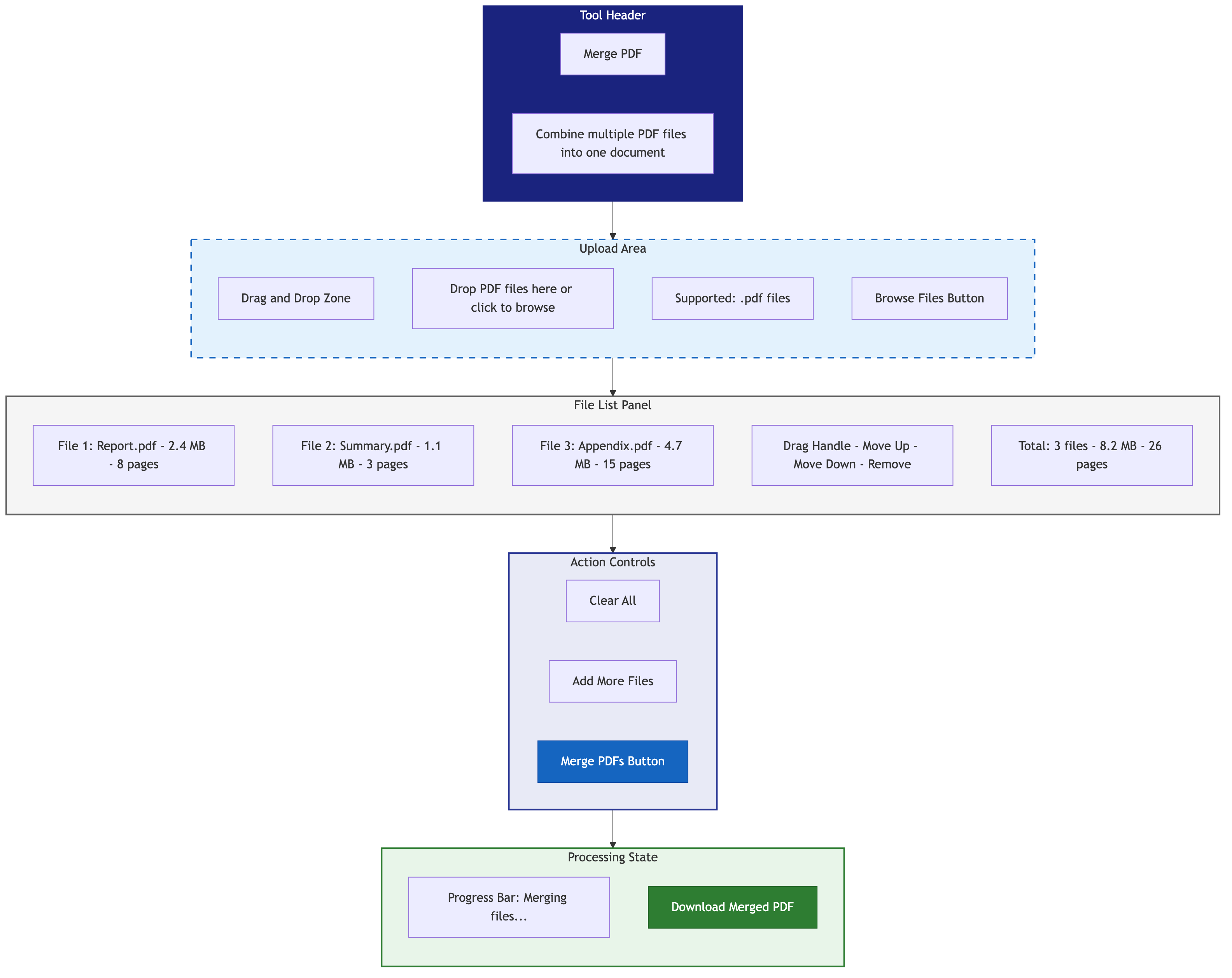
Sleep en plaats de hele selectie in één keer, of klik om te bladeren (Ctrl/Cmd-klik voor meerdere) Elk bestand verschijnt in de lijst met zijn naam en paginatelling - kruis deze tellingen aan uw notities uit stap 1 hier.
Stap 4: Stel de bestelling in
Bestanden voegen van boven naar beneden samen zoals weergegeven. Sleep ze in positie. dertig seconden zorg hier; het alternatief is het opnieuw doen van de samenvoeging of het later ontwarren pdf organiseren.
Stap 5: samenvoegen en downloaden
klikken indompelen. De verwerking gebeurt lokaal in uw browser - een handvol typische documenten duurt een paar seconden Download het resultaat; uw bronbestanden op schijf zijn onaangeroerd.
Stap 6: Verifiëren - daadwerkelijk verifiëren
Open het gedownloade bestand en controleer twee dingen:
- Het totale aantal pagina's komt overeen met uw verwachte totaal. Deze enkele cheque vangt overgeslagen bestanden, dubbele uploads en stille storingen.
- Blader door de sectiegrenzen. De eerste pagina van elk brondocument moet verschijnen waar u het verwacht.
Hoe moet je bestanden ordenen voordat je een grote samenvoeging maakt?
Voor alles wat meer dan vier of vijf bestanden is, schrijf ik eerst een assemblagemanifest in platte tekst. Het duurt twee minuten en verificatie van vibes in rekenen:
Document Assembly: Q4 Report
---
[ ] 01 - Cover page            (1 page)
[ ] 02 - Table of contents     (2 pages)
[ ] 03 - Executive summary     (3 pages)
[ ] 04 - Financial results     (15 pages)
[ ] 05 - Operational review    (10 pages)
[ ] 06 - Appendix A - Tables   (5 pages)
[ ] 07 - Appendix B - Charts   (8 pages)
---
Expected total: 44 pages
Kies een naamgevingspatroon en houd je eraan:
| knippatroon | toonbeeld | het beste voor |
|---|---|---|
| genummerd voorvoegsel | 01-introduction.pdf |
Alles waar orde ertoe doet |
| Datumvoorvoegsel | 2026-01-15-report.pdf |
Chronologische bundels (facturen, minuten) |
| sectievoorvoegsel | section-a-overview.pdf |
Gestructureerde documenten |
| Auteur voorvoegsel | alice-chapter3.pdf |
Assemblages voor meerdere auteurs |
Nog een voorbereidingsoverweging: Paginaformaten. Letter (8,5×11"), A4 (210×297 mm), en Legal (8,5×14") bestaan allemaal prima naast elkaar in één PDF - het formaat slaat afmetingen per pagina op - maar de groottesprong is zichtbaar op het scherm en onhandig in druk Voor clientgerichte documenten, standaardiseren voor het samenvoegen; voor interne archieven kan het niemand iets schelen.
Wat gaat er mis bij het samenvoegen van PDF's - en hoe repareer je dit?
Verkeerde volgorde in de output. De tool voegde precies samen wat de lijst liet zien; de lijst was verkeerd Samenvoegen met gecorrigeerde volgorde - verwerking aan de clientzijde is snel genoeg dat een herbewerking seconden kost, geen minuten.
Geroteerde pagina's in de uitvoer. Ze werden ook in de bron geroteerd; het is alleen moeilijker om op te merken in een bestandslijst. Herstel de bron met pdf roteren en opnieuw samenvoegen.
Het samengevoegde bestand is enorm. Verwacht - samenvoeging somt de maten op. Voer het resultaat uit pdf comprimeren nadat samenvoegen. De samengevoegde hele beats comprimeren stukken eerst: het algoritme kan lettertypen en afbeeldingen over het hele document dedupleeren en je voorkomt dat je verliespassen stapelt. details in de compressiegids.
Blanco pagina's van scans. voer gescande bronnen door Blanco pagina's verwijderen voordat u het samenvoegt, worden ze automatisch gedetecteerd.
U hebt scheidingspagina's nodig. Blanco pagina toevoegen voegt ze in op gekozen posities - ook de oplossing wanneer een dubbelzijdig afgedrukte sectie op een rechterpagina moet beginnen.
met een wachtwoord beveiligde bronnen. Mijn bijlage B. Beschermde PDF's kunnen & # 39; worden gelezen door de fusie, dus ontgrendel ze eerst: open in een viewer met het wachtwoord, print naar PDF en voeg de ontgrendelde kopie samen En dit is precies waarom de paginatellingscontrole bestaat - een overgeslagen bestand verandert het totaal, zelfs als niets anders u waarschuwt.
Hoe zit het met geavanceerde fusiescenario's?
vrolijk gebied van documenten. U wilt zelden alle document A en alle document B. eerst uitpakken, als tweede samenvoegen: trek pagina's 5–10 uit A en 1–3 van B met PDF-pagina's uitpakken, voeg vervolgens de twee uittreksels samen. Twee kleine stappen verslaan een rommelige opruiming.
Reconstrueren dubbelzijdige scans. Als je alle fronten hebt gescand, dan alle backs, standaard samenvoegen geeft je pagina's 1, 3, 5, ..., 2, 4, 6 - nutteloos. Alternatieve mixpagina's verleent de twee bestanden weer in de ware paginavolgorde. Als de ruggen omgekeerd werden gescand (flip-the-stack scannen), keert u dat bestand eerst om met Omgekeerde PDF-pagina's.
Gefaseerde fusies voor grote assemblages. Voor een document met 15+ bronnen voegt u in groepen samen - alle bijlagen in één bestand, alle hoofdsecties in een ander - en voegt u vervolgens de groepen samen. Wanneer er iets is's verkeerd is, voert u één kleine samenvoeging opnieuw uit in plaats van 15 bestanden opnieuw te ordenen.
Inhoudsopgaven. De samenvoegtool genereert geen bladwijzers, dus voor formele documenten noteer ik de startpagina van elke sectie uit mijn manifest en bouw ik een TOC van één pagina om aan de voorkant samen te smelten.
Veelgestelde vragen
Hoe voeg ik gratis PDF-bestanden samen online?
openleggen Toolz.dev/tools/merge-PDF, sleep uw PDF's naar de tool, rangschik ze in de juiste volgorde, klik op Samenvoegen en download het gecombineerde bestand Geen aanmelding, geen betaling, geen watermerken - en verwerking gebeurt in uw browser, niet op een server.
Is het veilig om vertrouwelijke pdf's online samen te voegen?
Alleen met client-side tools De meeste online fusies uploaden uw bestanden naar hun servers, wat een reëel probleem is voor contracten en financiële documenten De fusie met Toolz.dev verwerkt alles lokaal in uw browser - u kunt bevestigen dat er geen upload plaatsvindt door uw browser te bekijken & #39; s Netwerktab tijdens het samenvoegen.
Kan ik meer dan twee PDF's tegelijk samenvoegen?
Ja - upload er zoveel als je nodig hebt in één batch en bestel ze in de lijst. There' is geen vaste limiet voor het aantal bestanden; het praktische plafond is uw apparaat's geheugen, aangezien het werk lokaal gebeurt. I' Ik heb in één keer voorstelassemblages van twaalf bestanden uitgevoerd.
Hoe beheer ik de paginavolgorde in de samengevoegde PDF?
De uitvoer volgt de lijst met bestanden van boven naar beneden: alle pagina's van bestand 1, dan bestand 2, enzovoort. Sleep bestanden binnen de lijst om opnieuw te ordenen voordat u deze samenvoegt. Voor herschikking op paginaniveau nadat samenvoegen, gebruiken pdf organiseren.
Kan ik PDF's samenvoegen met verschillende paginaformaten?
Ja. elke pagina behoudt zijn oorspronkelijke afmetingen - een A4-pagina blijft A4 naast een Letter-pagina Het bestand is volledig geldig; het ziet er gewoon inconsistent uit bij het doorbladeren Standaardiseer formaten vooraf als het & # 39; is client-facing.
Waarom ontbreekt er een bestand in mijn samengevoegde PDF?
De gebruikelijke boosdoener is een bron met wachtwoordbeveiliging, die tools can't zonder duidelijke fout leest en kan overslaan Ontgrendel het eerst (openen met het wachtwoord, afdrukken naar PDF) en vervolgens opnieuw samenvoegen Vergelijk altijd de uitvoer' s pagina telt af met de som van uw bronnen - it' s de snelste manier om dit op te vangen.
Hoe verklein ik een samengevoegde PDF die te groot is om te e-mailen?
doorspen pdf comprimeren na het samenvoegen Beeldzware scans worden dramatisch gecomprimeerd (vaak 50-80%); tekstgebaseerde PDF's minder. Comprimeer het samengevoegde bestand in plaats van de afzonderlijke bronnen - één passage over het hele document geeft betere resultaten.
Kan ik PDF's samenvoegen op mijn telefoon?
Ja - de tool is browser-gebaseerd en responsief, dus het werkt op telefoons en tablets op dezelfde manier als op desktop Kies bestanden van uw apparaat' s bestandkiezer, bestel ze, voeg samen, en de download landt op uw gebruikelijke downloads locatie.
Vermindert het samenvoegen van PDF's de kwaliteit van de pagina's?
Nee. Het samenvoegen van kopieën van elke pagina' s bestaande content stream in een nieuwe container - niets wordt opnieuw gecodeerd, opnieuw weergegeven of gedownsampled Een 300 DPI scan op pagina 1 is nog steeds een 300 DPI scan na de samenvoeging Kwaliteitsverlies komt alleen in beeld als je daarna comprimeert, en dat' is een aparte, bewuste stap.
Overleven bladwijzers, links en formuliervelden een samenvoeging?
Pagina-inhoud en interne hyperlinks komen intact, maar structuren op documentniveau zijn het zwakke punt: bladwijzers uit de bronbestanden worden meestal weggelaten en formuliervelden met dubbele namen in bestanden kunnen botsen en een waarde delen. Als uw bronnen ingevulde formulieren dragen, maak ze dan plat (afdruk naar PDF) voordat u samenvoegt.
De twee-nummer gewoonte
Het samenvoegen van PDF's is echt een opgelost probleem - het toolgedeelte duurt seconden Wat een schone samenvoeging scheidt van een verontschuldigingsmail van 9:15 uur is de discipline eromheen: nummervoorgevoegde bestandsnamen, rotatie vast voordat ze worden samengevoegd, en vooral de controle van twee cijfers - verwachte pagina's versus daadwerkelijke pagina's Drie cijfers rekenen zouden me een klantgesprek hebben bespaard dat ik me jaren later nog herinner.
beginnen bij de Pdf-tool samenvoegen, en als uw samengevoegde bestand onder een bijlagelimiet moet knijpen, wordt de compressiegids is de volgende halte. Voor de volledige kaart van wat de mogelijke client-side is, de Volledige gids voor PDF-hulpmiddelen Behandelt alle 13 gereedschappen.
Verwante artikelen:
- Gratis online PDF-tools: de complete gids (2026)
- Hoe PDF-bestanden te comprimeren zonder kwaliteit te verliezen
- Gratis gids voor online afbeeldingen