
Introduction
Page order is just an array. ISO 32000-2 stores the pages in a tree whose leaves are referenced in sequence, so reordering rewrites references rather than content.
A PDF with pages out of order is like a book with shuffled chapters. The content might be correct, but the reading experience is broken. Whether you are dealing with a scanned document where pages fed in the wrong order, a presentation that needs restructuring, or a report that requires a last-minute appendix move, the ability to rearrange PDF pages quickly is essential.
Traditionally, reorganizing PDF pages required Adobe Acrobat Pro or similar paid software. The process was slow and unintuitive even with professional tools. Today, you can reorganize any PDF in seconds using a drag-and-drop interface directly in your web browser.
The Organize PDF tool on toolz.dev gives you a visual, thumbnail-based interface where you can see every page, drag them into any order, and save the result instantly. Combined with tools to merge PDFs and delete pages, you have a complete page management system without installing any software.
Why You Need to Organize PDF Pages
Correcting Scan Order
Automatic document feeders process pages from top to bottom. If your stack was not perfectly ordered, or if you scanned in batches and they got mixed up, the resulting PDF has pages in the wrong sequence. Rather than rescanning, simply rearrange the pages digitally.
Restructuring Reports and Proposals
Business documents evolve through multiple revisions. An executive summary may need to move to the front. An appendix might work better positioned after a specific chapter. Client feedback might require reordering sections for better flow. These structural changes are quick when you can visually drag and drop pages.
Assembling Presentations
When building a presentation PDF from multiple sources, the initial merge might not produce the ideal order. Slides from different decks need interleaving, transition pages need positioning, and the narrative arc requires careful page sequencing.
Meeting Compliance Requirements
Legal, regulatory, and filing requirements often specify exact document ordering. Government forms, court filings, permit applications, and academic submissions frequently require pages in a prescribed sequence. Being able to visually verify and adjust page order prevents rejection and delays.
Print Preparation
Preparing documents for printing, especially booklet or saddle-stitch printing, sometimes requires non-obvious page ordering. Being able to rearrange pages ensures the printed result reads correctly when folded and bound.
How to Organize PDF Pages: Step-by-Step Guide
Step 1: Upload Your PDF
Navigate to the Organize PDF tool on toolz.dev. Click the upload area or drag and drop your PDF file directly onto the page. The tool accepts PDF files of any size and page count.
Step 2: View Page Thumbnails
Once uploaded, the tool displays a visual grid of page thumbnails. Each thumbnail shows a miniature preview of the page content along with its current page number. This visual overview makes it easy to identify each page at a glance.
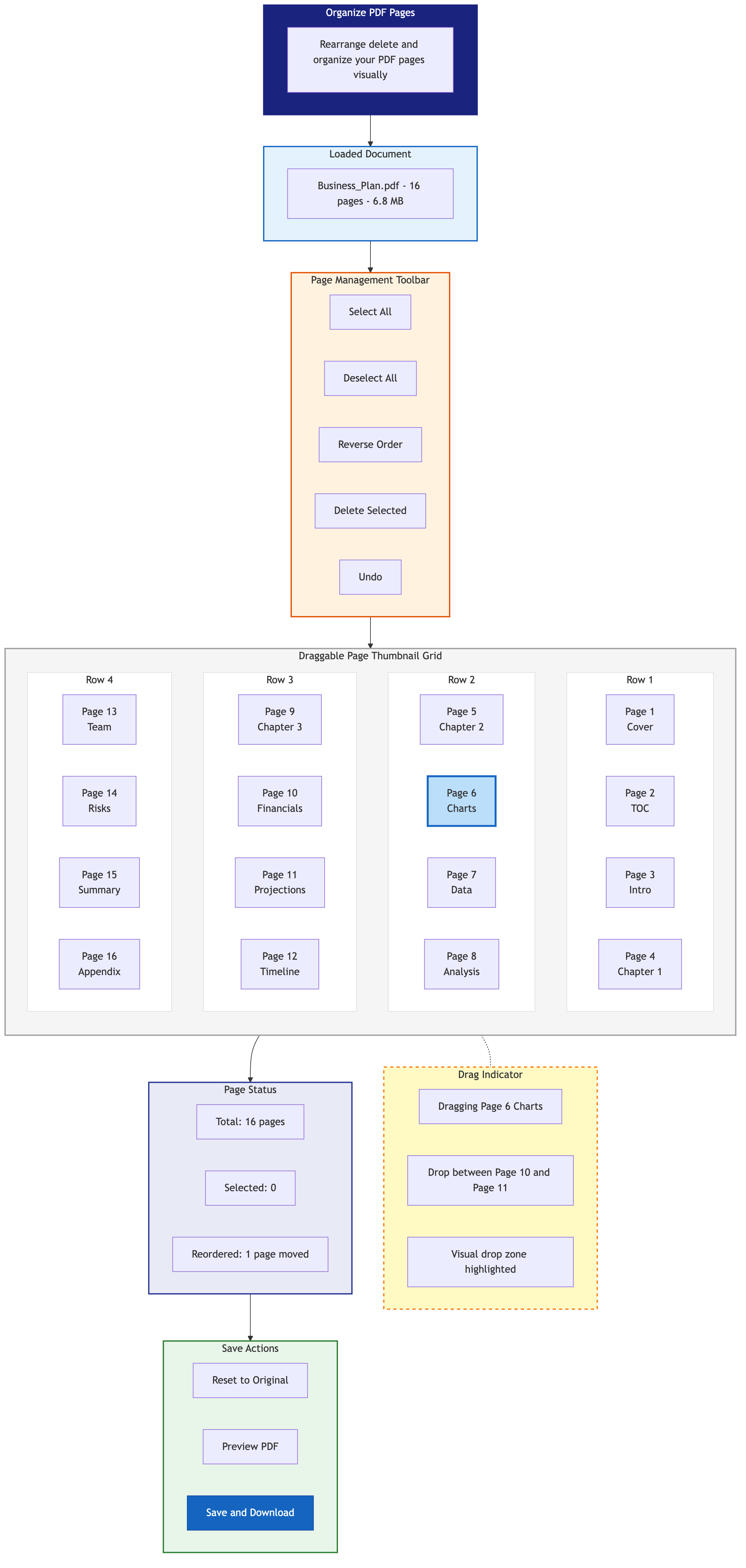
Step 3: Drag and Drop to Reorder
Click and hold any page thumbnail, then drag it to its new position. The other pages shift automatically to accommodate the move. You can:
- Move a single page to any position in the document
- Move multiple pages by selecting several thumbnails and dragging them as a group
- Move pages to the beginning or end by dragging to the first or last position
The interface provides visual feedback during dragging, showing exactly where the page will be inserted when you release.
Step 4: Review the New Order
After rearranging, review the thumbnails from start to finish. Verify that the page sequence makes sense and that no pages are missing or misplaced. The page numbers update in real time to reflect the new order.
Step 5: Save and Download
Once satisfied with the page order, click the save or download button. The tool generates a new PDF with pages in your specified order and downloads it to your device.
Advanced Page Organization Techniques
Combining Pages from Multiple PDFs
Sometimes you need pages from different source PDFs in a specific interleaved order. Here is the workflow:
- First, use the Merge PDF tool to combine all source PDFs into a single document
- Open the merged document in the Organize PDF tool
- Drag and drop pages from different sources into your desired sequence
- Save the final organized document
Example: You have a contract (PDF A, 5 pages) and supporting documents (PDF B, 8 pages). You want the final document ordered as: Cover page (A1), introduction (A2), supporting doc 1 (B1-B3), contract terms (A3-A4), supporting doc 2 (B4-B8), signature page (A5).
Separating a Document into Sections
If you need to reorganize a document into clearly defined sections:
- Upload to the Organize PDF tool
- Rearrange pages so related content is grouped together
- Optionally, use the Add Blank Page tool to insert section dividers
- Download the reorganized document
Removing and Reordering Simultaneously
For documents that need both page removal and reordering:
- Start with the Delete PDF Pages tool to remove unwanted pages
- Open the cleaned-up PDF in the Organize PDF tool
- Rearrange the remaining pages into the correct order
- Download the final result
Alternatively, some workflows are faster in reverse: reorder first, then delete, so you can visually confirm which pages to remove in context.
Organizing PDFs for Specific Purposes
For Academic Submissions
Academic institutions often require specific page ordering:
- Title page
- Abstract
- Table of contents
- Main body (chapters in order)
- References
- Appendices
Use the Organize PDF tool to ensure your submission follows the required structure exactly.
For Legal Document Packages
Legal filings typically require:
- Cover sheet or filing form
- Table of contents or index
- Pleadings or motions in chronological order
- Exhibits labeled sequentially
- Certificate of service
Drag and drop pages to match the court's filing requirements.
For Real Estate Closing Packages
Real estate transactions involve numerous documents that must be presented in a specific order:
- Settlement statement
- Deed
- Mortgage documents
- Title insurance
- Disclosures
- Inspection reports
Merge all documents, then use the organize tool to achieve the correct sequence.
For Portfolio Presentations
Creative portfolios benefit from strategic page ordering:
- Lead with your strongest work
- Group projects by category or client
- End with an about page and contact information
- Place transition pages between sections
The visual thumbnail view makes it easy to evaluate the flow of a portfolio.
Tips for Efficient Page Organization
Work with Thumbnails at the Right Size
If the thumbnails are too small to identify pages, zoom in or increase the thumbnail size (if the tool supports it). Being able to read page content in the thumbnails prevents misidentification.
Use a Systematic Approach for Large Documents
For documents with 50 or more pages, a systematic approach is more efficient than random rearranging:
- Identify the major sections of the document
- Move section starting pages to approximately the right positions first
- Fine-tune the order within each section
- Do a final review from beginning to end
Number Your Pages Before Organizing
If you are reorganizing a document based on a written plan (e.g., "Page 7 should come after page 3"), it helps to note the current page numbers first. The thumbnails show page numbers, making it easy to find specific pages.
Save Intermediate Versions
For complex reorganization tasks, save intermediate versions so you can roll back if needed. Download the PDF after each major rearrangement step before continuing with further changes.
Expert Tips
Plan your page order before starting. Write down the desired sequence on paper or in a text editor first. This prevents the confusion that comes from moving pages around without a clear plan.
Use merge before organize for multi-source documents. It is much easier to merge all PDFs first and then rearrange pages in the combined document than to try to interleave files during the merge step.
Delete unwanted pages first. Remove pages you do not need using the Delete PDF Pages tool before organizing. Fewer pages mean fewer thumbnails to manage and less chance of accidentally placing an unwanted page.
Verify page orientation while organizing. While rearranging, you might notice pages that are rotated incorrectly. Use the Rotate PDF tool to fix orientation before or after organizing.
Compress after organizing. If your final document is large, run it through the Compress PDF tool as a last step to reduce file size for sharing.
Double-check the page count. After organizing, verify the total page count matches your expectation. The organize tool does not add or remove pages, so the count should remain the same.
Frequently Asked Questions
Can I rearrange pages in a PDF without Adobe Acrobat?
Yes. The Organize PDF tool on toolz.dev provides a visual drag-and-drop interface for rearranging PDF pages. It is completely free, requires no signup, and works entirely in your browser.
Does reordering pages affect the quality of the PDF?
No. Reordering pages only changes the sequence in which they appear. The content of each page, including text, images, fonts, and formatting, remains completely unchanged and uncompressed.
Can I organize a PDF with 100+ pages?
Yes. The tool handles PDFs of any page count. For very large documents, the initial thumbnail generation may take a few seconds, but the drag-and-drop functionality works smoothly regardless of page count.
Can I undo changes while organizing?
Most browser-based tools allow you to reset to the original order or undo recent moves. If you make a mistake, you can also re-upload the original file and start over.
Can I combine pages from multiple PDFs into a specific order?
Yes. First use the Merge PDF tool to combine your PDFs into one document, then use the Organize PDF tool to drag and drop pages from different sources into your desired sequence.
Is there a way to sort pages automatically?
The organize tool provides manual drag-and-drop sorting. For automatic sorting, you might use the Reverse PDF Pages tool if you simply need to reverse the entire page order.
Is my document safe when using this tool?
Yes. All processing happens locally in your browser. Your PDF is never uploaded to any server. This makes the Organize PDF tool safe for confidential, legal, financial, and personal documents.
Conclusion
Organizing PDF pages should not require expensive software or technical expertise. The Organize PDF tool on toolz.dev gives you an intuitive, visual interface for rearranging any PDF in seconds. See your pages as thumbnails, drag them where they belong, and download the reorganized result.
For more complex workflows, combine the organize tool with Merge PDF to bring pages together from multiple sources, Delete PDF Pages to remove what you do not need, and Rotate PDF to fix any orientation issues along the way.
Your documents deserve the right page order. Open the Organize PDF tool and get your pages in order now.
Related Tools: