
Introduction
Rotation is metadata, not pixels: ISO 32000-2 defines a /Rotate entry on each page, a multiple of 90 that a viewer applies at display time. Nothing is re-encoded.
Few things are more frustrating than opening a PDF to find pages that are sideways, upside down, or oriented inconsistently. It happens constantly with scanned documents, photographs embedded in PDFs, files received from colleagues, and documents created by combining pages from different sources. The orientation is wrong, and you need to fix it before you can read, print, or share the file.
Rotating PDF pages used to require Adobe Acrobat or similar paid software. Today, you can fix page orientation instantly in your browser without installing anything or paying for a subscription. The Rotate PDF tool on toolz.dev lets you rotate individual pages or the entire document with a single click, and everything processes locally on your device for complete privacy.
In this guide, you will learn why PDFs end up with wrong orientations, how to rotate them correctly, and how to handle both simple and complex rotation scenarios.
Why Do PDF Pages End Up with Wrong Orientation?
Scanned Documents
Scanners are the number one source of orientation problems. When you feed pages through an automatic document feeder, some pages may be rotated 180 degrees if they were loaded upside down. Flatbed scanners sometimes capture pages in landscape mode when the document is portrait, or vice versa. Multi-page scans from mixed-orientation originals result in PDFs where every other page is rotated differently.
Phone and Camera Scans
Scanning documents with a phone camera introduces even more orientation variability. The phone's orientation sensor may misread the document's intended orientation, or you may have held the phone at different angles while capturing multiple pages. The resulting PDF often has a mix of portrait and landscape pages with no consistent orientation.
Combined Documents from Multiple Sources
When you merge PDFs from different sources, each source document may have been created with a different orientation. A landscape PowerPoint slide exported to PDF, combined with portrait Word documents and a scanned cover letter, results in a document where you need to rotate specific pages to create a consistent reading experience.
Software Bugs and Export Errors
Some PDF export tools, particularly older or niche ones, embed incorrect rotation metadata. The content appears fine in the authoring application but displays rotated when opened in a PDF reader. This is especially common with CAD drawings, architectural plans, and specialized industry software.
Printing Requirements
Even when pages display correctly on screen, printing may require rotation. A landscape-oriented page that needs to be printed on portrait paper, or vice versa, requires rotation before printing to avoid cropping or awkward scaling.
Understanding PDF Rotation
How Rotation Works Internally
PDFs store page rotation as metadata, a property called the "Rotate" entry in the page dictionary. This value can be 0, 90, 180, or 270 degrees. When you rotate a page in a PDF tool, you are changing this metadata value rather than re-rendering the entire page content. This means:
- Rotation is lossless. No quality is lost because the page content is not modified.
- Rotation is reversible. You can always rotate back to the original orientation.
- File size does not change. Since only a metadata value is updated, the file remains the same size.
Rotation Direction
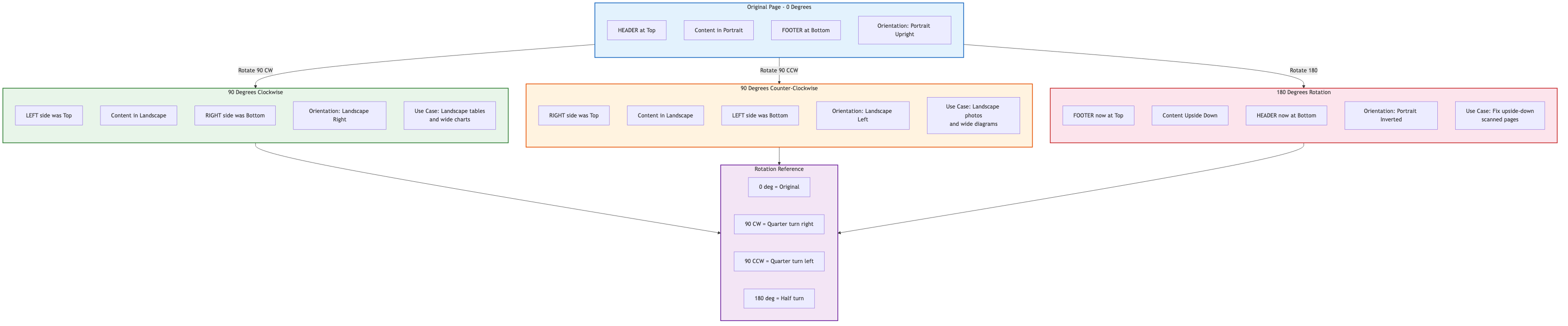
- 90 degrees clockwise: Turns the page one quarter turn to the right. A portrait page becomes landscape with the top edge now on the right.
- 90 degrees counterclockwise: Turns the page one quarter turn to the left. A portrait page becomes landscape with the top edge now on the left.
- 180 degrees: Flips the page upside down. Useful when a page was scanned with the paper facing the wrong way.
How to Rotate PDF Pages Online: Step-by-Step
Rotating All Pages
When every page in the document has the same orientation problem (e.g., all pages are sideways), rotating all pages at once is the fastest approach.
Step 1: Open the Rotate PDF tool on toolz.dev.
Step 2: Upload your PDF file by clicking the upload button or dragging the file into the tool.
Step 3: Select "All pages" as the scope.
Step 4: Choose your rotation angle: 90 degrees clockwise, 90 degrees counterclockwise, or 180 degrees.
Step 5: Click the rotate button.
Step 6: Download your corrected PDF.
The entire process takes seconds, even for documents with hundreds of pages.
Rotating Individual Pages
When only specific pages need rotation (common in scanned documents and merged files), you need page-by-page control.
Step 1: Open the Rotate PDF tool.
Step 2: Upload your PDF file.
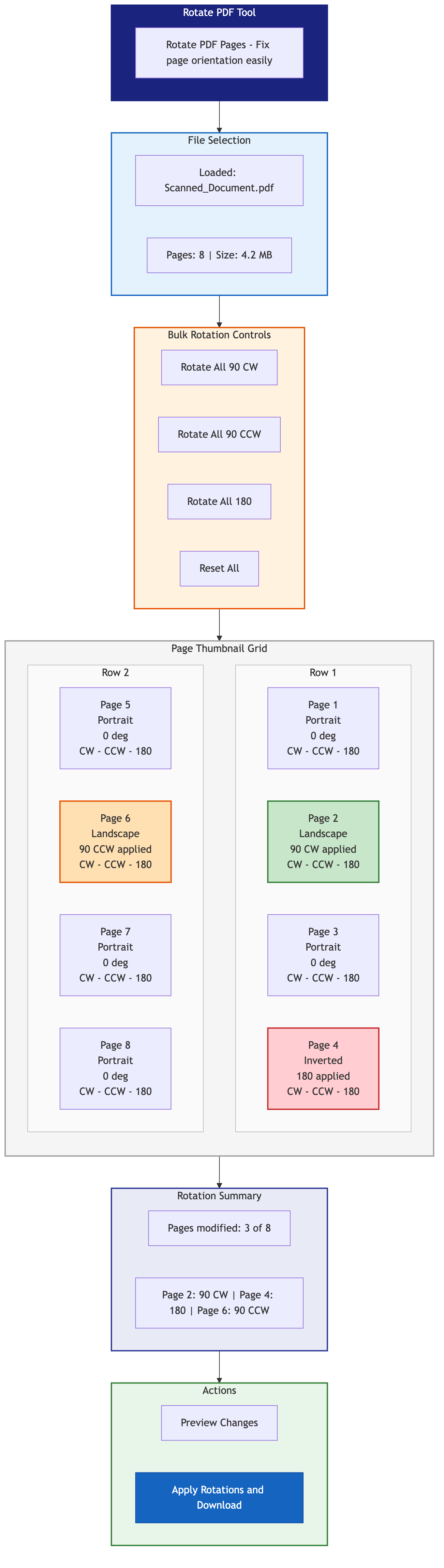
Step 3: View the page thumbnails. Each page is displayed as a small preview so you can identify which pages need rotation.
Step 4: Click the rotate button on individual page thumbnails to rotate them. Each click rotates the page 90 degrees clockwise. Click multiple times to reach the desired orientation.
Step 5: Once all pages are correctly oriented, click save/download.
Rotating a Range of Pages
For documents where a batch of consecutive pages needs the same rotation (e.g., pages 5 through 12 are all sideways), you can select a page range to rotate all at once rather than clicking each page individually.
Practical Scenarios and Solutions
Scenario 1: Scanned Book with Alternating Orientations
You scanned a book where every even page is upside down because of how the pages fed through the scanner.
Solution:
- Upload to the Rotate PDF tool
- Identify the upside-down pages from the thumbnails
- Rotate each affected page 180 degrees
- Download the corrected file
Alternative approach: If the pattern is perfectly alternating, use the Organize PDF tool to separate even and odd pages, rotate one set, then recombine.
Scenario 2: Landscape Presentation Mixed with Portrait Pages
You merged a landscape PDF presentation with portrait-oriented reference documents. Now some pages are sideways.
Solution:
- Upload the merged PDF to the Rotate PDF tool
- Identify pages that appear sideways in the thumbnails
- Rotate each sideways page 90 degrees (clockwise or counterclockwise depending on which direction they are rotated)
- Download the corrected document
Scenario 3: Phone-Scanned Multi-Page Document
You used your phone to scan a 20-page document, and the orientation is all over the place: some pages are upside down, some are sideways left, some are sideways right.
Solution:
- Upload to the Rotate PDF tool
- Go through each page thumbnail one by one
- Click the rotate button on each page until it is correctly oriented
- Save and download
This takes more time but ensures every page is correct. For very long documents, consider processing in batches.
Scenario 4: Preparing a PDF for Professional Printing
Your printer requires all pages to be in portrait orientation, but your document has a mix of portrait and landscape pages.
Solution:
- Identify all landscape pages
- Rotate them 90 degrees to portrait orientation
- Note: this will change how the content appears on the page, with what was landscape content now displaying sideways on a portrait page
- For better results, consider reformatting the source content rather than just rotating the PDF
Saving Rotated PDFs
Preserving Quality
Since PDF rotation only modifies metadata, the quality of your rotated PDF is identical to the original. Text remains sharp, images retain their resolution, and fonts are preserved exactly. There is no re-compression, re-rendering, or quality loss of any kind.
File Size
The rotated PDF will be essentially the same size as the original. A rotation operation adds only a few bytes of metadata per rotated page, which is negligible.
Compatibility
Rotated PDFs work correctly in all standard PDF readers including Adobe Reader, Chrome's built-in PDF viewer, Preview on macOS, and Foxit Reader. The rotation metadata is part of the official PDF specification and is universally supported.
Expert Tips for Rotating PDFs
Check the thumbnails carefully before downloading. It is easy to accidentally rotate a page the wrong direction. Verify every page is correctly oriented before saving.
Use keyboard shortcuts when available. Some tools let you use keyboard shortcuts to speed up page-by-page rotation, which is much faster for documents with many pages needing correction.
Combine rotation with other operations. After rotating, you might want to delete blank pages, reorder pages, or compress the file. Chain these operations for a complete document cleanup.
For recurring scan issues, fix your scanner settings. If you consistently get rotated pages from your scanner, check the scanner's auto-orientation settings, paper feed direction, and default output orientation.
Rotate before merging, not after. If you are combining multiple PDFs and some have orientation issues, it is easier to rotate each source file first, then merge them, rather than fixing orientation in the combined document.
For landscape content on portrait pages, use N-Up. If you need to fit a landscape page onto portrait paper without losing the landscape orientation, the N-Up PDF tool can help by scaling and positioning the content appropriately.
Frequently Asked Questions
Can I rotate a single page in a multi-page PDF?
Yes. The Rotate PDF tool on toolz.dev shows thumbnails of every page and lets you rotate each one individually. You do not have to rotate the entire document.
Does rotating a PDF reduce its quality?
No. PDF rotation modifies only a metadata value that tells the viewer how to display the page. The actual content (text, images, fonts) is not modified or re-encoded, so quality is preserved perfectly.
Can I rotate a PDF on my phone?
Yes. The toolz.dev Rotate PDF tool works in mobile browsers on both iPhone and Android. The interface adapts to smaller screens, and you can tap page thumbnails to rotate them.
What rotation angles are supported?
You can rotate pages by 90 degrees clockwise, 90 degrees counterclockwise, or 180 degrees. These cover all possible orientation corrections.
Is there a page limit for rotating PDFs?
No. The tool processes PDFs of any page count. Since rotation is a lightweight metadata operation, even PDFs with hundreds of pages rotate almost instantly.
Can I undo a rotation?
Yes. Simply rotate the page in the opposite direction. If you rotated 90 degrees clockwise, rotate 90 degrees counterclockwise to return to the original orientation. Since the tool shows previews, you can verify the orientation before downloading.
Is my PDF data safe when using the online tool?
Absolutely. The Rotate PDF tool on toolz.dev processes your file entirely in your browser. Your PDF is never uploaded to any server. This makes it safe for confidential, legal, medical, financial, or any other sensitive documents.
Conclusion
Wrong page orientation in PDFs is one of the most common and annoying document problems, but it is also one of the easiest to fix. The Rotate PDF tool on toolz.dev lets you correct any orientation issue in seconds, whether you need to fix a single sideways page or rotate every page in a 500-page document.
The tool is free, requires no signup, installs nothing on your computer, and processes your files entirely in your browser for maximum privacy. Combine it with other toolz.dev PDF tools like Organize PDF, Delete PDF Pages, and Compress PDF for a complete PDF editing workflow without Adobe Acrobat.
Fix your rotated PDFs right now: open the Rotate PDF tool and get your pages oriented correctly in seconds.
Related Tools: