The worst production bug I ever caused was one character in a cron expression. I wanted a database backup to run every night at midnight. I wrote 0 0 * * * in my head, typed 0 0 * * 0 into the crontab, and moved on. The job ran once - the following Sunday - and then not again for a week. I found out when I needed a backup that did not exist. That single misplaced digit turned "every day" into "every Sunday," and nothing in the syntax warned me. Cron does exactly what you tell it, silently, forever.
TL;DR: The Cron Expression Generator builds a standard five-field crontab expression from plain fields or one-click presets, explains it in a sentence as you type, and previews the next run times in UTC so you can confirm the schedule before it reaches production. It runs entirely in your browser - no account, no upload.
I built this tool for toolz.dev because I never again wanted to commit a schedule I had only checked in my head. Reading a cron expression back as plain English and seeing the actual dates it will fire catches the 0 -versus- * class of mistake instantly. This guide covers how cron syntax works, the interactions that trip up almost everyone, and how to use the generator to produce an expression you can trust.
What is a cron expression?
A cron expression is a compact schedule made of five fields separated by spaces. From left to right they are minute, hour, day of month, month, and day of week. The five-field form is specified by POSIX in the crontab entry format. A scheduler - the classic Unix cron daemon, but also CI systems, Kubernetes CronJobs, and countless task runners - reads the expression and fires your job at every moment that matches all the fields.
Each field accepts more than a single number. A star (*) means "every" value of that field. A list like 1,15,30 means several specific values. A range like 1-5 means an inclusive span. A step like */15 means "every fifteenth" value starting from the field's minimum. You combine these across the five fields to describe almost any recurring schedule: every minute, every quarter hour, weekdays at 8am, the first of every month, the last quarter's opening day. The power is real, and so is the density - five fields can encode a surprisingly precise schedule, which is exactly why they are easy to get subtly wrong.
Here is the field layout the generator uses, with the valid range for each:
| Position | Field | Range | Notes |
|---|---|---|---|
| 1 | Minute | 0–59 | |
| 2 | Hour | 0–23 | 24-hour clock |
| 3 | Day of month | 1–31 | |
| 4 | Month | 1–12 | JAN–DEC also accepted |
| 5 | Day of week | 0–6 | 0 and 7 both mean Sunday; SUN–SAT accepted |
Why generate the expression instead of writing it by hand
Writing cron by hand is a bet that you remembered the field order, the ranges, and the interactions correctly, with no feedback until the job either runs or fails to. The generator replaces that bet with confirmation. As you fill in the fields it does three things at once.
First, it assembles and validates the expression, catching out-of-range values, reversed ranges, and malformed steps with a message that names the offending field. An expression like 0 25 * * * - hour 25 does not exist - is rejected with an explanation rather than accepted and silently never run.
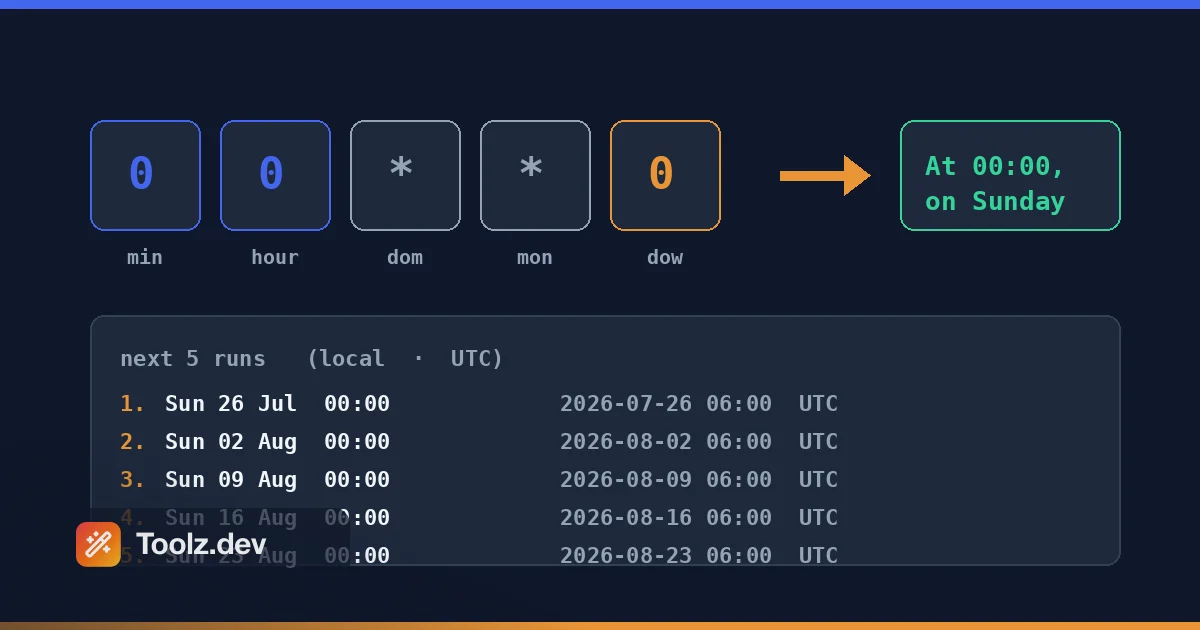
Second, it renders the schedule as a sentence. 0 8 * * 1-5 becomes "At 08:00 on Monday through Friday." Reading the schedule in words is the fastest way to notice that what you built is not what you meant. My midnight-backup bug would have been obvious the instant I read "At 00:00 on Sunday" instead of "At 00:00."
Third, it previews the actual upcoming run times. Seeing that a job will next fire in three months instead of tonight tells you something is wrong far more viscerally than staring at asterisks. This preview also catches impossible schedules - ask for the 30th of February and the generator shows no upcoming runs at all, because there are none.
How to use the Cron Expression Generator
Step 1: Start from a preset or a blank slate
The fastest route to a correct expression is to start from one that is already close. Pick a preset like "Weekdays at 8am," "Every 15 minutes," or "First of month at midnight," and the fields load ready to adjust. If none fits, start from the every-minute default and edit down. Presets exist because most real schedules are variations on a dozen common patterns, and starting from a known-good expression eliminates a whole category of mistakes.
Step 2: Set the five fields
Enter a value in each field, or leave it as * for "every." Each field accepts a single value, a comma list, a hyphen range, or a slash step. For example, to run at the top of every hour during business hours on weekdays, set minute to 0, hour to 9-17, and day of week to 1-5, leaving day of month and month as *. The hint under each field reminds you of its valid range so you do not have to memorize the order.
Step 3: Read the plain-English description
Watch the description update as you type. This is the step that saves you. If the sentence does not match the schedule in your head, the expression is wrong, and you have found out in the browser instead of in production a week later. Confirm the time, the days, and any month restriction read the way you intend.
Step 4: Check the next runs and copy
Click to preview the upcoming run times, computed in UTC. Scan them for anything surprising - a gap that is too long, a first run that is too far away, or an empty list signalling an impossible date. When the schedule looks right, copy the expression and paste it into your crontab, pipeline, or CronJob manifest.
The day-of-month and day-of-week trap
If you remember one thing about cron, make it this, because it surprises nearly everyone the first time. When both the day-of-month field and the day-of-week field are restricted - meaning neither is * - standard cron combines them with OR, not AND. The job runs when either condition matches.
So 0 0 13 * 5 does not mean "midnight on Friday the 13th." It means "midnight on the 13th of every month, and also midnight on every Friday." Those are very different schedules; the second fires many times a month. This behavior comes straight from the original Vixie cron implementation that most schedulers inherit, and the generator honors it exactly. Its next-run preview will show you both the 13ths and the Fridays, which is the clearest possible way to catch an unintended OR.
The practical rule: leave one of the two day fields as * unless you genuinely want the OR behavior. If you truly need "Friday the 13th only," cron cannot express it in one expression - you handle that logic in your job. Seeing the actual run dates in the preview is what turns this from a lurking gotcha into an obvious, visible fact.
Steps, ranges, and lists in practice
The step syntax is where a lot of scheduling power lives, and where a lot of confusion starts. */5 in the minute field means minutes 0, 5, 10, 15, and so on to 55 - "every five minutes." You can anchor a step to a range: 0-30/10 means minutes 0, 10, 20, and 30 only. A bare value with a step, like 5/15 in the minute field, means "starting at 5, every 15" up to the field maximum - 5, 20, 35, 50.
Lists and ranges combine freely. 1,4,7,10 in the month field gives you a quarterly schedule - January, April, July, October. 1-5 in day of week gives you Monday through Friday. 9-17 in the hour field gives you a nine-to-five window. Mixing them, 0 9-17 * * 1-5 reads as "at minute 0 of every hour from 9am to 5pm, Monday through Friday" - a common business-hours heartbeat. The generator expands and validates all of these, and the description spells out what you built so there is no ambiguity about, say, whether a range is inclusive (it is).
Common use cases
Scheduled backups and maintenance. The canonical cron job. Generate 0 2 * * * for a nightly 2am backup, read the description to confirm it is daily and not weekly, and preview the next runs to be sure the first one is tonight. This is the exact mistake I made years ago, and the exact one the preview prevents.
CI and deployment schedules. Nightly builds, scheduled test runs, and periodic deploys all use cron syntax in GitHub Actions, GitLab CI, and similar systems. Build the expression here, confirm it, and paste it into your workflow file. Because these systems run on their own servers, note the timezone caveat below.
Data pipelines and reports. A weekly report every Monday at 6am is 0 6 * * 1; a monthly rollup on the first is 0 0 1 * *; a quarterly job is 0 0 1 1,4,7,10 *. Generating these and reading them back stops the classic "ran on the wrong day" pipeline incident.
Cache warming and heartbeats. High-frequency jobs like */5 * * * * keep caches warm or health checks ticking. The preview confirms the interval is what you expect rather than, say, once an hour because you put the step in the wrong field.
Learning cron. If you are still building intuition, the generator is a teaching tool. Type an expression, read the sentence, see the runs, and the mapping between syntax and behavior becomes concrete in a way documentation alone never manages.
A note on timezones
The next-run preview computes times in UTC so the result is deterministic and the same for everyone reading this. Real cron daemons, however, run in the server's local timezone unless configured otherwise, and CI providers each have their own convention - many default to UTC, some do not. The expression itself carries no timezone; it is the scheduler that decides. So when you move an expression from this tool to a live system, confirm that system's timezone and offset the run times in your head accordingly. A 0 0 * * * job is midnight - but midnight where depends entirely on where the job runs. If you need to reason about timezone offsets, the timezone converter is handy, and the timestamp converter helps when your scheduler logs runs as Unix timestamps.
Generating versus parsing an expression
This tool builds an expression from fields. Its sibling, the Cron Expression Parser, goes the other way: paste an existing expression and it explains it and previews its runs. The two cover the two directions of the same problem. Use the generator when you know the schedule you want and need the syntax; use the parser when you have inherited an expression and need to understand what it does. Both honor the same Vixie-cron semantics, including the day-of-month OR day-of-week rule, so the description you read in one matches the behavior you would see in the other. Together they are a small, focused pair within the broader kit I describe in the web developer toolkit overview and the wider coding tools guide.
Privacy: it all runs in your browser
There is nothing to upload here, and nothing is uploaded. The expression is built, validated, described, and simulated entirely in client-side code. That matters more than it might seem: internal job schedules can reveal things about a system's architecture and cadence that you would not want sitting in a third party's logs. You can confirm the tool is self-contained by disconnecting from the internet - it keeps working. This is the same client-side principle behind every tool on toolz.dev, which I make the full case for in the data privacy in online tools article.
FAQ
How do I write a cron expression?
A standard cron expression has five fields separated by spaces: minute, hour, day of month, month, and day of week. Each field is a specific value, a list, a range, a step, or * for every. For example, 0 8 * * 1-5 means at 08:00 on Monday through Friday. This tool builds the expression for you and shows what it means as you go.
What do the five cron fields mean?
From left to right they are minute (0–59), hour (0–23), day of month (1–31), month (1–12), and day of week (0–6, where 0 and 7 both mean Sunday). A star in a field means "every" value of that field. The tool labels each field so you do not have to remember the order.
What does */5 mean in cron?
The slash introduces a step value. In the minute field, */5 means "every 5 minutes" - 0, 5, 10, 15, and so on. You can combine steps with ranges too: 0-30/10 in the minute field means minutes 0, 10, 20, and 30. Steps are the standard way to express "every N units."
Why does my job run more often than expected with day-of-month and day-of-week set?
This is the most common cron surprise. When both the day-of-month and day-of-week fields are restricted (neither is *), standard cron treats them as OR, not AND - the job runs when either condition matches. So 0 0 13 * 5 runs on the 13th of the month and every Friday, not only on Friday the 13th. Leave one field as * unless you truly want the OR behaviour.
What timezone are the next run times shown in?
The preview computes upcoming runs in UTC so the result is the same for everyone. Real cron daemons use the server timezone (or a TZ setting), so if your server runs in a different zone, offset the times accordingly. The expression itself carries no timezone - it is the scheduler that decides.
Can I use names like MON or JAN instead of numbers?
Yes. The month field accepts JAN through DEC and the day-of-week field accepts SUN through SAT, case-insensitive. The tool understands them when validating and describing your expression. Numeric values are more portable across schedulers, so the generator emits numbers, but named input is fully supported.
Is this the same as crontab syntax?
Yes, this generates standard five-field Unix/Vixie cron used by crontab, most CI systems, and Kubernetes CronJobs. Some schedulers add a sixth seconds field or nonstandard extensions like @reboot; those are not part of the five-field standard. For the vast majority of scheduling needs, the five-field expression this tool produces is exactly what you want.
Does my schedule get sent anywhere?
No. The expression is built, validated, described, and simulated entirely in your browser with client-side code. Nothing is uploaded or stored. You can confirm this by disconnecting from the internet - the generator still works.