Introduction
PDF stopped being Adobe's private format in 2008, when it was published as ISO 32000-2. That is why other tools can read and write it correctly at all.
Adobe Acrobat has been the default PDF editor for over three decades, but its subscription price of $20 to $25 per month puts it out of reach for many individuals, freelancers, and small teams. The reality is that most people do not need a full-featured desktop application to handle everyday PDF tasks. Merging a few documents, splitting a large PDF, compressing a file for email, or rotating misoriented pages are all tasks that can be done faster and for free using browser-based tools.
The shift toward online PDF tools has accelerated dramatically. Modern web browsers are powerful enough to process PDF files entirely on the client side, meaning your documents never leave your computer. This eliminates both the cost of desktop software and the privacy risk of uploading sensitive documents to third-party servers.
In this comprehensive guide, you will learn how to handle every common PDF editing task without Adobe Acrobat. We will cover the free tools available on toolz.dev, explain when each tool is the right choice, and show you step-by-step how to accomplish your specific PDF task quickly and securely.
Why You Do Not Need Adobe Acrobat
The Cost Problem
Adobe Acrobat Pro costs approximately $240 per year. For businesses with multiple team members, this adds up quickly. If you only need to merge PDFs once a week or compress a file for email once a month, paying for a full subscription is wasteful.
The Complexity Problem
Acrobat is a professional-grade application with hundreds of features most users never touch. The learning curve is steep, and even simple tasks like reordering pages require navigating through multiple menus and panels. Online tools offer focused, single-purpose interfaces where you complete your task in seconds.
The Installation Problem
Adobe Acrobat requires downloading, installing, and regularly updating a large desktop application. It consumes system resources even when idle. Browser-based tools require zero installation and work on any device with a modern web browser, including Chromebooks, tablets, and older machines.
The Privacy Advantage
Many online PDF tools upload your files to remote servers for processing. Toolz.dev is different: all PDF processing happens locally in your browser using client-side JavaScript. Your files are never uploaded, stored, or transmitted to any server. This is actually more private than using cloud-synced desktop software.
Free Alternatives for Every PDF Task
Merge PDF Files
The task: Combine multiple PDF files into a single document.
When you need it: Combining separate chapters into a book, merging invoices into a monthly report, compiling scanned documents into a single file, or assembling a presentation package.
How to do it on toolz.dev:
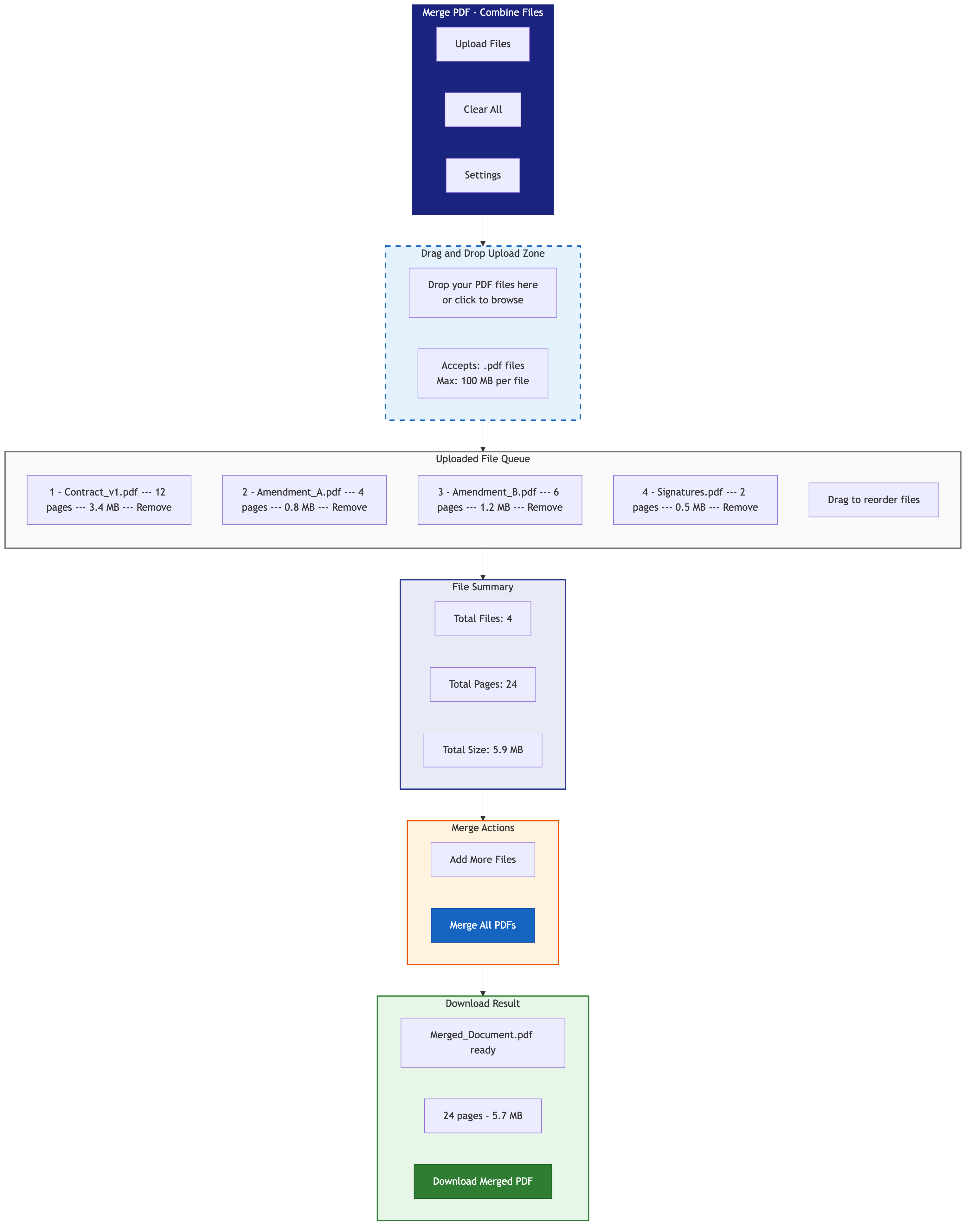
- Open the Merge PDF tool
- Upload or drag-and-drop your PDF files
- Arrange the files in your desired order
- Click merge to combine them into one PDF
- Download the merged result
The tool preserves all formatting, images, fonts, and interactive elements from the original files. There is no limit on the number of files you can merge.
Split PDF Files
The task: Break a single PDF into multiple smaller files.
When you need it: Extracting specific chapters from a large document, separating individual pages for different recipients, breaking a scanned document into individual pages, or creating smaller files that meet email attachment size limits.
How to do it on toolz.dev:
- Open the Split PDF tool
- Upload your PDF file
- Specify how you want to split: by page range, every N pages, or into individual pages
- Click split and download the resulting files
Compress PDF Files
The task: Reduce the file size of a PDF without significant quality loss.
When you need it: Sending PDFs via email (many providers limit attachments to 10-25MB), uploading to platforms with size restrictions, optimizing documents for web hosting, or saving storage space.
How to do it on toolz.dev:
- Open the Compress PDF tool
- Upload your PDF
- Select compression level (low, medium, or high)
- Preview the result and check file size reduction
- Download the compressed PDF
Typical compression reduces file sizes by 40-80% depending on the content type. Image-heavy PDFs see the greatest reduction.
Rotate PDF Pages
The task: Fix pages that are upside down, sideways, or oriented incorrectly.
When you need it: Scanned documents often have random page orientations. Photos inserted into PDFs may be rotated. Documents from different sources may have inconsistent orientation.
How to do it on toolz.dev:
- Open the Rotate PDF tool
- Upload your PDF
- Select individual pages or all pages
- Choose rotation: 90 degrees clockwise, 90 degrees counterclockwise, or 180 degrees
- Apply and download
Organize and Reorder PDF Pages
The task: Rearrange the order of pages within a PDF.
When you need it: Fixing page order after scanning, reorganizing a presentation, moving an appendix, or putting a cover page first.
How to do it on toolz.dev:
- Open the Organize PDF tool
- Upload your PDF
- View page thumbnails
- Drag and drop pages into your desired order
- Save and download the reorganized PDF
Delete PDF Pages
The task: Remove unwanted pages from a PDF.
When you need it: Removing blank pages, deleting irrelevant sections before sharing, stripping cover pages or appendices, or removing pages with sensitive information.
How to do it on toolz.dev:
- Open the Delete PDF Pages tool
- Upload your PDF
- Select the pages you want to remove
- Click delete and download the cleaned-up PDF
Extract PDF Pages
The task: Pull specific pages out of a PDF and save them as a new file.
When you need it: Extracting a single receipt from a multi-page bank statement, pulling out specific chapters, or saving individual slides from a PDF presentation.
How to do it on toolz.dev:
- Open the Extract PDF Pages tool
- Upload your PDF
- Select the pages you want to extract
- Download the extracted pages as a new PDF
Add Blank Pages
The task: Insert empty pages into a PDF at specific positions.
When you need it: Adding separator pages between sections, inserting placeholder pages for future content, or meeting printing requirements that need even page counts.
How to do it on toolz.dev:
- Open the Add Blank Page tool
- Upload your PDF
- Specify where to insert blank pages
- Download the updated PDF
Reverse PDF Page Order
The task: Flip the entire order of pages in a PDF.
When you need it: Fixing documents that were scanned in reverse order, creating reverse-chronological reports, or meeting specific printing requirements.
How to do it on toolz.dev:
Use the Reverse PDF Pages tool. Upload your file, click reverse, and download the result.
Additional PDF Tools
Toolz.dev offers several specialized PDF tools for advanced use cases:
- Alternate Mix Pages: Interleave pages from two PDFs (useful for combining front and back scans of double-sided documents)
- N-Up PDF: Place multiple pages on a single sheet (2-up, 4-up, etc.) for printing handouts
- Combine to Single Page: Merge all pages into one long continuous page
- Posterize PDF: Split each page into multiple tiles for large-format printing
- Remove Blank Pages: Automatically detect and remove empty pages
The Privacy Advantage of Browser-Based PDF Tools
How Server-Based Tools Work (The Risk)
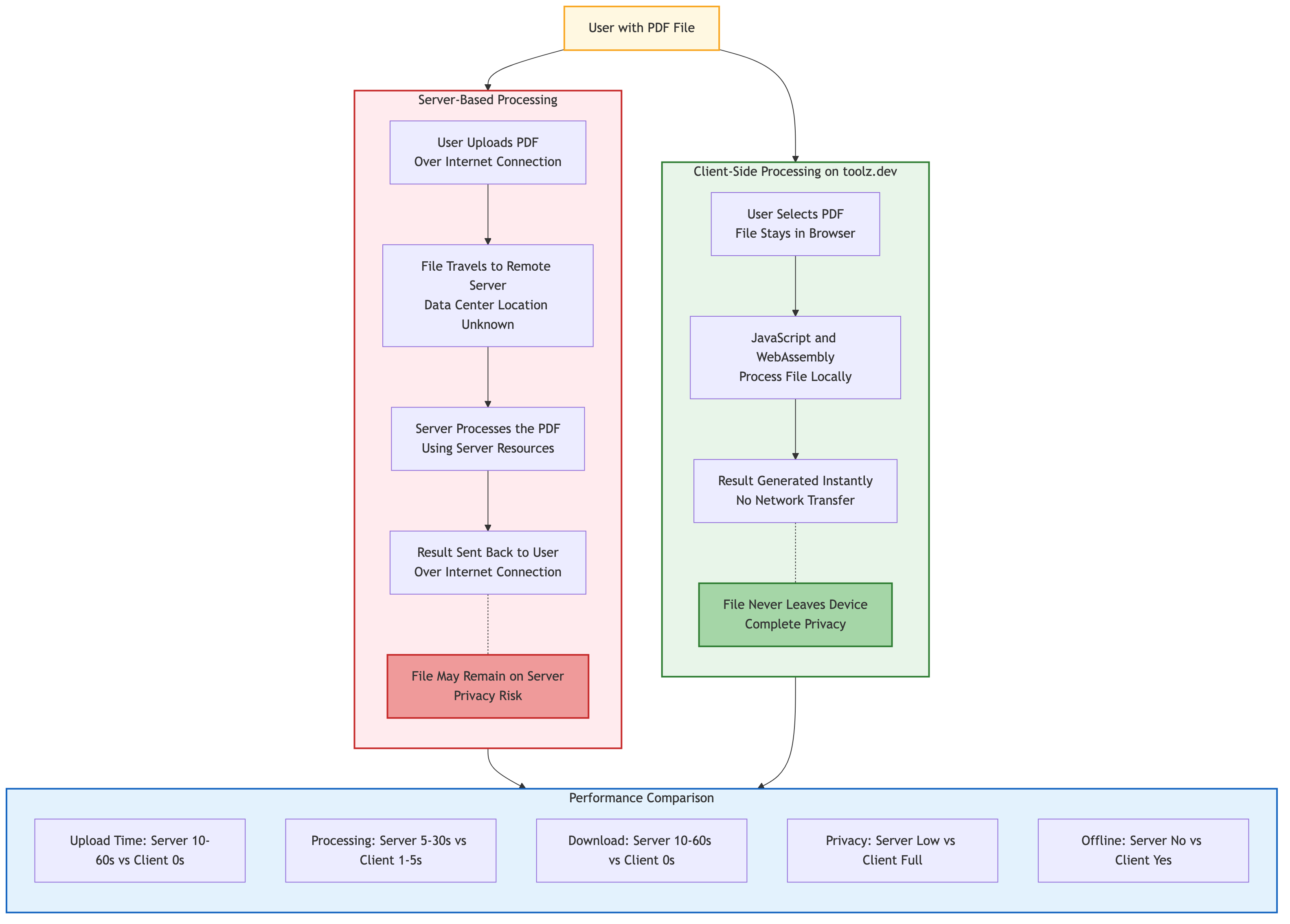
Most online PDF tools require you to upload your file to a remote server. The server processes the file and sends back the result. During this process:
- Your document exists on a third-party server, potentially indefinitely
- The server operator can read, copy, or retain your data
- Transmission over the internet creates interception opportunities
- You are trusting the operator's privacy policy and security practices
How Toolz.dev Works (The Safe Approach)
Toolz.dev processes all PDFs entirely in your browser using client-side JavaScript libraries. Here is what happens:
- You select or drag a file from your computer
- The browser reads the file locally
- JavaScript code processes the PDF in browser memory
- The result is generated and downloaded directly to your machine
- No data is ever transmitted over the network
This means you can safely process confidential contracts, financial documents, medical records, legal filings, and any other sensitive material without privacy concerns.
Common PDF Editing Workflows
Workflow 1: Preparing a Contract for Signature
- Merge the cover letter and contract pages using Merge PDF
- Delete any draft or outdated pages using Delete PDF Pages
- Reorder pages to put the signature page last using Organize PDF
- Compress the final document for emailing using Compress PDF
Workflow 2: Processing Scanned Documents
- Rotate misoriented pages using Rotate PDF
- Remove blank pages automatically using Remove Blank Pages
- Reorder pages if the scan order was wrong using Organize PDF
- Split into individual documents if multiple documents were scanned together using Split PDF
Workflow 3: Creating a Presentation Package
- Extract relevant pages from multiple source PDFs using Extract PDF Pages
- Merge the extracted pages into a single presentation using Merge PDF
- Add blank pages as section dividers using Add Blank Page
- Compress for distribution using Compress PDF
Comparing Free Options: Toolz.dev vs Other Free Tools
| Feature | Toolz.dev | Smallpdf (Free) | ILovePDF (Free) | Adobe Online (Free) |
|---|---|---|---|---|
| Processing | Client-side | Server-side | Server-side | Server-side |
| Privacy | Data stays local | Files uploaded | Files uploaded | Files uploaded |
| Signup required | No | Yes (limited) | No (limited) | Yes |
| Daily limits | None | 2 tasks/day | Limited | Limited |
| Watermarks | None | None | None | None |
| File size limit | Browser memory | 5MB (free) | 25MB (free) | 2MB (free) |
| Speed | Instant | Depends on upload | Depends on upload | Depends on upload |
Expert Tips for PDF Editing Without Adobe
Chain tools together for complex workflows. Need to merge, then compress, then rotate? Process your PDF through each tool sequentially. The output from one tool becomes the input for the next.
Compress last in your workflow. Always make compression the final step. Compressing before merging or editing can cause quality issues in intermediate steps.
Use Chrome or Firefox for best performance. These browsers have the most robust JavaScript engines for client-side PDF processing. Safari and Edge work but may be slower with very large files.
Check page count before and after operations. After merging, splitting, or deleting pages, verify the page count matches your expectations to catch any errors immediately.
Keep original files until verified. Always retain your source PDFs until you have verified the edited output is correct. Browser-based tools do not modify your original files, but it is good practice to double-check.
For recurring tasks, bookmark the specific tool. If you regularly merge invoices or compress reports, bookmark the specific toolz.dev tool page for one-click access.
Frequently Asked Questions
Can I really edit PDFs without paying for Adobe?
Yes. Every common PDF editing task, including merging, splitting, compressing, rotating, reordering, extracting, and deleting pages, can be done for free using the browser-based tools on toolz.dev. No subscription, no signup, no payment required.
Are free online PDF tools safe for sensitive documents?
Toolz.dev processes all files locally in your browser. Your documents are never uploaded to any server, making it safer than many desktop applications that sync to cloud storage. For other online tools that upload files to servers, exercise caution with sensitive content.
What PDF tasks still require Adobe Acrobat?
Advanced features like OCR text recognition, form field creation, digital signature workflows, advanced redaction, and PDF/A archival conversion may still require specialized software. For 90% of everyday PDF tasks, free online tools are sufficient.
Is there a file size limit for the free PDF tools?
Since processing happens in your browser, the limit depends on your device's available memory. Most modern computers handle PDFs up to 100-200MB without issues. For extremely large files, consider splitting them first.
Can I edit the text content within a PDF using these tools?
The toolz.dev PDF suite focuses on page-level operations (merge, split, rotate, reorder, delete, extract). For editing text content within PDF pages, you would need a text-editing tool like LibreOffice Draw (free) or a specialized PDF text editor.
Do the tools work on mobile devices?
Yes. The browser-based tools work on smartphones and tablets with modern browsers. The drag-and-drop interface adapts to touch input, though complex operations like page reordering are more comfortable on a larger screen.
How does the quality compare to Adobe Acrobat?
For page-level operations, the output quality is identical. Merge, split, rotate, and reorder operations do not re-encode the PDF content, so fonts, images, and formatting are preserved exactly as they were in the original. Compression may introduce minor quality reduction at high compression levels, just as it would in Adobe.
Conclusion
Adobe Acrobat is powerful, but it is not necessary for the vast majority of PDF tasks. The free, browser-based PDF tools on toolz.dev give you everything you need to merge, split, compress, rotate, organize, extract, and delete PDF pages without installing any software or spending a single dollar.
The privacy advantage is significant: your files never leave your browser. There are no upload limits, no daily restrictions, and no watermarks on your output.
Here is your complete toolkit for PDF editing without Adobe:
- Merge PDF - Combine multiple PDFs
- Split PDF - Break PDFs into parts
- Compress PDF - Reduce file size
- Rotate PDF - Fix page orientation
- Organize PDF - Reorder pages
- Delete PDF Pages - Remove unwanted pages
- Extract PDF Pages - Pull out specific pages
- Add Blank Page - Insert empty pages
- Reverse PDF Pages - Flip page order
- Remove Blank Pages - Clean up empty pages
- Alternate Mix Pages - Interleave two PDFs
- N-Up PDF - Multiple pages per sheet
- Posterize PDF - Tile pages for large prints
Bookmark the tools you use most frequently and stop paying for software you do not need. Your PDFs, your browser, zero compromise.
Related Tools: