The reason toolz.dev has 13 PDF tools is a 43 MB scanned contract.
A few years back, during my WP Adminify days, a client needed a signed agreement emailed "in the next ten minutes." The scan was 43 MB - the office scanner had captured every page as a 600 DPI color image, three of them upside down. Gmail's attachment cap is 25 MB. I did what everyone does: googled "compress PDF free," clicked the first result, and watched a progress bar upload a signed legal contract to a server I knew nothing about, in a country I couldn't identify, under a privacy policy I didn't read.
It worked. The file came back at 8 MB. And then I sat there feeling vaguely sick about where that contract now lived.
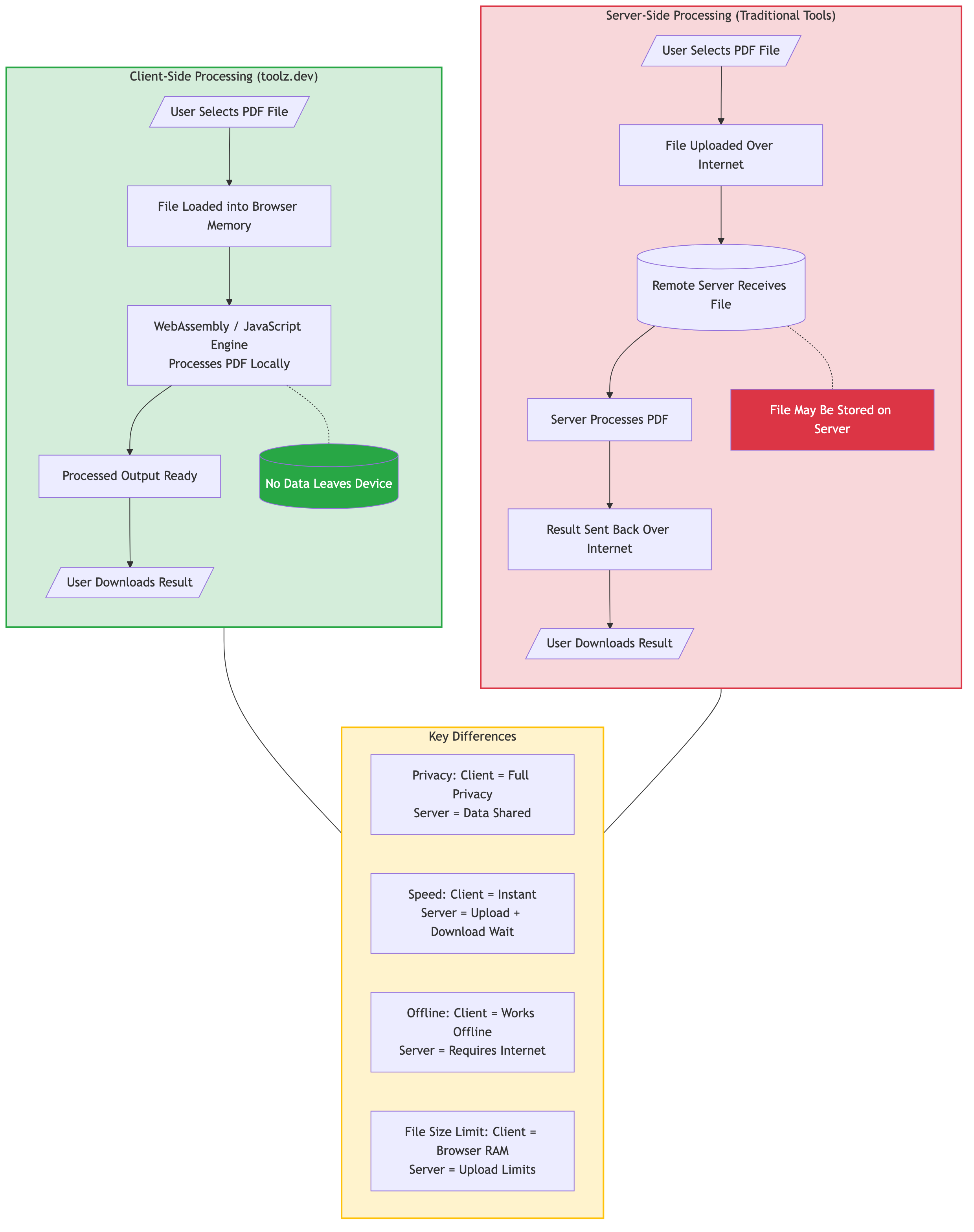
That afternoon is why every PDF tool I later built for toolz.dev runs entirely in your browser. Not "we delete your files after one hour" - the files never leave your machine at all. This guide walks through every PDF operation the suite covers: merging, splitting, compressing, rotating, extracting, deleting, and reorganizing pages, plus the weirder ones like alternate-mixing duplex scans. And I'll flag the mistakes I made along the way, because a couple of them will save you real time.
TL;DR: You can do almost all everyday PDF editing free in your browser with zero uploads: Merge PDF to combine files, Split PDF to break them apart, Compress PDF to hit email attachment limits, Rotate PDF to fix sideways scans, and Organize PDF to drag-and-drop reorder pages. Everything on toolz.dev processes client-side - your documents never touch a server.
Why Does Client-Side PDF Processing Matter?
Most "free online PDF tools" follow the same architecture: you upload the file, their server processes it, you download the result. The tool is a thin front-end for a server farm. That model has three problems, and only one of them is privacy.
Privacy is the obvious one. Contracts, tax forms, medical records, payslips - the documents people most often need to merge or compress are precisely the ones that should never sit in a stranger's temp directory. "Files deleted after 1 hour" is a promise, not a guarantee, and you have no way to audit it.
Latency is the sneaky one. Uploading 43 MB on hotel Wi-Fi takes longer than the actual processing. Client-side tools skip the round trip entirely - the "upload" is instant because the file just moves from your disk into your browser's memory.
Failure modes are the one nobody mentions. Server-side tools have queues, rate limits, file size caps, and "upgrade to Pro to process files over 20 MB" walls. A browser-based tool has exactly one limit: your machine's RAM.
The technical foundation for this shifted years ago. PDF is an open ISO standard - ISO 32000-2 defines PDF 2.0, and the earlier PDF 1.7 spec (ISO 32000-1) is freely downloadable from Adobe. Open-source JavaScript libraries like pdf-lib and Mozilla's pdf.js implement enough of that spec to merge, split, and re-render documents entirely in a browser tab. There's no longer a technical reason to upload a PDF anywhere just to rotate three pages.
And the cost argument writes itself: Adobe listed Acrobat Pro at $19.99/month last time I checked their pricing page. For merging, splitting, compressing, and reorganizing - which in my experience covers well over 90% of what people actually do to PDFs - you're paying $240 a year for operations a browser does free.
How Do You Merge PDF Files?
Merging is the operation I reach for most - combining a cover letter, résumé, and portfolio into one application file, or bundling 12 monthly invoices into an annual archive for the accountant.
The workflow on the Merge PDF tool:
- Drag and drop your PDFs onto the tool (or click to browse).
- Reorder them in the file list - drag them around until the sequence is right.
- Click Merge.
- Download the combined file.
The whole thing takes maybe fifteen seconds for typical files. Two things I've learned to check before clicking merge, both from getting them wrong:
Order first, merge second. Early on I merged a 9-file client report in upload order instead of chapter order, sent it, and got a polite email asking why the appendix came before the introduction. Reordering before the merge takes ten seconds; fixing it after means re-doing the whole thing (or worse, using Organize PDF to manually untangle 140 pages).
Mixed page sizes merge fine but look odd. The PDF format has no problem combining an A4 page with a US Letter page - each page keeps its own dimensions, per the spec. But a reader flipping through will notice the jump. If it's client-facing, standardize first.
For the full walkthrough - including how merging handles bookmarks and metadata - see the dedicated merge PDF guide.
How Do You Split a PDF Into Separate Files?
Splitting is merging's inverse: one document in, several out. The Split PDF tool supports three modes, and picking the right one saves fiddling:
- Split by page ranges- you specify
1-5, 6-10, 11-15and get three files. Best for documents with known section boundaries. - Split every N pages- automatic, uniform chunks. Best for breaking a big scan into email-sized pieces.
- Extract specific pages- pull out just the pages you name. Best when you only need a fragment.
The trick with range-based splitting is knowing your boundaries before you start. For anything longer than 20 pages, I open the document in Organize PDF first - its thumbnail grid shows every page at a glance, so finding "chapter 3 starts on page 47" takes seconds instead of scrolling a viewer.
When Should You Compress a PDF - and How Much Is Too Much?
Compression exists because of one number: 25 MB, the attachment limit on Gmail and most corporate mail servers. Submission portals are often worse - I've hit government forms capped at 5 MB.
What compression actually does
A PDF is a container holding text streams, fonts, vector graphics, and - the usual culprit - embedded images. Compression on the Compress PDF tool targets the heavy parts:
- Image downsampling- a 600 DPI scan viewed on screen carries 4x more pixels than a 300 DPI one, for no visible benefit. Downsampling throws away resolution nobody sees.
- Image re-encoding- converting lossless image streams to JPEG at a sensible quality level.
- Object stream compression- tightening the PDF's internal data structures (the spec allows Flate compression on nearly everything).
- Duplicate removal- scans and generated reports frequently embed the same logo or font subset dozens of times.
How much can you expect?
It depends almost entirely on what's inside. Text-born PDFs (exported from Word, LaTeX, or a browser) are already tight - expect 10–30% reduction. Scanned, image-heavy PDFs are where the drama happens: my 43 MB contract went to 6.8 MB at medium compression, an 84% reduction, and the signatures stayed perfectly legible.
One mistake to learn from mine: the first version of the compress tool I shipped applied aggressive downsampling uniformly - including to pages that were scanned text. Scanned text is technically an image, and at low DPI it turns into blurry mush. I'd tested on photo-heavy PDFs and never noticed. A user with a scanned textbook noticed immediately. The lesson for you as a user: always open the compressed file and zoom to 200% on a text-heavy page before you delete the original. Low compression is the safe default for scans; high compression is for photo decks where softness is acceptable.
The compression deep-dive guide covers the quality/size tradeoffs in detail.

How Do You Fix Rotated or Upside-Down Pages?
Scanners are the reason this tool exists. Feed a stack of paper into a document feeder and some percentage comes out sideways - in my experience it's always the important pages.
The Rotate PDF tool handles the three cases:
- Upload the PDF.
- Select which pages to rotate - all of them, or specific page numbers (for that one landscape chart in a portrait report).
- Pick the angle: 90° clockwise, 90° counter-clockwise, or 180° for upside-down scans.
- Download the corrected file.
Under the hood this is the cheapest PDF operation there is - the spec stores rotation as a per-page /Rotate attribute, so the tool changes an integer rather than re-rendering anything. It's instant even on 500-page documents.
Which Tool Do You Actually Need? (Split vs Extract vs Delete vs Organize)
This is the question I get most often, because four different tools all "remove pages" in some sense. Here's the decision table I wish I'd had:
| You want to... | Use this tool | Why |
|---|---|---|
| Break one PDF into several complete files | Split PDF | Produces multiple output files by range or interval |
| Pull 3 pages out into a new document | Extract PDF Pages | One output file containing only what you named |
| Remove a few unwanted pages, keep the rest | Delete PDF Pages | One output file minus the pages you selected |
| Reorder pages, or mix reorder + remove visually | Organize PDF | Thumbnail drag-and-drop; the visual option |
| Flip the entire page order | Reverse PDF Pages | One click; for backwards scans |
The extract-vs-split confusion costs people the most time. If you need the signature page from a 60-page contract, splitting gives you a folder of files to clean up; extraction gives you exactly one file with exactly one page. Extract when you know what you want; split when you want everything, just in pieces.
Delete PDF Pages earns its keep on scanned documents - blank backs of single-sided pages, accidental duplicate feeds, the cover sheet someone left on the scanner. Preview the thumbnails, tick the offenders, done. For scans with many blank pages, Remove Blank Pages detects and strips them automatically instead of making you click each one.
And Organize PDF is the swiss-army option: every page as a draggable thumbnail. It's what I use when a client sends a scanned deck that's simultaneously out of order, upside down in places, and padded with blanks - one tool, one pass.
What Are the Specialty PDF Tools For?
Five tools in the suite solve narrower problems that are miserable to solve any other way:
Alternate Mix Pages interleaves two PDFs - page 1 of A, page 1 of B, page 2 of A, page 2 of B. If that sounds obscure, you've never scanned a double-sided document on a single-sided scanner: you end up with one file of odd pages and one of even pages, and alternate-mix zips them back together. This tool has rescued me at least seven times.
Add Blank Page inserts blank pages at chosen positions. The non-obvious use case is duplex printing: if a section must start on a right-hand page, you need a blank filler before it.
N-Up PDF arranges multiple pages per sheet - 2-up, 4-up, 6-up. Slide handouts, study sheets, and a 75% reduction in paper when printing reference material.
Posterize PDF goes the other direction: one page spread across multiple sheets, for printing an A1 poster on an A4 home printer and taping the tiles together.
Reverse PDF Pages flips the page order - for scanners that eat the stack back-to-front.
What Does a Sane PDF Workflow Look Like?
After years of doing this badly and then slightly less badly, here's the order of operations that avoids rework:
- Fix orientation first. Rotate before anything else - it's easier to spot wrong pages in a thumbnail view when they're right-side up.
- Remove junk second. Delete blank pages and cover sheets before merging, not after - page numbers in the merged file will match your expectations.
- Merge third. With clean, correctly-oriented inputs, merging is just ordering.
- Compress last, always. Compress the final merged document, not the individual pieces. Compressing first and merging after gives the algorithm less to work with and can stack quality loss - this is the "compress last" rule, and it's the single most common ordering mistake I see.
Two habits worth keeping: name source files with number prefixes (01-cover.pdf, 02-resume.pdf) so the merge order is self-documenting, and never delete originals until you've opened and checked the output. Every toolz.dev operation is non-destructive - you always get a new file - but the original on your disk is still your only real backup.
One more thing worth knowing: merged PDFs inherit metadata (title, author) from the first source file. Usually harmless - occasionally embarrassing, if the first file's author field says something the client shouldn't see.
Frequently Asked Questions
Are online PDF tools safe for sensitive documents?
Only if they're client-side. Most online PDF tools upload your file to their servers - your contract or tax form then exists, at least temporarily, on infrastructure you can't audit. The toolz.dev PDF tools process everything in your browser using JavaScript; no upload happens at all. You can verify this yourself: open your browser's DevTools Network tab while using a tool and watch - no file data leaves your machine.
Can I merge PDFs with different page sizes?
Yes. The PDF format stores dimensions per page, so an A4 page and a Letter page coexist happily in one document - each keeps its original size and orientation. The merged file is valid; it just looks slightly inconsistent when reading. Standardize sizes first if it's going to a client.
How much can I compress a PDF without visible quality loss?
Depends on the content. Text-based PDFs (exported from Word or a browser) compress 10–30% because they're already efficient. Scanned and image-heavy PDFs routinely compress 50–84% - my worst-case 43 MB scan came down to 6.8 MB with signatures still crisp. Always zoom to 200% on a text page in the output before trusting high compression on scans.
Do I need to install anything to edit PDFs?
No. Everything in this guide runs in Chrome, Firefox, Safari, or Edge with no installation, no signup, and no browser extension. That includes tablets and Chromebooks - if it runs a modern browser, it runs these tools.
Is there a limit on how many PDFs I can merge at once?
No fixed limit - the practical ceiling is your device's memory, since processing happens locally. I've merged 30+ invoice files in one pass without issues. Very large batches of huge scans may get slow on low-RAM machines; split the job in two if it does.
What's the difference between splitting and extracting pages?
Splitting turns one PDF into multiple complete files - everything is preserved, just divided. Extraction produces a single new file containing only the pages you asked for. Need the whole document in chunks? Split. Need three specific pages? Extract- you'll have one file instead of a folder to clean up.
How do I fix a double-sided document scanned as two files?
This is exactly what Alternate Mix Pages does: give it the odd-pages file and the even-pages file, and it interleaves them back into the original page order. If the even pages were scanned back-to-front (common with flip-and-rescan), run that file through Reverse PDF Pages first.
Can I reorder pages without splitting and re-merging?
Yes - that round trip is exactly what Organize PDF eliminates. It shows every page as a thumbnail; drag pages to new positions, optionally delete some, and save. One tool, one pass, no intermediate files.
Why is my "compressed" PDF barely smaller?
Because there was nothing left to squeeze. PDFs generated by modern software already use internal compression per the ISO 32000 spec - if your file is mostly text and vector graphics, it's near its floor. Big reductions come from downsampling embedded images, so a file with no large images has no headroom. That's expected behavior, not a broken tool.
Can I edit PDF text or fill forms with these tools?
The tools in this guide handle page-level operations - merge, split, compress, rotate, and organize - rather than editing the text baked into a page. Fillable PDF forms (ones with real form fields) can be completed in your browser's built-in PDF viewer, and if you need to change body text, edit the source document and re-export instead of retyping over the PDF.
How do I rotate only one page of a PDF?
Use Rotate PDF and select just the page or pages you want turned rather than applying rotation to the whole file. This fixes the common scanner problem where a single sheet was fed sideways while every other page is upright, and it saves without re-rendering the pages that were already correct.
Where to Start
The 43 MB contract that started all this would take about ninety seconds to fix today: rotate the three upside-down pages, compress to under 25 MB, send - with the document never leaving my laptop.
That's the whole pitch for client-side PDF tools: not just free, but structurally incapable of leaking your documents, because there's no server to leak from.
Start with whichever operation is blocking you right now - Merge, Split, Compress, Rotate, or Organize- and go deeper with the merge guide or the compression guide when you hit the edge cases.
Related Articles:
- How to Merge PDF Files Online for Free
- How to Compress PDF Files Without Losing Quality
- Free Online Image Tools Guide