What is Image Format Converter?
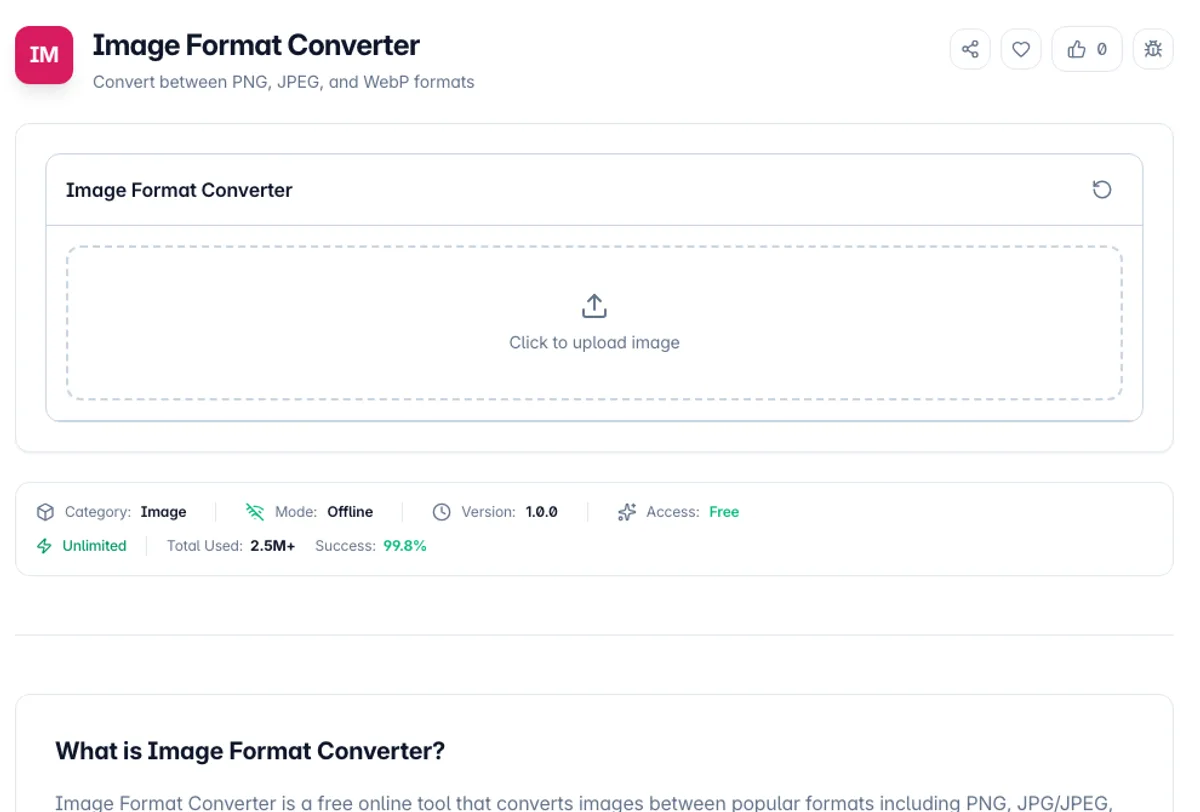
Image Format Converter is a free online tool that converts images between popular formats including PNG, JPG/JPEG, and WebP. Different image formats serve different purposes: PNG is ideal for graphics with transparency, JPG for photographs, and WebP for web-optimized images with superior compression.
The tool makes it easy to switch between formats when your project requires a specific file type. Need to convert a PNG to JPG for email compatibility? Or convert JPG to WebP for faster website loading? This tool handles it instantly with full control over output quality.
All image conversion happens locally in your browser, so your files are never uploaded to any server. Simply select your image, choose the target format, adjust quality settings if needed, and download the converted file. No registration, no watermarks, and no file size limits.
The conversions that lose something are worth naming before you run them. PNG to JPEG discards the alpha channel, because JPEG has none, so anything transparent is composited onto white and cannot be recovered. JPEG to PNG does the opposite and is usually pointless: the compression artefacts already in the JPEG are preserved losslessly into a much larger file. WebP is the one worth converting towards, since it does both lossy and lossless, supports transparency, and is typically 25 to 35 per cent smaller than an equivalent JPEG or PNG. Every conversion here re-encodes through the canvas, so metadata is dropped and a lossy target format means a fresh generation of loss regardless of the quality setting.
A typical job for a JPEG format image converter looks like this. Drop in holiday.png at 1920 x 1080, click JPEG under Target Format, leave Quality at 90% and press Convert & Download. The browser saves converted_holiday.jpg at the same 1920 x 1080 pixels, with any EXIF or colour-profile metadata left behind. If the PNG had transparent areas, they come out white in the JPEG, so place the image on a coloured background in an editor first if you want a different colour.
How to use Image Format Converter?
Upload your image
Drag and drop an image or click to browse and select one from your device. The tool accepts PNG, JPG, and WebP formats as input.
Select output format
Choose the target format you want to convert to: PNG for transparency support, JPG for smaller photos, or WebP for web-optimized images.
Adjust quality settings
For JPG and WebP outputs, adjust the quality slider to balance between file size and image quality. PNG output maintains lossless quality.
Download the converted image
Click download to save the converted image in the new format. The file is ready to use in your projects.
Key Features
Current and Target at a Glance
The detected source format, the target you picked, a preview of the original and its pixel size are shown before you convert, so you know exactly what you are about to download
Multiple Format Support
Convert between PNG, JPG/JPEG, and WebP formats with full quality control
Quality Control
Adjustable quality settings for JPG and WebP outputs to optimize file size without sacrificing visual quality
Transparency Kept Where the Format Allows
PNG and WebP output keep the alpha channel. JPEG has none, so transparent pixels are filled with white
Frequently Asked Questions
Related Tools
Background Remover
Remove solid color backgrounds from images
EXIF Remover & Metadata Viewer
See the GPS location, camera and timestamps hidden in a photo, then strip them without re-encoding a single pixel.
Image Compress
Compress images with adjustable quality
Image Dither
Turn photos into halftone, Bayer and 1-bit dithered posters
Comments
0 comments
No comments yet. Be the first to share your thoughts!