What is Image Compress?
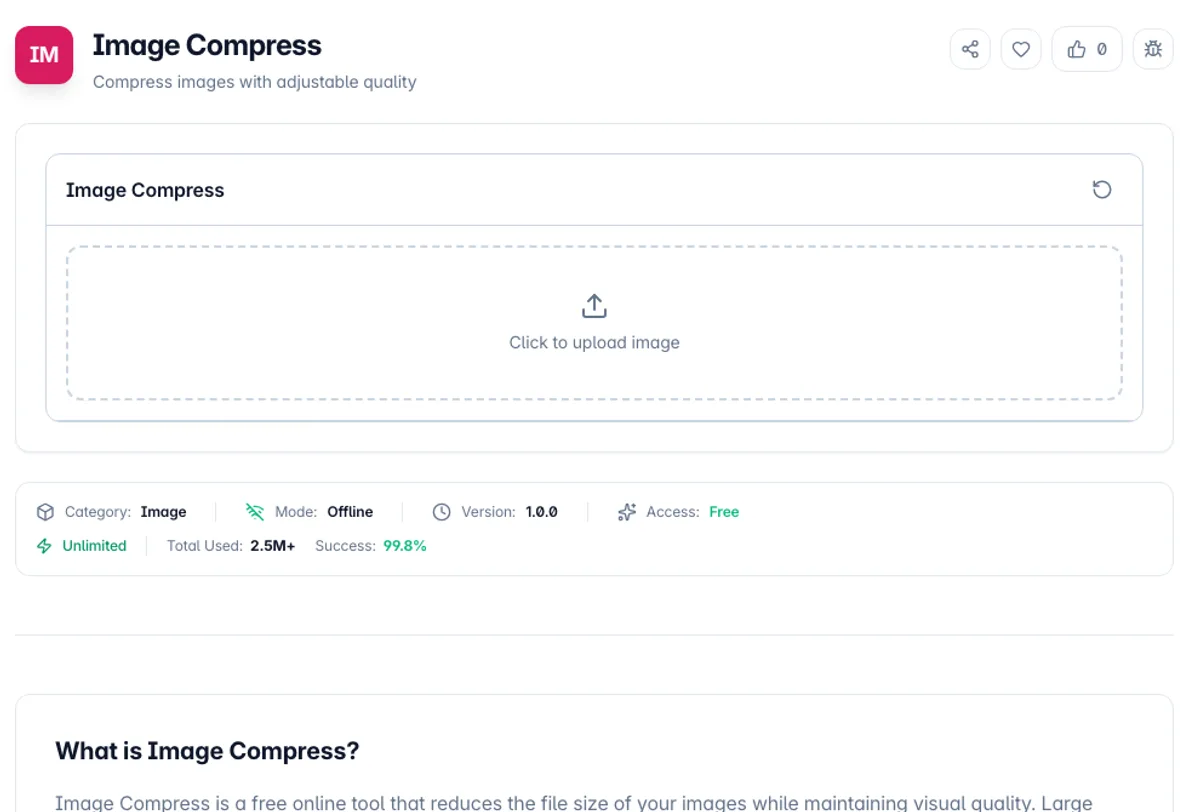
Image Compress is a free online tool that reduces the file size of your images while maintaining visual quality. Large image files slow down websites, consume storage space, and take longer to share. This tool optimizes your images to be as small as possible without noticeable quality degradation.
The tool provides adjustable compression levels so you can find the perfect balance between file size and image quality for your needs. It supports popular formats including PNG, JPG, and WebP, each with format-specific optimization techniques that maximize compression effectiveness.
All image compression happens locally in your browser, meaning your photos and images are never uploaded to any server. This makes it the ideal choice for compressing sensitive images, personal photos, or any files you want to keep private. The compressed image is available for instant download.
A common reason to compress an image is a size cap: a photo for a PowerPoint or Word file, or an upload form that asks you to compress the image to 2MB. Choose JPEG, leave Quality at 80, click Preview Size and read Compressed size and Reduction. If the file is still too big, resize it before compressing, since a 4000 x 3000 photo cut to 2000 x 1500 keeps only a quarter of its pixels. Then insert the downloaded file into the slide or document as usual. The tool does not open .pptx or .docx files.
The quality slider only means something for lossy formats. JPEG and WebP discard detail to save space, so quality 80 is a real trade and the artefacts it introduces are permanent: re-compressing an already compressed JPEG degrades it again, which is why editing a photo repeatedly at moderate quality ends up visibly mottled. PNG is lossless, so its size comes from the content rather than from a quality setting, and photographs stored as PNG stay large no matter what. If a PNG is not shrinking, converting it to WebP will usually do far more than compressing it further. Compression runs through the browser canvas, so metadata including EXIF and GPS is dropped in the process, and very large images are bounded by the memory available to the tab.
How to use Image Compress?
Upload your image
Drag and drop an image or click to select one from your device. The tool accepts PNG, JPG, WebP, and other common image formats.
Adjust compression level
Use the quality slider to set your desired compression level. Lower quality means smaller file size, while higher quality preserves more detail.
Preview the size
Click Preview Size to see the compressed size and the percentage reduction next to the original size, then move the slider and preview again until the file is small enough.
Download the compressed image
Click Download Compressed to save the compressed image to your device. The file is ready to use on websites, in emails, or for storage.
Key Features
Before and After Sizes
The original and compressed file sizes are shown together with the percentage reduction, which is the only honest way to pick a quality setting
Adjustable Quality
Fine-tune the compression level with a quality slider to balance file size and visual quality
Smart Compression
Re-encodes with the browser's own JPEG, PNG or WebP encoder, so the quality slider shrinks JPEG and WebP output while PNG stays lossless
File Size Comparison
See the original and compressed file sizes side by side to evaluate compression effectiveness
Frequently Asked Questions
Related Tools
EXIF Remover & Metadata Viewer
See the GPS location, camera and timestamps hidden in a photo, then strip them without re-encoding a single pixel.
Image Format Converter
Convert between PNG, JPEG, and WebP formats
Image Dither
Turn photos into halftone, Bayer and 1-bit dithered posters
Image Resize
Resize images while maintaining aspect ratio
Comments
0 comments
No comments yet. Be the first to share your thoughts!