What is Image Resize?
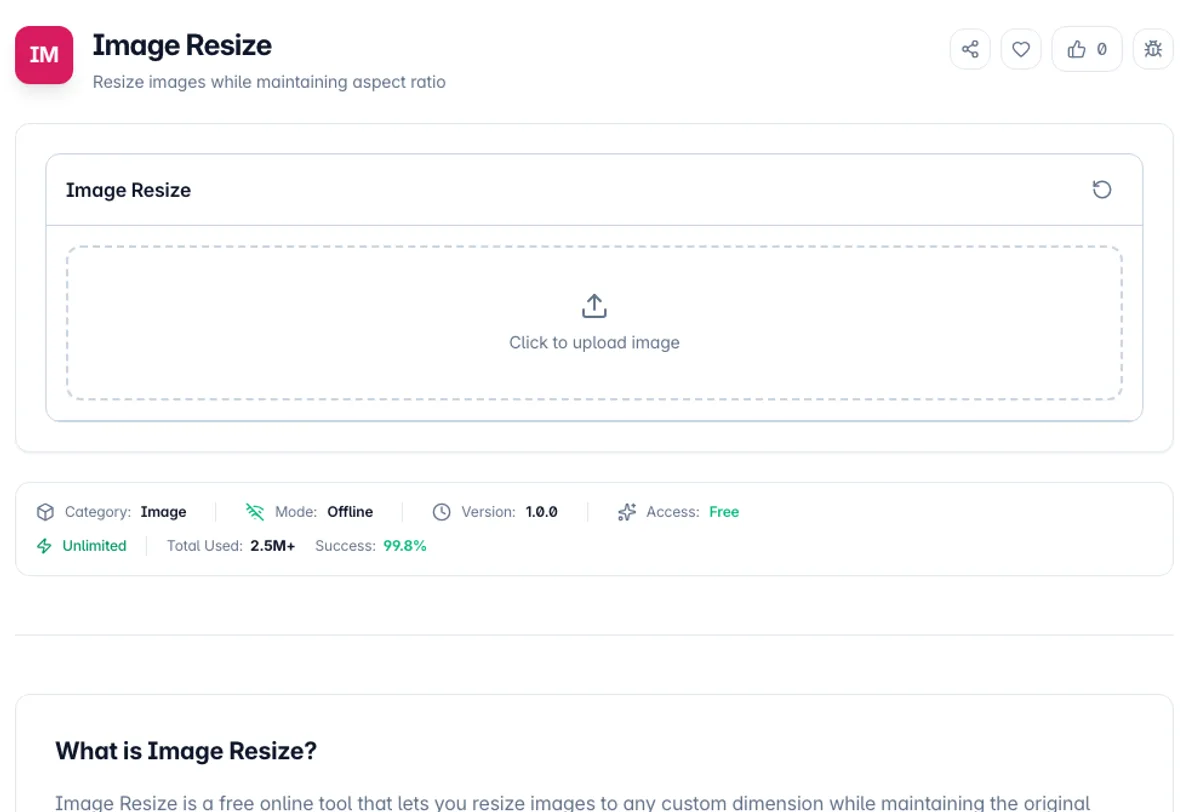
Image Resize is a free online tool that lets you resize images to any custom dimension while maintaining the original aspect ratio. Whether you need to resize photos for social media, prepare images for a website, or scale down large images for email, this tool handles it quickly and efficiently.
The tool opens PNG, JPG, WebP and any other image format your browser can display. You type the exact width and height in pixels, and the aspect ratio lock, which is on by default, keeps your images from being stretched or distorted. The download is always a PNG file, whatever format you started with.
Unlike cloud-based image editors, this tool processes images entirely in your browser. Your photos are never uploaded to any server, making it the safest option for resizing personal photos, confidential documents, or any images you want to keep private. The resized image can be downloaded instantly.
A worked example shows how to resize an image for Instagram. Load a 4000 × 3000 photo called photo.jpg. With Aspect ratio locked, type 1080 in Width (px) and Height (px) changes to 810 by itself. Click Download Resized and you get resized_photo.png at 1080 × 810 pixels, which keeps the 4:3 shape and the 1080-pixel width Instagram uses for feed images. For a 1080 × 1350 portrait or a 1080 × 1080 square, crop the photo to that shape first, because unlocking the ratio and typing both numbers stretches the picture instead of cropping it.
Resizing is done by the browser's canvas with its default smoothing, so reducing an image looks good and enlarging one does not: no tool can restore detail that was never captured, and upscaling produces a softer version of the same information. Two side effects of going through a canvas are worth knowing. Metadata does not survive, so EXIF, GPS coordinates and colour profile are dropped, which is good for privacy. And the output is re-encoded as PNG rather than copied, so a JPEG photo can come out as a larger file even at smaller dimensions.
How to use Image Resize?
Upload your image
Drag and drop an image or click to browse and select one from your device. The tool shows its file size, its current width and height, and a preview.
Set the dimensions
Enter the width or height in pixels. With Aspect ratio locked, the other field updates to match; click the button to switch to Aspect ratio unlocked if you want to set both freely.
Check the numbers
The preview shows the original image, so check the Width (px) and Height (px) fields for the size you will get before downloading.
Download the resized image
Click Download Resized to save the image. The file is a PNG named resized_ plus the original name, with the extension changed to .png.
Key Features
Starts at the Original Size
Both fields are prefilled with the image current dimensions, so you edit the number you care about instead of looking it up first
Aspect Ratio Lock
On by default: change the width and the height follows, or the other way round, so the image is never stretched by accident
Exact Pixel Dimensions
Type the exact width and height in pixels you need, larger or smaller than the original
Opens Common Formats
Reads PNG, JPG, WebP and other formats your browser supports, and saves the result as PNG
Frequently Asked Questions
Related Tools
Background Remover
Remove solid color backgrounds from images
EXIF Remover & Metadata Viewer
See the GPS location, camera and timestamps hidden in a photo, then strip them without re-encoding a single pixel.
Image Compress
Compress images with adjustable quality
Image Dither
Turn photos into halftone, Bayer and 1-bit dithered posters
Comments
0 comments
No comments yet. Be the first to share your thoughts!