What is Organize PDF?
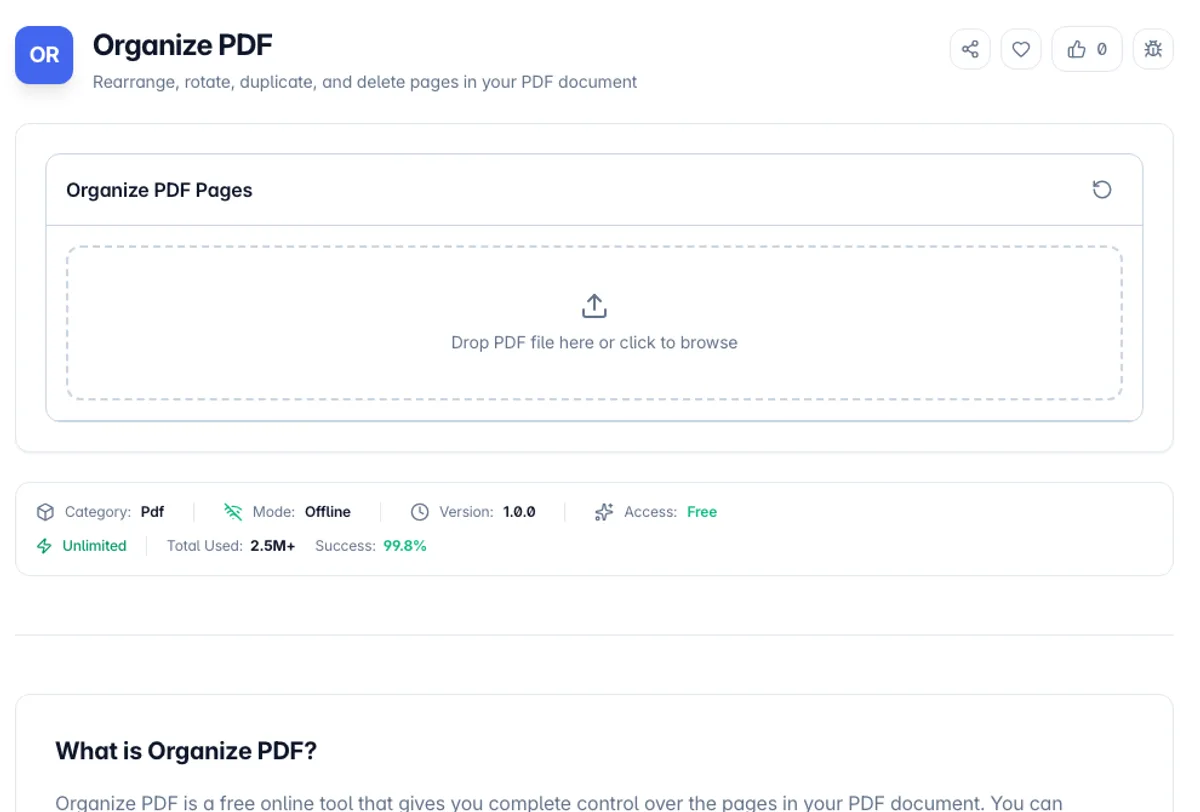
Organize PDF is a free online tool that gives you complete control over the pages in your PDF document. You can rearrange pages by dragging and dropping, rotate individual pages, duplicate pages, and delete unwanted pages, all from a grid of numbered page tiles.
The tool shows every page of your PDF as a tile. The large number is the page's original position and the small badge underneath is where it now sits, so you can always tell what has moved. The tiles are not rendered previews of the page content, so keep the PDF open in a viewer if you need to see which page is which. Drag tiles to reorder them, or click tiles to select them and use the Delete, Duplicate, Rotate 90° and Rotate -90° buttons.
Here is how you organize PDF pages in a typical fix. Say a scanned 6-page contract has page 3 sideways and the signature page last. Click tile 3, press Rotate 90°, and the tile shows 90°. Click tile 3 again to deselect it, then drag tile 6 to the second position. Press Download Organized PDF and you get organized_contract.pdf with pages in the order 1, 6, 2, 3, 4, 5. You can organize PDF pages free, with no signup and no page count cap from the tool.
All page manipulation happens entirely in your browser, so your PDF files are never uploaded to any server. This is the safest way to reorganize sensitive documents. Once you are satisfied with the new page arrangement, download the reorganized PDF with a single click.
Every edit here is recorded against the page order and applied when you download, so nothing is written until you commit. That makes experimenting cheap: until you download, the tiles are only a plan for the new page order. Rotation is stored as a viewer instruction rather than re-drawn pixels, so a rotated page loses no sharpness and can be rotated back later without loss. What does not survive is the document outline. Bookmarks and internal links that pointed at specific page numbers are dropped, which matters most for long reports where the contents page was doing real work. Duplicating a page duplicates its content, not a reference to it, so a file with several copies of a heavy scanned page grows accordingly.
How to use Organize PDF?
Upload your PDF
Drag and drop a PDF file or click to browse and select one. The tool shows a numbered tile for every page in your document.
Rearrange pages
Drag and drop page thumbnails to reorder them. Move pages to any position in the document to create your desired arrangement.
Edit pages
Click tiles to select them, then press Rotate 90° or Rotate -90°, Duplicate, or Delete. Select All selects every page at once.
Download the organized PDF
Click Download Organized PDF to save the reorganized file. All your changes are applied and pages keep their original quality.
Key Features
Every Page Edit in One Pass
Reorder, rotate, duplicate and delete before saving once, rather than running four single-purpose tools and saving the file between each
Numbered Page Tiles
Each tile shows the page's original number and its new position, so you can see every move before you download
Multiple Edit Options
Rearrange, rotate, duplicate, and delete pages from a single interface for complete control
Drag-and-Drop Interface
Simply drag page thumbnails to reorder them. No complicated menus or settings required
Frequently Asked Questions
Related Tools
Delete PDF Pages
Remove specific pages from your PDF document
Merge PDF
Combine multiple PDF files into a single document with drag-and-drop reordering
Remove Blank Pages
Find and delete blank pages from a PDF by analysing what each page draws, then download the cleaned file.
Split PDF
Split a PDF file into multiple documents by page ranges
Comments
0 comments
No comments yet. Be the first to share your thoughts!